
Collecting customer feedback or survey answers with Everest Forms, and want respondents to decide for themselves whether they join your mailing list?
People who fill in a feedback survey are often happy to help without wanting your newsletter. FuseWP respects that by watching a checkbox on your Everest form: entries where it’s ticked are synced to your email marketing software or CRM, and entries where it isn’t are left out. Every response still lands in Everest Forms as normal.
In this guide, you’ll link an Everest Forms checkbox to FuseWP’s Opt-in Consent field, see which Everest field types work for this, and learn how to bring the respondent’s IP address into your CRM if you need it.
Using the Opt-in Consent mapping is free. If this is your first Everest Forms rule, read how to sync Everest Forms with your email marketing software. For the full opt-in feature, see Getting Started with the Opt-in Checkbox.
Adding the Checkbox to Your Survey
Because Everest Forms already has checkbox fields, FuseWP doesn’t add its own. Open your survey in the Everest Forms builder and drag in a Checkboxes field near the end, after the questions and before the submit button. Give it one choice, for example “Keep me posted about product updates and survey results”.
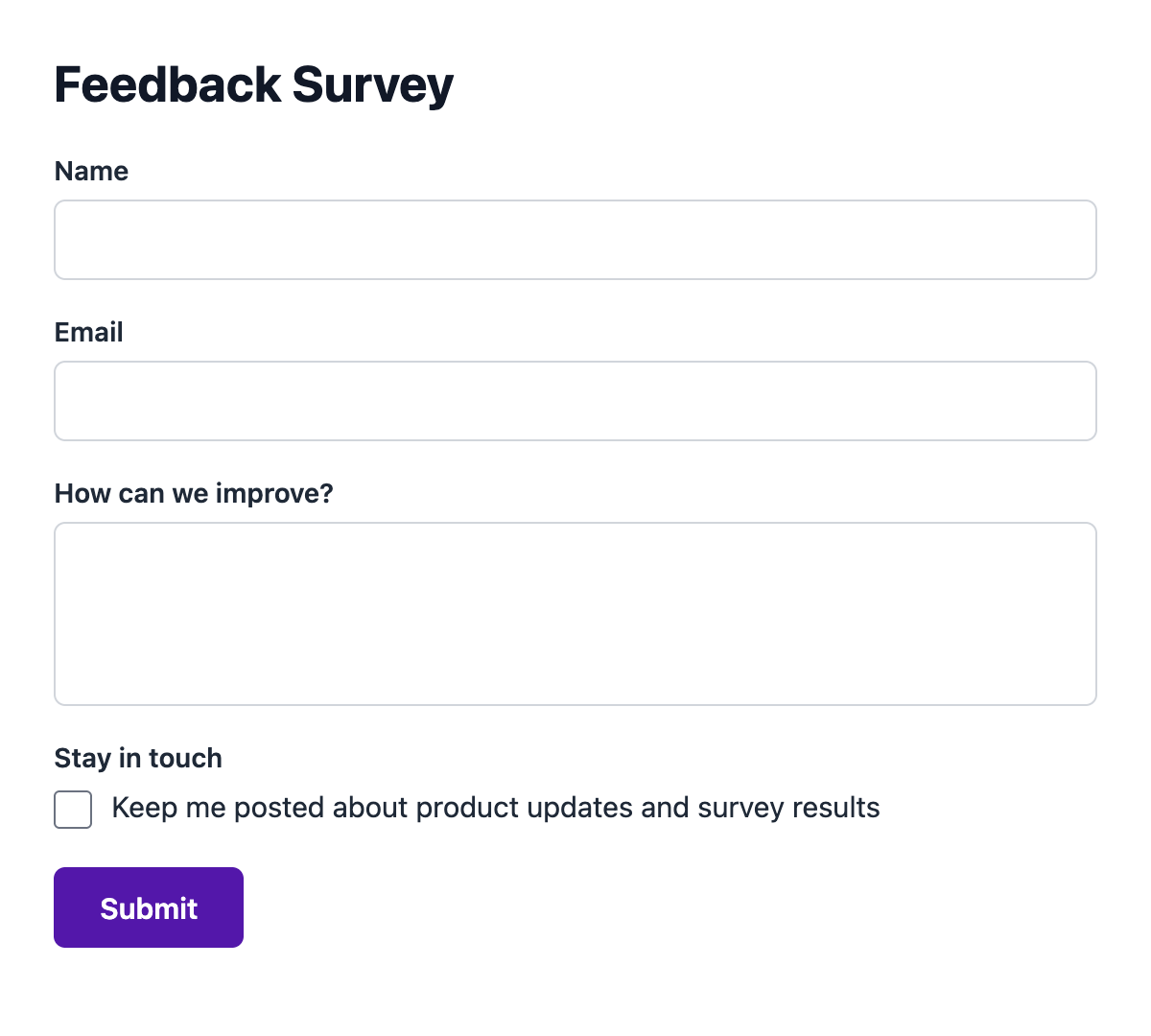
Ending the survey with the checkbox works well: respondents answer your questions first, then make a clear, separate choice about email.
Field Types FuseWP Can Read From Everest Forms
The sync rule’s field list offers the Everest field types FuseWP reads, including checkboxes, yes/no, radio buttons, dropdowns, text, email, name, number, date, phone, rating and hidden fields. If a field on your form doesn’t show up in the list, FuseWP can’t read that field type, so use a Checkboxes field for consent.
FuseWP reads the raw value Everest Forms stores for each field. For a checkbox, that’s the choice the respondent ticked, or nothing if they left it.
Mapping the Checkbox to Opt-in Consent
Head to FuseWP >> User Sync. Open the rule for your survey form or create one, selecting the form as the Source.
- In Destinations, pick After Form Submission as the event, then your integration and list.
- Map Lead Email Address to the survey’s email field. Without an email, FuseWP has nobody to sync.
- Click Map Another Field under Map Custom Fields. Select the consent checkbox in the Data column, then Opt-in Consent in the right-hand column, where it follows Lead Email Address.
- Save the rule.
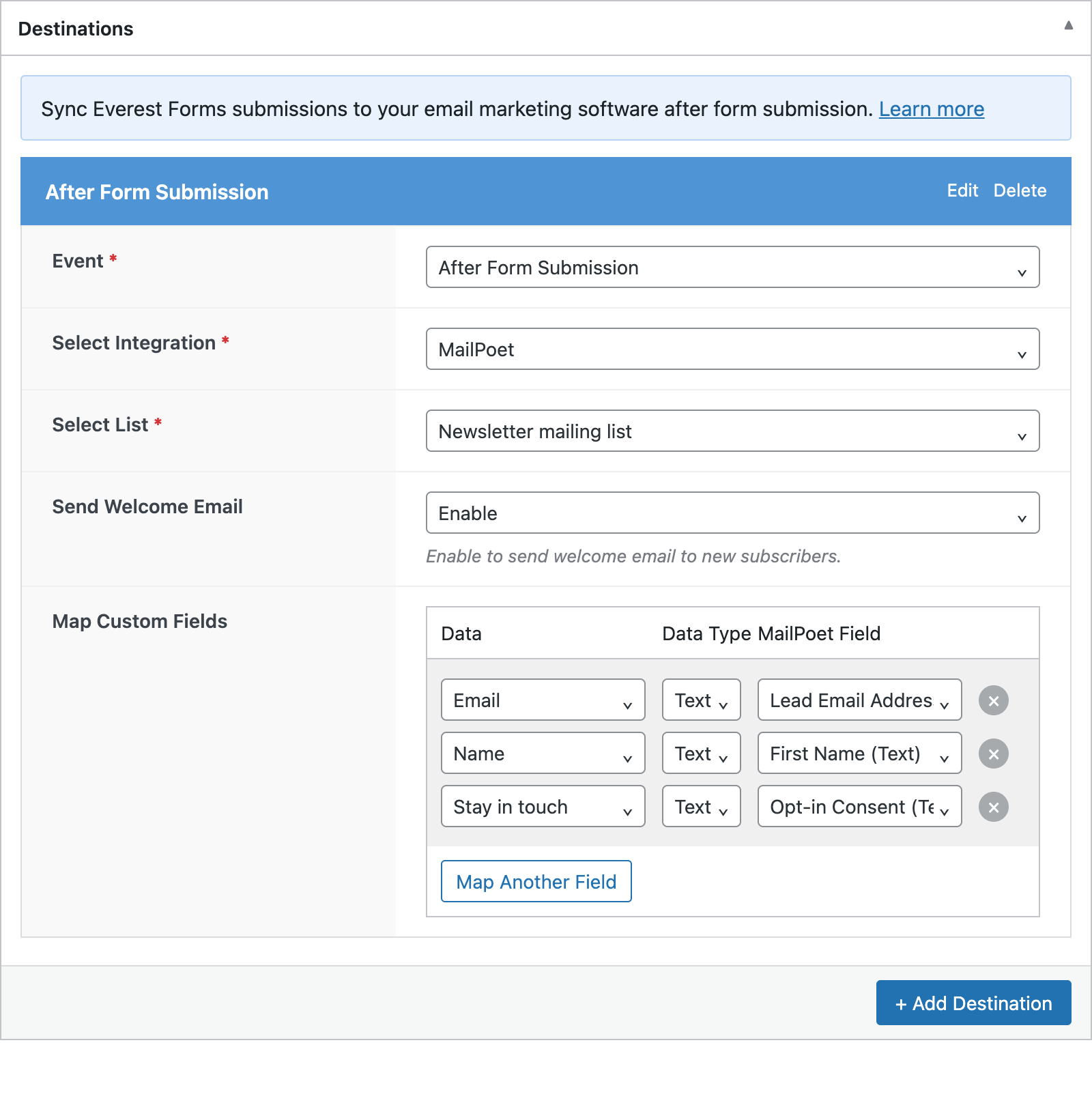
FuseWP keeps the Opt-in Consent mapping to itself. Your email software never receives an “Opt-in Consent” field.
Yes/No Fields: Mind the Wording
A yes/no question can look like a natural fit for “Would you like our newsletter?”, but check its answer text first. FuseWP treats these values as not ticked: empty, 0, n, no, false and off. Every other value counts as consent.
So a plain “No” answer is read correctly, but if you’ve reworded the answers to “Not right now” or “Maybe later”, those would be treated as a yes. A checkbox avoids the problem entirely. If you must keep custom answers, a developer can use the fusewp_optin_form_consent_is_given filter to decide which values mean consent.
Sending the IP Address to Your CRM
When a respondent ticks the box, FuseWP saves a consent record with their email address, the form plugin they opted in through and the date. Because form entries are processed in the background, that record doesn’t include an IP address.
If your CRM needs one, Everest Forms gives you User IP Address and User Device in the sync rule’s field list, along with Form ID, Entry ID and Entry Created Date. Map User IP Address to a custom field in your CRM, and it’s sent with each opted-in contact.
The consent record also counts outside this form. A respondent who opted in here is treated as opted in by your other FuseWP integrations that require consent, such as a WooCommerce checkout.
Optional: Make Consent Mandatory for All Everest Forms Rules
To cover every Everest form at once, go to FuseWP >> Settings >> General and find the Opt-in Checkbox section. In Require Opt-in Consent For, choose Everest Forms under Forms: map a form field to “Opt-in Consent”, then click Save Changes.
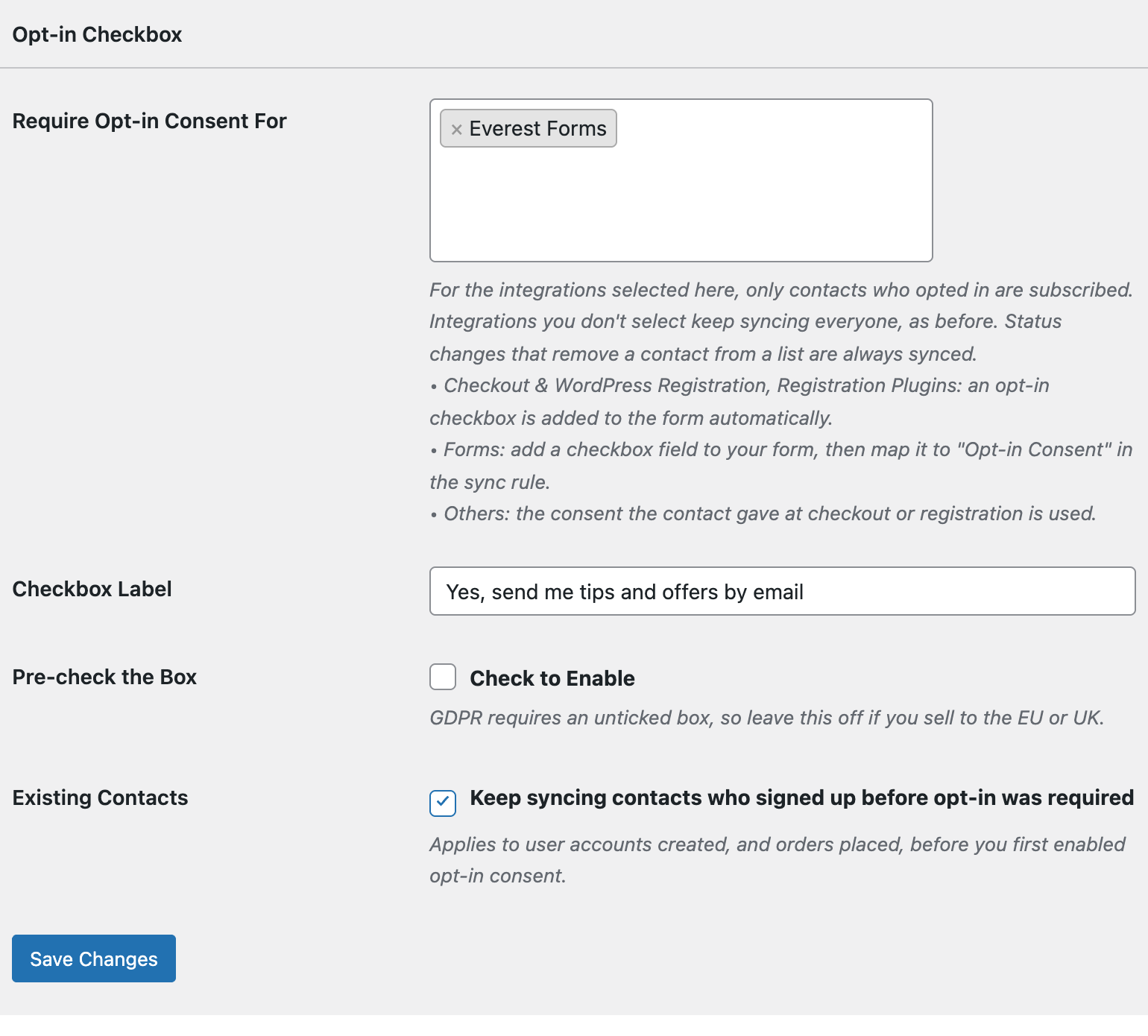
Rules with the mapping carry on as before. A rule without it, say an old contact form you forgot about, will then only sync people who already opted in somewhere else on your site.
Past Survey Responses
If you bulk sync earlier entries, the same check runs. Responses collected before the checkbox existed have no value in it, so they’re skipped by the mapped destination.
Conclusion
A consent checkbox at the end of your Everest Forms survey keeps feedback and marketing separate: you still get every answer, and only respondents who chose to hear from you join your list. For details on consent records and privacy tools, read Existing Contacts, Privacy & FAQ.