
Do you want FuseWP to only add people to your email list or CRM after they agree to receive your emails?
By default, FuseWP adds every customer, member, student, or form lead from your WordPress website to your email marketing software or CRM as soon as your sync rules match. The Opt-in Checkbox changes that for the integrations you choose: those contacts are only subscribed if they tick a box saying they want your emails.
Use it when you:
- sell to customers in the EU or UK and need consent before marketing to them;
- want a cleaner list of people who actually asked to hear from you;
- want WooCommerce buyers to opt in, but still sync every LMS student or membership signup as before.
In this article, you will learn how the opt-in checkbox works, how to turn it on, what each setting does, and which integrations it supports.
To get started, download the FuseWP plugin, install it, and activate it on your WordPress site. After that, connect your email marketing software.
How the Opt-in Checkbox Works
- The checkbox appears on your checkout or registration form. For form plugins such as Contact Form 7 and WPForms, you add your own checkbox to the form instead.
- FuseWP records the consent when the box is ticked: the email address, where it was ticked, the IP address, and the time.
- Your sync rules run as usual, with one check. Before FuseWP subscribes a contact from an integration that requires consent, it checks that the contact opted in. If they didn’t, the contact is not added to your list.
Consent belongs to the person, not the purchase. Someone who ticked the box at WooCommerce checkout has opted in, so their later course enrollment or membership signup also syncs.
Contacts who don’t tick the box can still buy, register, and enroll exactly as before. Only the sync to your email list is held back.
Turning On the Opt-in Checkbox
Go to FuseWP >> Settings and stay on the General tab. Scroll down to the Opt-in Checkbox section.
In Require Opt-in Consent For, pick the integrations that should only sync contacts who opted in. Optionally change the Checkbox Label, then click Save Changes.
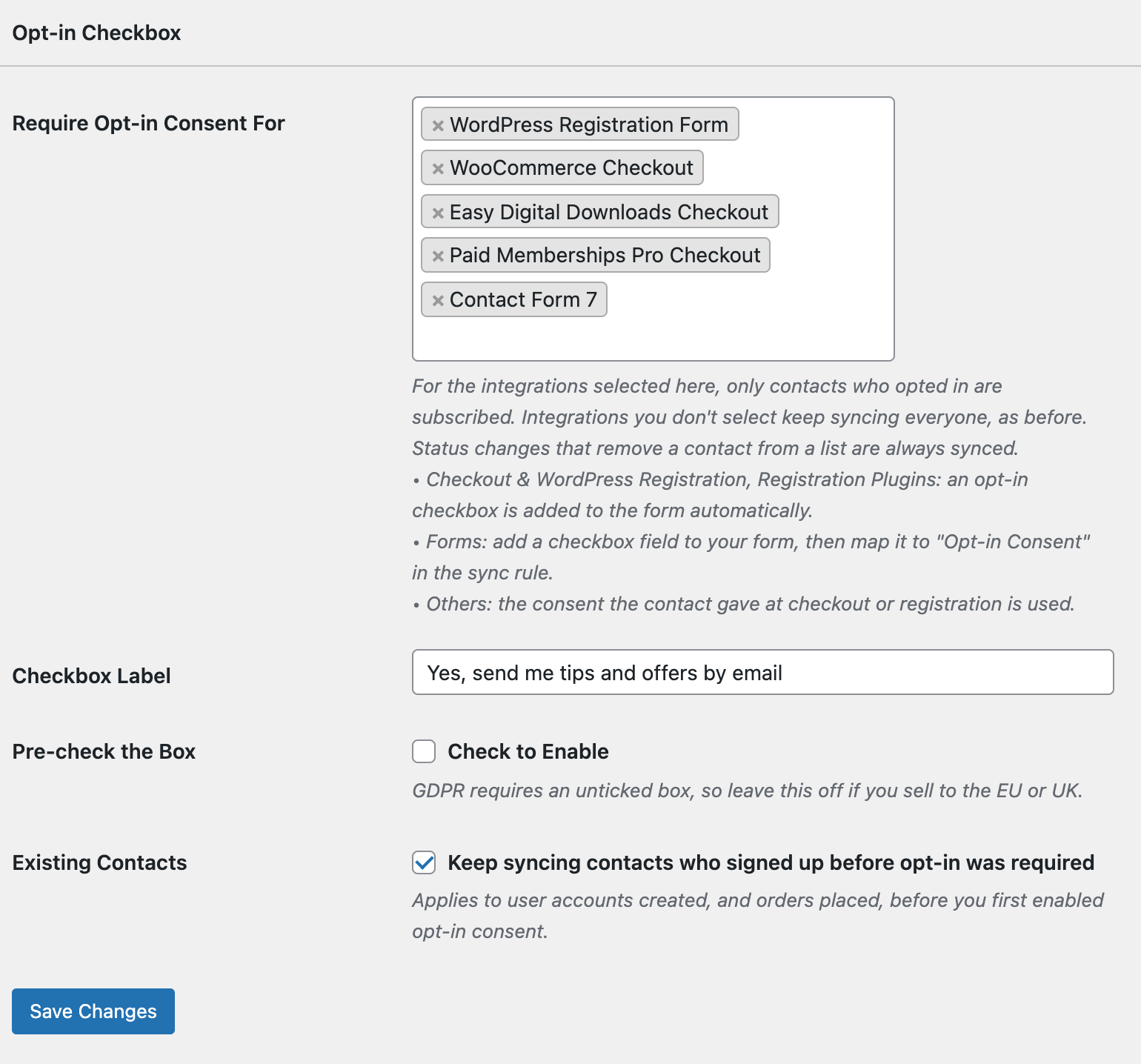
That’s it. The checkbox now appears on the checkout and registration forms you selected, and syncs from those integrations wait for consent.
The Settings
Require Opt-in Consent For
These integrations require consent. Only plugins active on your site are listed, grouped by how consent is collected.
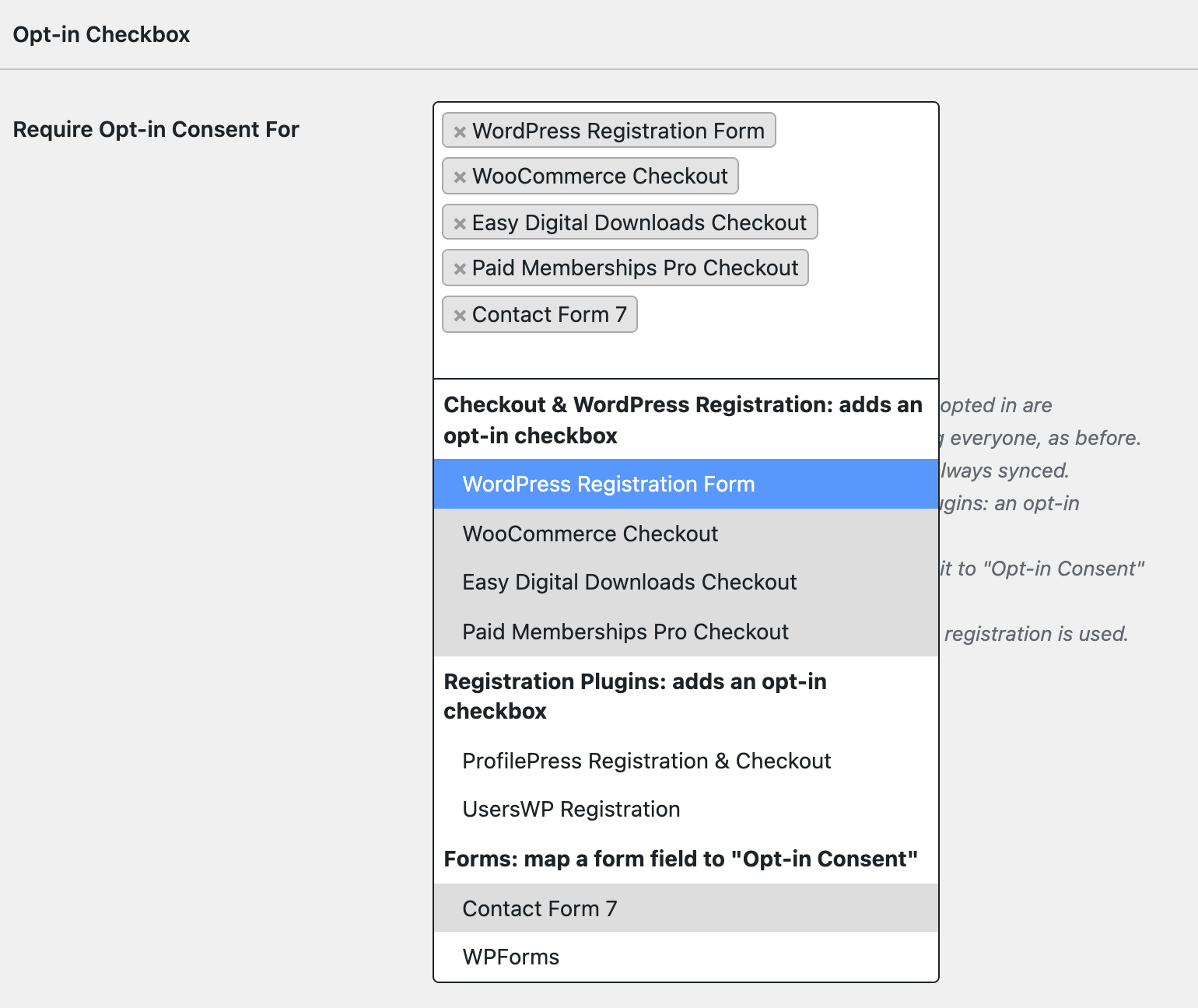
Checkout & WordPress Registration: FuseWP adds the checkbox to the form for you.
Registration Plugins: FuseWP adds the checkbox to the sign-up forms of ProfilePress, UsersWP and other registration plugins. A Setup button lets you pick which forms and set their own label. Each plugin has its own guide, linked under Supported Integrations below.
Forms: you add a checkbox to your form and tell FuseWP which field it is. Each form plugin has its own guide, linked under Supported Integrations below.
Others: plugins without a signup form of their own, such as LMS course enrollments. Their contacts sync only if they opted in somewhere else on your site. See how consent given elsewhere works.
Integrations you leave out keep syncing everyone, exactly as before. So you can require consent for WooCommerce only and leave everything else unchanged.
Checkbox Label
The text shown next to the checkbox, for example, “Yes, send me tips and offers by email”. If you leave it empty, FuseWP uses “Subscribe to our newsletter”. You can also use it to translate or reword the checkbox.
Pre-check the Box
Shows the checkbox already ticked. Leave this off if you sell to the EU or UK: GDPR requires people to tick the box themselves.
Existing Contacts
“Keep syncing contacts who signed up before opt-in was required” is on by default. Customers and users who joined before you turned the feature on keep syncing as they always have, so renewals and profile updates for your existing list are not interrupted. See Existing Contacts, Privacy & FAQ.
Supported Integrations
Checkout & WordPress Registration
- WordPress Registration Form: the WordPress sign-up page, and sign-up forms that use it. Read the guide.
- WooCommerce Checkout: classic checkout and block checkout. Read the guide.
- Easy Digital Downloads Checkout. Read the guide.
- Paid Memberships Pro Checkout. Read the guide.
- MemberPress Checkout. Read the guide.
- GiveWP Donation Forms. Read the guide.
- WP Travel Engine Checkout. Read the guide.
Registration Plugins
- ProfilePress (registration forms and checkout)
- Paid Member Subscriptions
- UsersWP
- User Registration (WPEverest)
- Profile Builder
- Simple Membership
- Ultimate Member
- wpForo
- LifterLMS (registration and checkout)
- Tutor LMS (student and instructor registration, checkout)
- Academy LMS (student and instructor registration)
Forms
- Contact Form 7
- Everest Forms
- Fluent Forms
- Formidable Forms
- Forminator
- Gravity Forms
- Ninja Forms
- SureForms
- WPForms
- WS Form
Others
- LMS: LearnDash, Sensei LMS, MasterStudy LMS, FluentCommunity
- Membership: Restrict Content Pro
- Affiliates: AffiliateWP, SliceWP
- Payments: Gravity Forms Subscription Payments, WPForms Subscription Payments
What Changes, and What Doesn’t
New subscribers from the integrations you selected need consent. This applies to live syncing and to bulk sync.
These stay the same:
- Integrations you didn’t select.
- Removing contacts from a list when a status changes, for example, a canceled subscription or a refund.
- Contacts already in your email software. Nobody is removed.
Conclusion
The FuseWP Opt-in Checkbox lets you build an email list of people from your WordPress site who actually asked to hear from you, without changing how customers buy, register or enroll on your site. Pick the integrations that need consent, set your label, and FuseWP takes care of the rest.