
Do people request quotes or book consultations through a Fluent Forms form, and you’d like to follow up with them by email marketing only if they agreed to it?
A quote request is a sales conversation. The person expects you to reply with a price, but that doesn’t mean they’ve signed up for your newsletter. With FuseWP and a Fluent Forms checkbox, you can keep the two apart: every request reaches you, and only people who tick the box are added to your email marketing software or CRM.
FuseWP uses the checkbox you add to your form rather than adding its own. You map it to Opt-in Consent in the form’s sync rule, which is free. If your Fluent Forms form isn’t connected yet, follow how to sync Fluent Forms with your email marketing software first.
1. Add the Checkbox to Your Quote Form
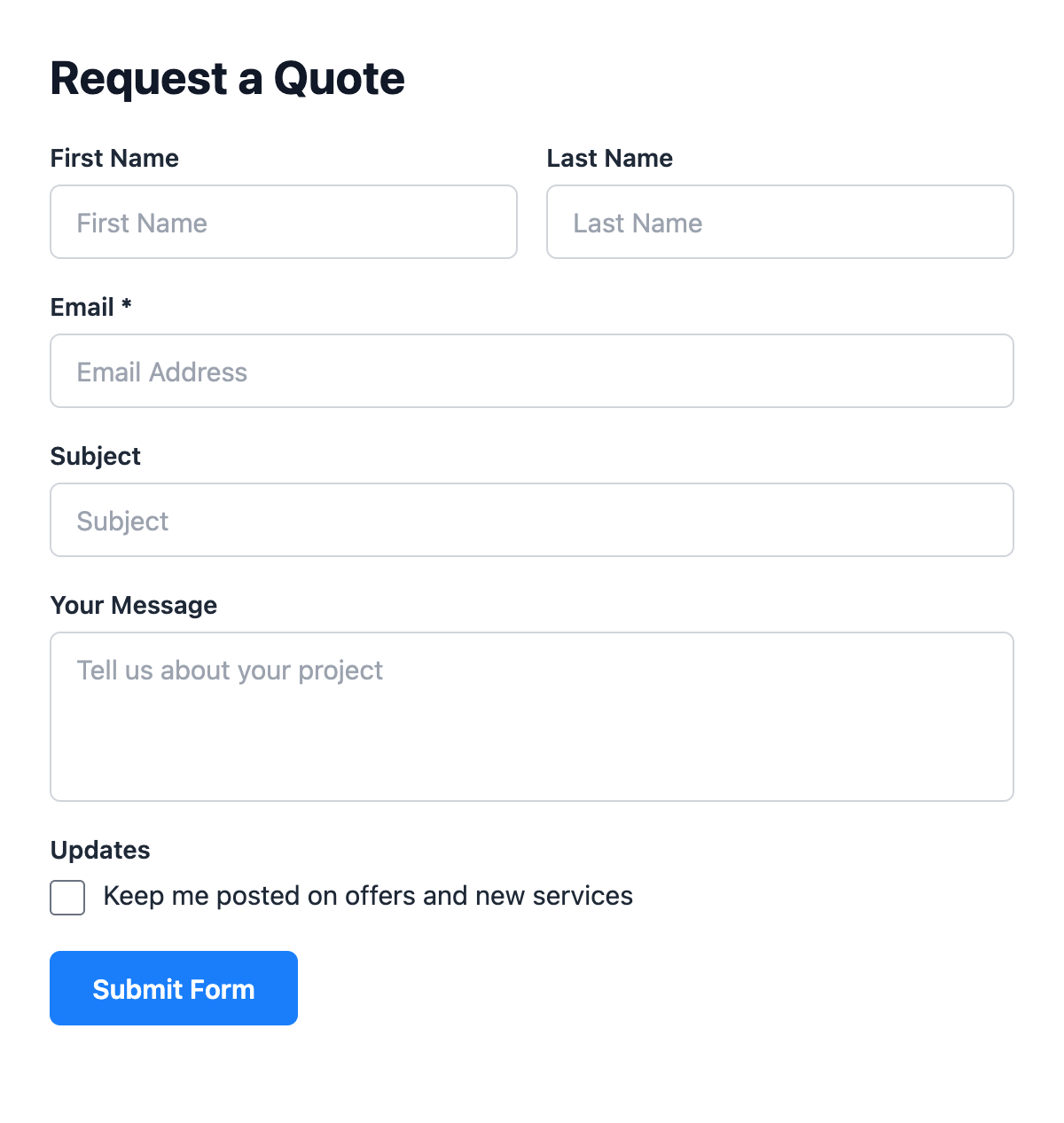
In the Fluent Forms editor, drag a Checkbox field into your quote form, near the submit button. Give it one option, such as “Keep me posted on offers and new services”, and leave it optional.
Place it outside column containers. FuseWP builds its list of fields from the top level of your Fluent Forms form. A checkbox placed inside a multi-column container won’t appear in the list, so you won’t be able to map it. Put it in its own row instead.
Fluent Forms saves a checkbox as a list of the options that were ticked. FuseWP joins those together, so a ticked box comes through as your option text and an unticked box comes through empty.
2. Map the Checkbox to Opt-in Consent
Go to FuseWP >> User Sync and open the sync rule for your quote form, or add a new rule with the form as the Source. Then, in the destination:
- Choose After Form Submission as the event, plus your integration and list.
- In Map Custom Fields, check that your email field is mapped to Lead Email Address.
- Click Map Another Field and pick your checkbox in the Data column. Fluent Forms fields are listed by their label.
- In the right-hand column, choose Opt-in Consent. It’s the option right after Lead Email Address.
- Click Save.
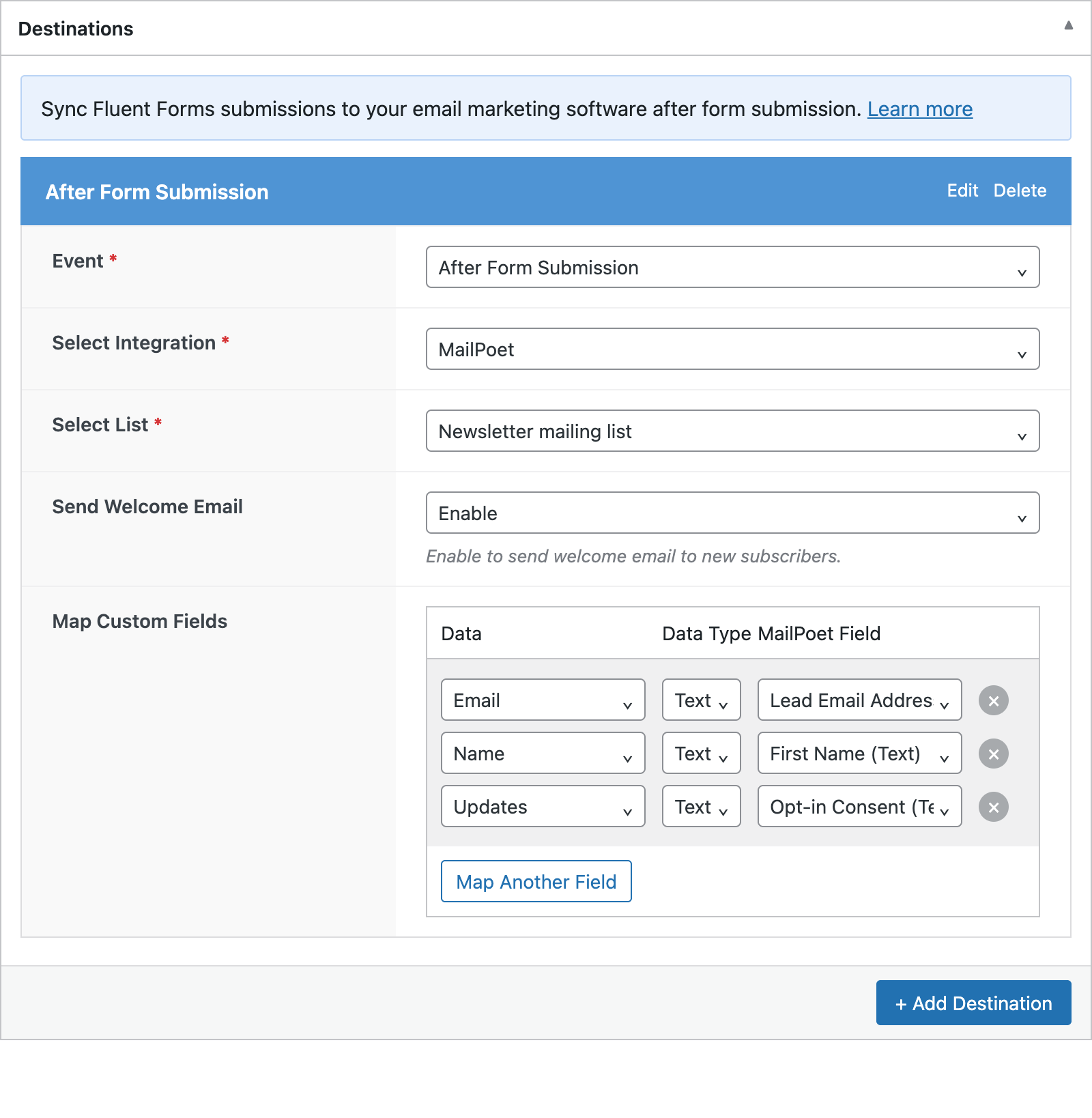
That’s all. When someone sends the form with the box ticked, FuseWP syncs them and saves a consent record. When the box is left unticked, the sync is skipped, but the entry is still saved in Fluent Forms and your notifications are sent as normal. Opt-in Consent is only read by FuseWP; it isn’t created as a field in your email platform.
Example: A Separate Box for Each List
Because the consent check belongs to each destination, you can offer more than one choice on the same form. Say your quote form has two optional checkboxes:
- “Send me your monthly newsletter”
- “Tell me when you have special offers”
Make them two separate Checkbox fields, not two options of the same field. Then add a destination for each list with + Add Destination, and in each one map the matching checkbox to Opt-in Consent. A person who ticks only the first box joins only the newsletter list.
If you put both options in one field instead, ticking either of them counts as consent for any destination that maps that field.
3. Optional: Require Consent for All Fluent Forms Rules
This step isn’t needed for the mapping to work. It’s useful if you have several Fluent Forms rules and want every one of them to require consent.
Go to FuseWP >> Settings >> General and scroll to the Opt-in Checkbox section. In Require Opt-in Consent For, select Fluent Forms from the Forms: map a form field to “Opt-in Consent” group, then click Save Changes.
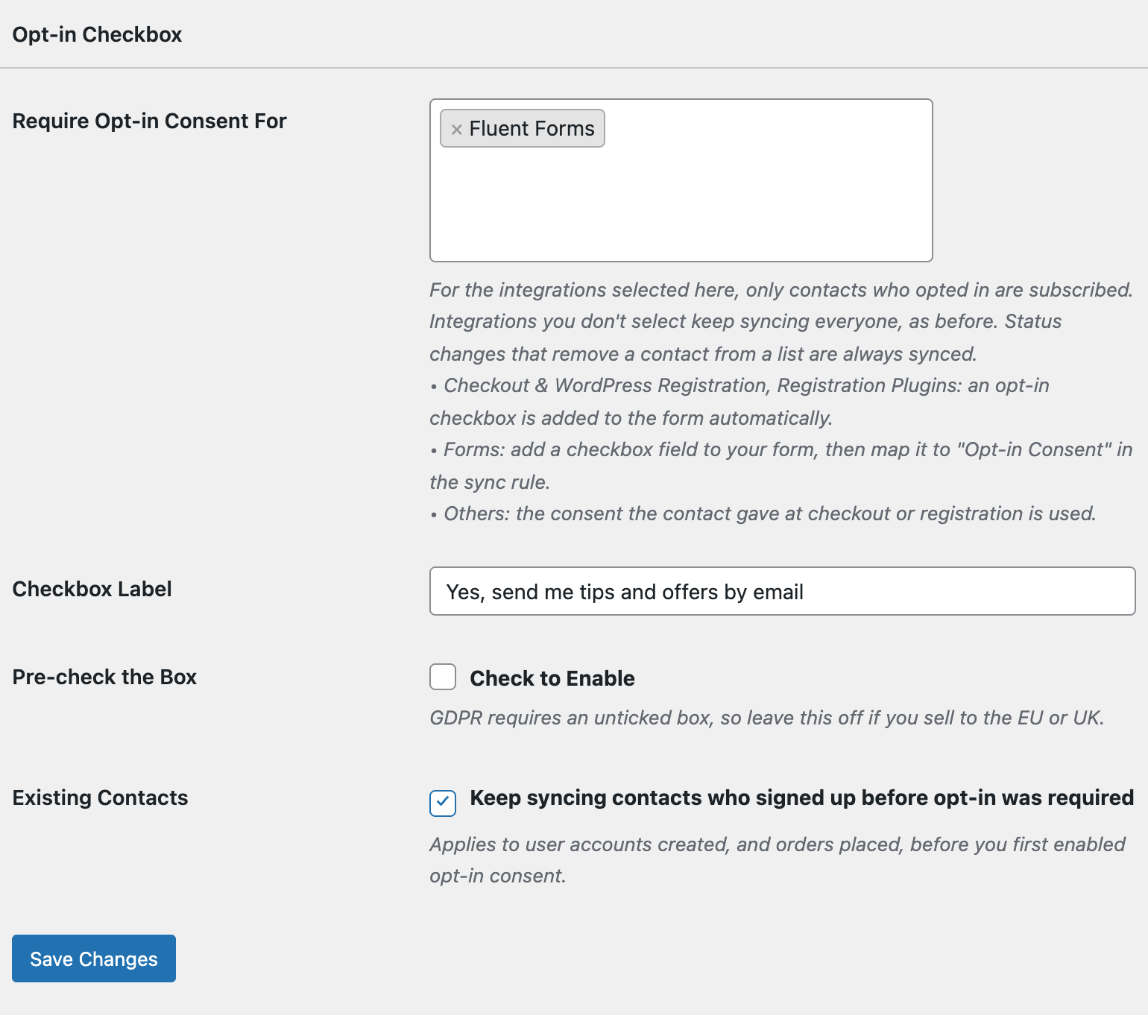
After that, a Fluent Forms rule with no Opt-in Consent mapping only syncs people who have already opted in elsewhere on your site, for example on a WooCommerce checkout or a registration form. Rules with a mapping still go by their checkbox. The Checkbox Label and Pre-check the Box settings don’t affect Fluent Forms, since you control the checkbox in the form editor.
Things Worth Knowing
- Use a checkbox, not a radio button. FuseWP treats empty, 0, n, no, false and off as “not ticked”, and everything else as consent. A radio option like “No, thank you” would count as yes. Developers can change this with the
fusewp_optin_form_consent_is_givenfilter. - Consent applies site-wide. Someone who ticks the box on your quote form is treated as opted in for other integrations that require consent.
- Bulk sync respects the box. When you bulk sync stored Fluent Forms entries, entries without a tick are skipped by rules that map Opt-in Consent.
- What’s recorded. The email address, the form plugin and the date. The IP address isn’t stored for form entries.
Conclusion
With one optional checkbox and a single mapping, your Fluent Forms quote requests keep coming in from everyone, while your marketing list only includes people who said yes. For consent records, privacy exports and the FAQ, see Existing Contacts, Privacy & FAQ.