
Do people request quotes or estimates through a Formidable Forms form on your site, and you want to follow up on every request but only add people to your newsletter when they say yes?
With FuseWP, a checkbox you add to your Formidable form decides who reaches your email list. Requests with the box ticked are synced to your email marketing software or CRM. Requests without it are still saved in Formidable as usual; FuseWP simply leaves them out of the list.
Below, you’ll connect a Formidable checkbox to FuseWP’s Opt-in Consent field and set up a rule that sends every request to your CRM but only opted-in people to your newsletter.
Mapping a form field to Opt-in Consent is free. If you haven’t synced Formidable Forms with FuseWP before, read how to sync Formidable Forms with your email marketing software first. For an overview of the whole feature, see Getting Started with the Opt-in Checkbox.
Step 1: Put a Consent Checkbox on Your Quote Form
FuseWP doesn’t inject anything into Formidable forms; you add the checkbox yourself.
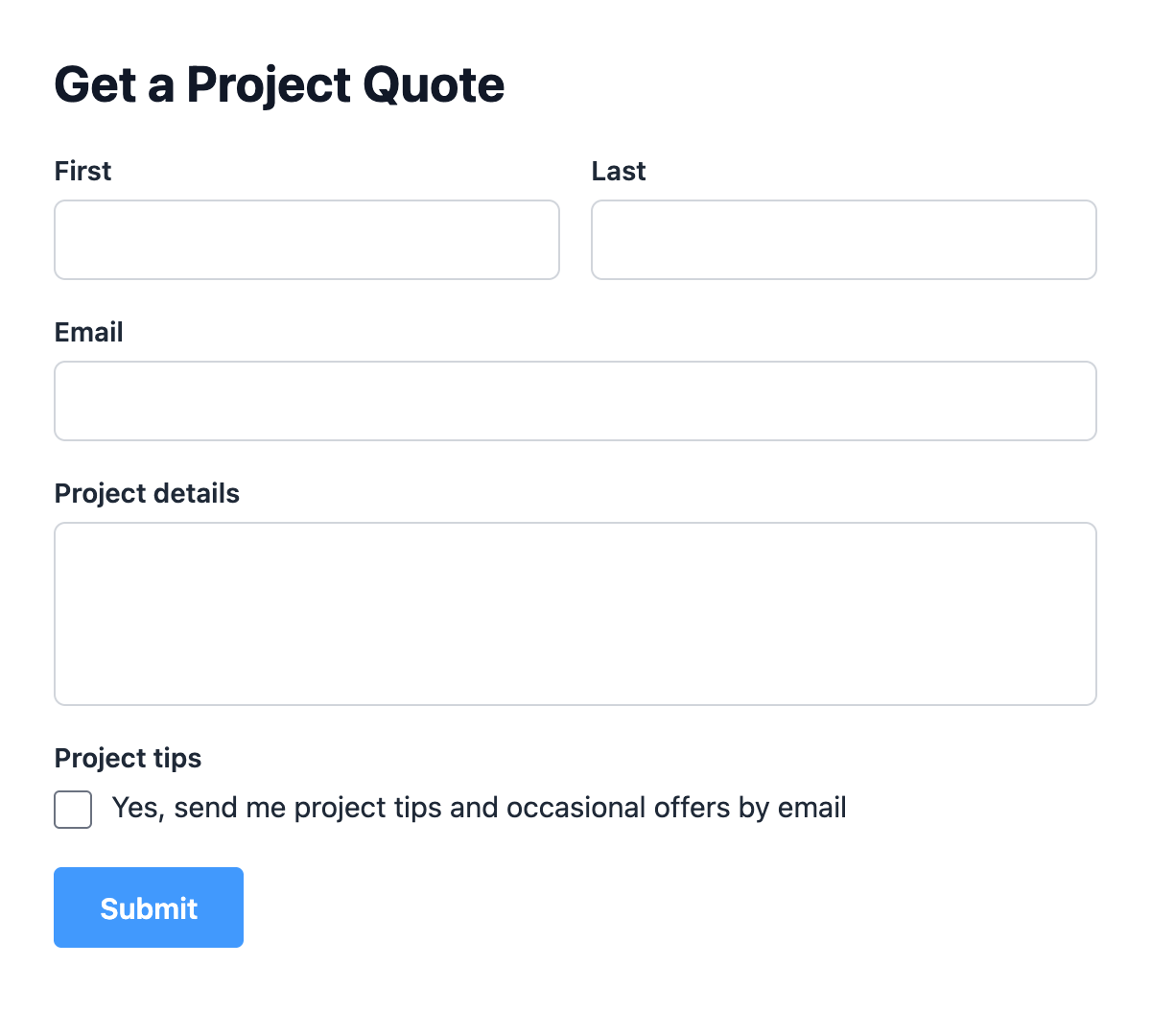
In the Formidable form builder, add a Checkboxes field with a single option, such as “Yes, send me project tips and occasional offers by email”. Leave it unticked by default and save the form.
Keep this checkbox for consent only. If the same field also held options like “Call me” or “Email me a PDF”, ticking any of them would count as a yes.
Step 2: Map the Checkbox in Your Formidable Sync Rule
Go to FuseWP >> User Sync and open the rule for your quote form, or add a new one with the form as its Source. Only published Formidable forms are listed.
- In Destinations, choose the After Form Submission event, your integration and the list people should join.
- Under Map Custom Fields, the Lead Email Address row is already there. Pick your form’s email field for it.
- Add a row with Map Another Field. Your consent checkbox goes on the left (the Data column) and Opt-in Consent on the right. It’s second in that list, just under Lead Email Address.
- Click Save.
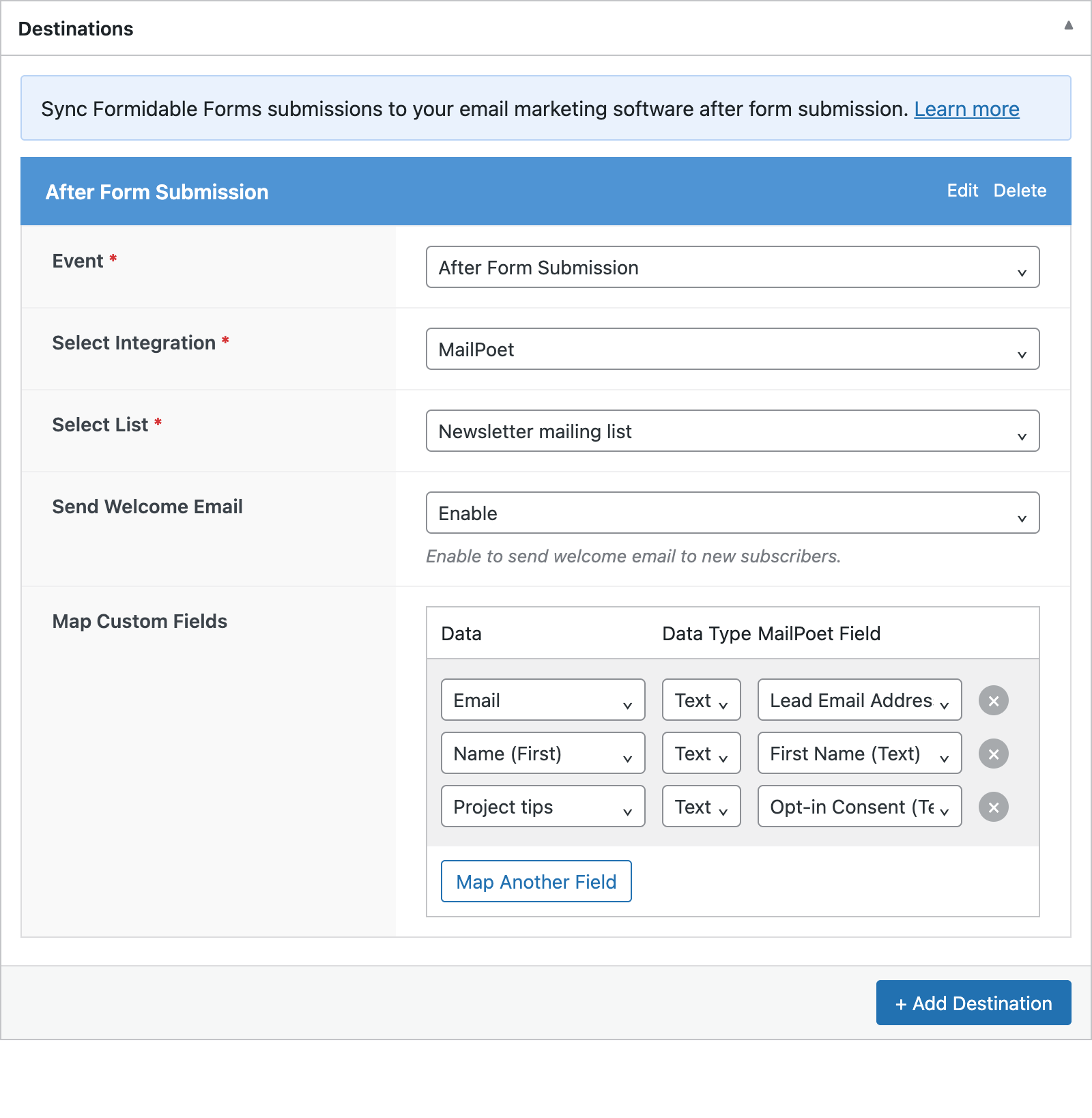
The data list shows your Formidable fields by their labels, plus Entry ID, Form ID, Form Title and Entry Created Date. Layout pieces such as page breaks, dividers, HTML blocks and captchas are left out, so a multi-page quote form gives you the same tidy list as a one-page one. A Formidable Name field appears as separate First, Middle and Last Name entries, which is handy for mapping the rest of the contact.
The Opt-in Consent row is read by FuseWP only. It isn’t created as a field in your email software.
One Rule, Two Destinations: Sales CRM and Newsletter
The consent mapping belongs to the destination you set it on, not the whole rule. That makes a common quote-form setup possible:
- Destination 1: your CRM’s sales pipeline list, with no Opt-in Consent mapping. Every request arrives so your team can reply.
- Destination 2: your newsletter list, with the checkbox mapped to Opt-in Consent. Only people who ticked it are added.
Keep Step 3 below in mind, though: it changes how unmapped destinations behave.
How FuseWP Reads the Formidable Value
FuseWP checks the entry Formidable saves, after it’s created. A ticked checkbox holds the option’s text, which counts as consent. An unticked one is empty, so the entry is skipped for that destination.
These values also count as not ticked: 0, n, no, false and off. Any other text counts as a yes. That’s why a radio button or dropdown with a “No, thanks” choice isn’t a good fit: “No, thanks” isn’t one of those values, so it would be treated as consent. Stick with a checkbox, or ask a developer to adjust the decision with the fusewp_optin_form_consent_is_given filter.
A ticked entry also creates a consent record for that email address, so the person counts as opted in across your site, for example if they later buy through your WooCommerce store. If the requester has a WordPress account, the record is linked to it too.
Step 3 (Optional): Require Consent for Every Formidable Rule
This step is only for sites that want a blanket rule. Under FuseWP >> Settings >> General, the Opt-in Checkbox section has a Require Opt-in Consent For setting; there, select Formidable Forms under the Forms: map a form field to “Opt-in Consent” group. Click Save Changes.
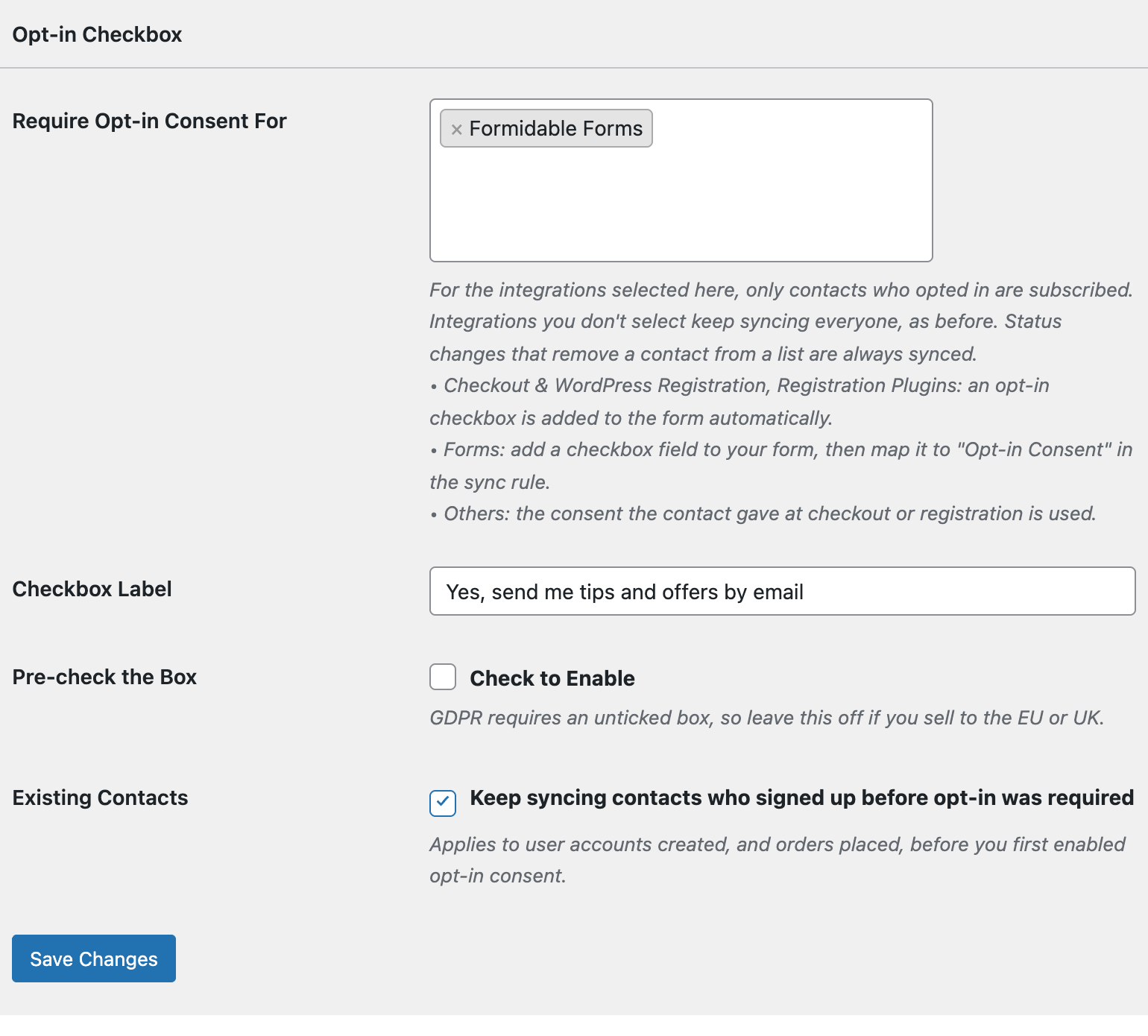
With this on, any Formidable destination without an Opt-in Consent mapping only syncs people who already opted in somewhere else on your site. In the two-destination setup above, that would hold back the sales pipeline destination for new requesters, so leave Formidable unselected if you want every request in your CRM.
Older Quote Requests and Bulk Sync
The consent check also applies when you bulk sync past entries. Entries submitted before you added the checkbox have no value for it, so a mapped destination skips them, even if Existing Contacts is on. Only entries that carry a tick are synced.
Conclusion
A single Formidable checkbox mapped to Opt-in Consent lets you keep every quote request flowing to your team while your newsletter only grows with people who asked to hear from you. For how consent records are stored, exported and erased, see Existing Contacts, Privacy & FAQ.