
Running sign-ups for a workshop, webinar or meetup with Forminator, and want attendees to choose whether they also hear about your future events by email?
FuseWP lets a checkbox on your Forminator registration form act as the gate to your email list. When an attendee ticks it, FuseWP syncs them to your email marketing software or CRM. When they don’t, their registration is still stored in Forminator, and they’re simply not added to the list.
Below you’ll set up the checkbox, connect it to FuseWP’s Opt-in Consent field, and learn a few Forminator details worth knowing, such as how multi-option checkboxes are read and what happens to returning attendees.
The Opt-in Consent mapping is free. New to syncing Forminator? Start with how to sync Forminator with your email marketing software. The broader feature is explained in Getting Started with the Opt-in Checkbox.
Before You Start: Forms Only
In FuseWP, Forminator appears as Forminator Forms, both as a sync rule source and in the opt-in settings. It covers Forminator’s forms. Polls and quizzes aren’t sync sources, so build your event registration as a regular form.
Add an “Event Updates” Checkbox to the Registration Form
FuseWP doesn’t add a box to Forminator for you. In the Forminator form editor, add a Checkbox field below the attendee’s name and email, and give it one option, for example “Tell me about upcoming events and recordings”.
Give the checkbox a clear field label too, such as “Event updates”. That label is how you’ll find it in FuseWP later.
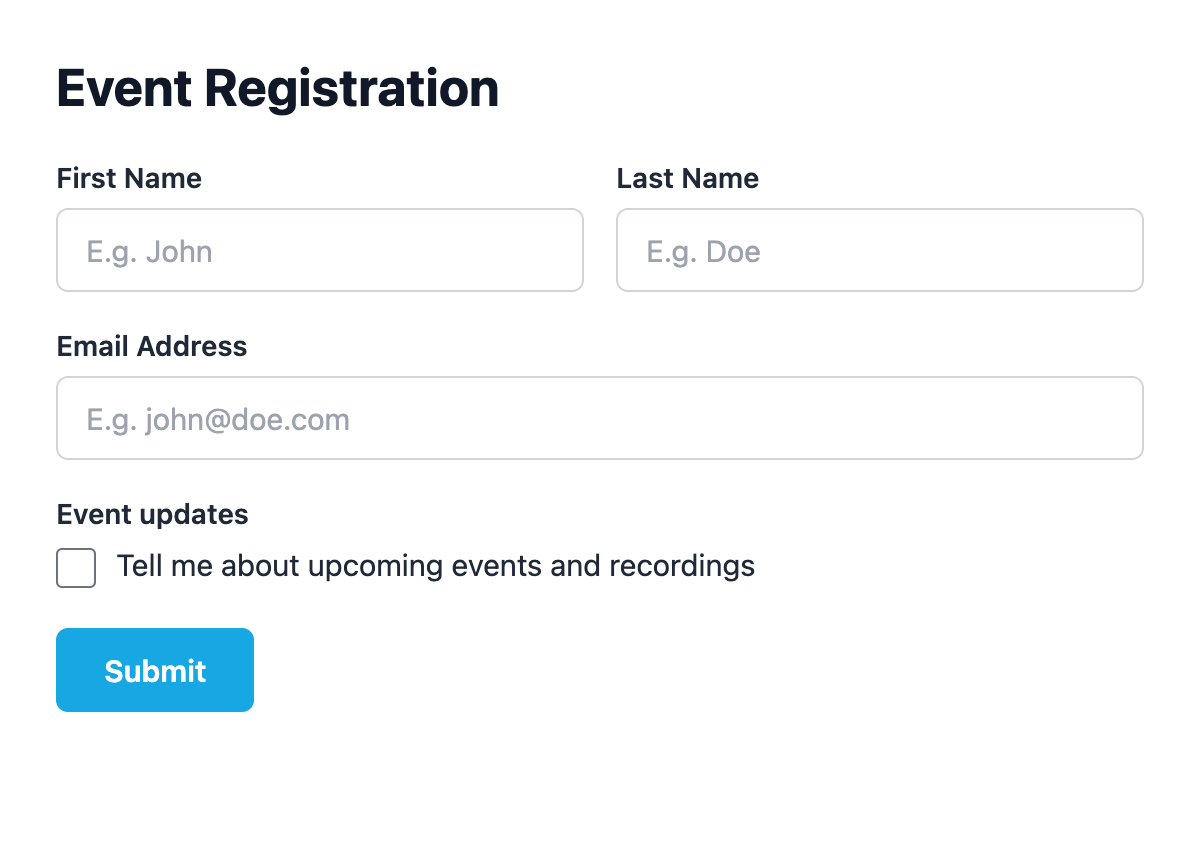
Why one option? Forminator sends every ticked option of a checkbox field together. FuseWP treats the field as consent if any option in it is ticked. If you put “I need wheelchair access” and “Email me about future events” in the same field, an attendee ticking only the first would be added to your list. Keep consent in its own field.
Connect the Checkbox to Opt-in Consent
Open FuseWP >> User Sync and edit the rule for your registration form, or create one and choose the form as the Source.
- Under Destinations, set the Select Event dropdown to After Form Submission, then pick your integration and the list for event updates.
- Make sure Lead Email Address is mapped to the form’s email field.
- Under Map Custom Fields, click Map Another Field. Choose your “Event updates” checkbox in the Data column, and Opt-in Consent in the field column on the right. You’ll find it directly below Lead Email Address.
- Click Save.
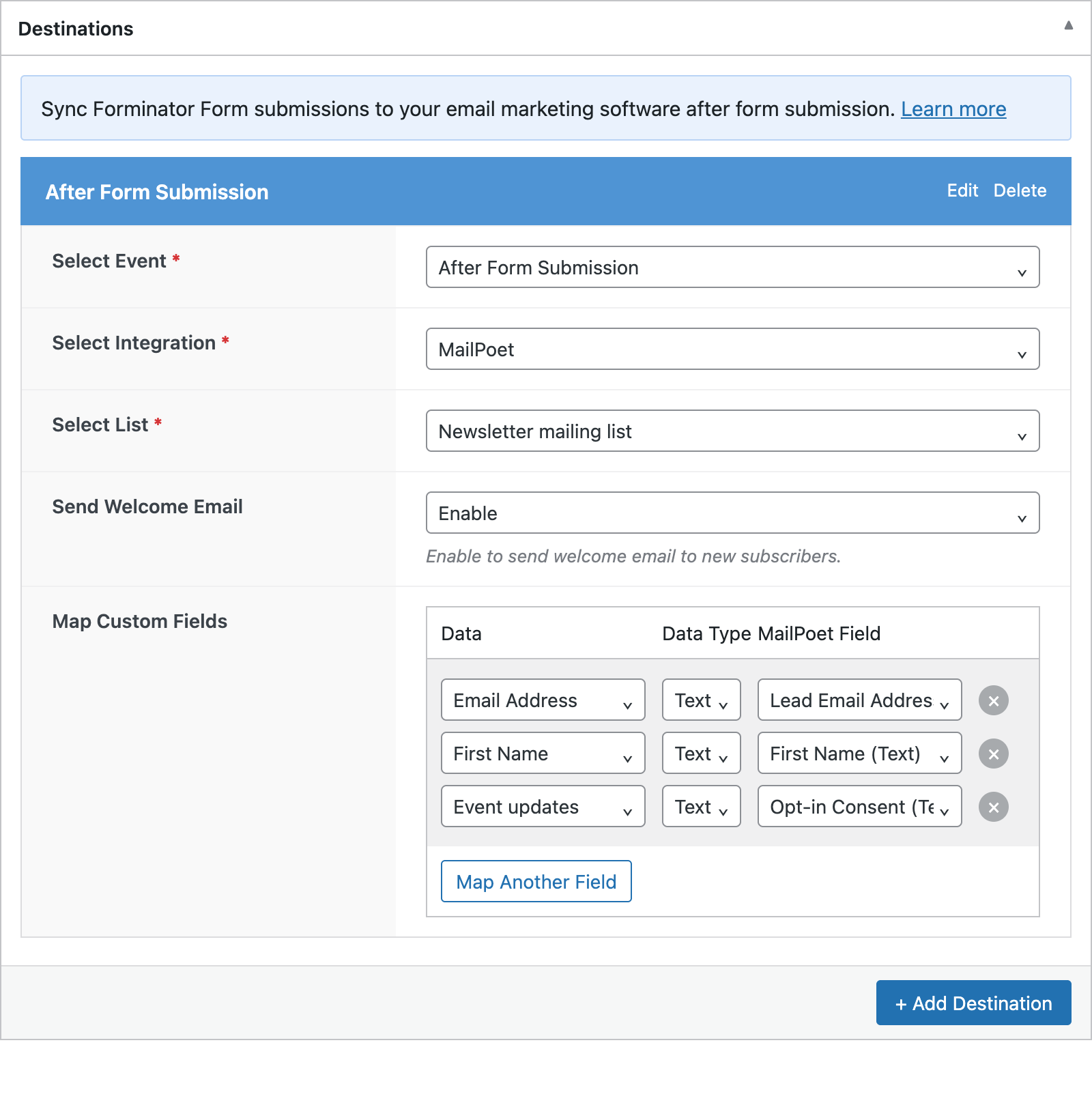
Forminator fields are listed under a Forminator Forms heading using their labels, alongside Form ID and Entry ID. FuseWP uses the Opt-in Consent mapping internally and doesn’t pass it to your email software as a field.
What Gets Synced After Each Registration
Each time the form is submitted, FuseWP looks at the checkbox before syncing:
- Box ticked: the attendee is synced to your list, and FuseWP saves a consent record for their email address.
- Box left empty: the registration is skipped for that destination. Nothing is sent.
- Values that mean “no”: besides an empty field, 0, n, no, false and off are treated as not ticked. Anything else is a yes, which is why a radio button with “No, thanks” would wrongly count as consent. A developer can change this with the
fusewp_optin_form_consent_is_givenfilter.
The consent record works site-wide. If that attendee later registers on your site or buys a ticket through a checkout where FuseWP asks for consent, they’re already counted as opted in.
Returning Attendees Who Leave the Box Unticked
Here’s a detail that surprises some event organisers. When a rule has the Opt-in Consent mapping, the checkbox on that registration decides. Someone who opted in at last month’s event but leaves the box empty this time won’t be synced from this form. They stay on your list from before, since FuseWP never removes contacts because of an unticked box.
Optional: Require Consent on All Forminator Rules
If you run many event forms and want none of them to add people without consent, go to FuseWP >> Settings >> General. In the Opt-in Checkbox section, open Require Opt-in Consent For and select Forminator Forms under Forms: map a form field to “Opt-in Consent”. Click Save Changes.
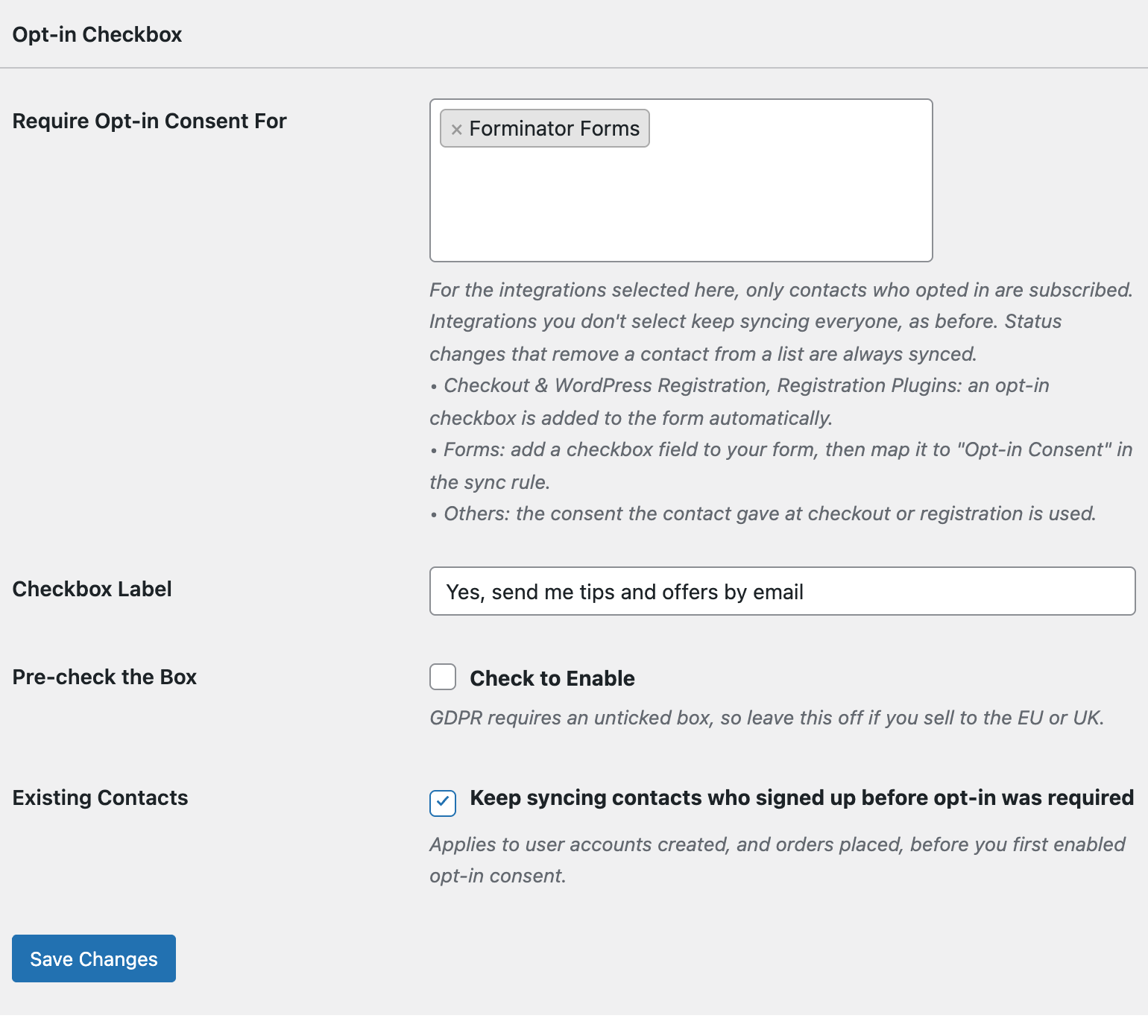
From then on, a Forminator rule that has no Opt-in Consent mapping only syncs attendees who already opted in elsewhere on your site. Rules with the mapping keep following their checkbox. This setting is useful as a safety net when other team members build forms.
Good to Know
- Consent records for form entries don’t include an IP address, because FuseWP processes the entry in the background rather than in the visitor’s browser session.
- Turning on double opt-in in your email software adds a confirmation email on top of the checkbox, proving the address belongs to the attendee.
Conclusion
With a dedicated checkbox mapped to Opt-in Consent, your Forminator registration forms collect attendees for the event while your email list only grows with people who want to hear about the next one. Read Existing Contacts, Privacy & FAQ to learn how FuseWP stores and erases consent.