
Collecting donations with GiveWP and want to keep your supporter newsletter for donors who actually asked to receive it?
Many nonprofits want every donor’s gift, but not every donor wants to be on the mailing list. FuseWP can add an opt-in checkbox to your GiveWP donation forms. Donors who tick it are synced to your email marketing software or CRM; donors who don’t still complete their donation as normal.
This guide explains how to turn on the checkbox, what donors see in the visual builder and legacy forms, how recurring donations are handled, and when a donor counts as opted in.
Adding the Subscribe Checkbox to GiveWP Donation Forms
To add a subscribe checkbox or optin checkbox to a GiveWP donation form, follow the steps below.
- Go to FuseWP >> Settings >> General and scroll to the Opt-in Checkbox section.
- In Require Opt-in Consent For, under Checkout & WordPress Registration: adds an opt-in checkbox, select GiveWP Donation Forms.
- Enter a Checkbox Label that speaks to supporters, such as “Keep me updated on how my gift is making a difference”.
- Click Save Changes.
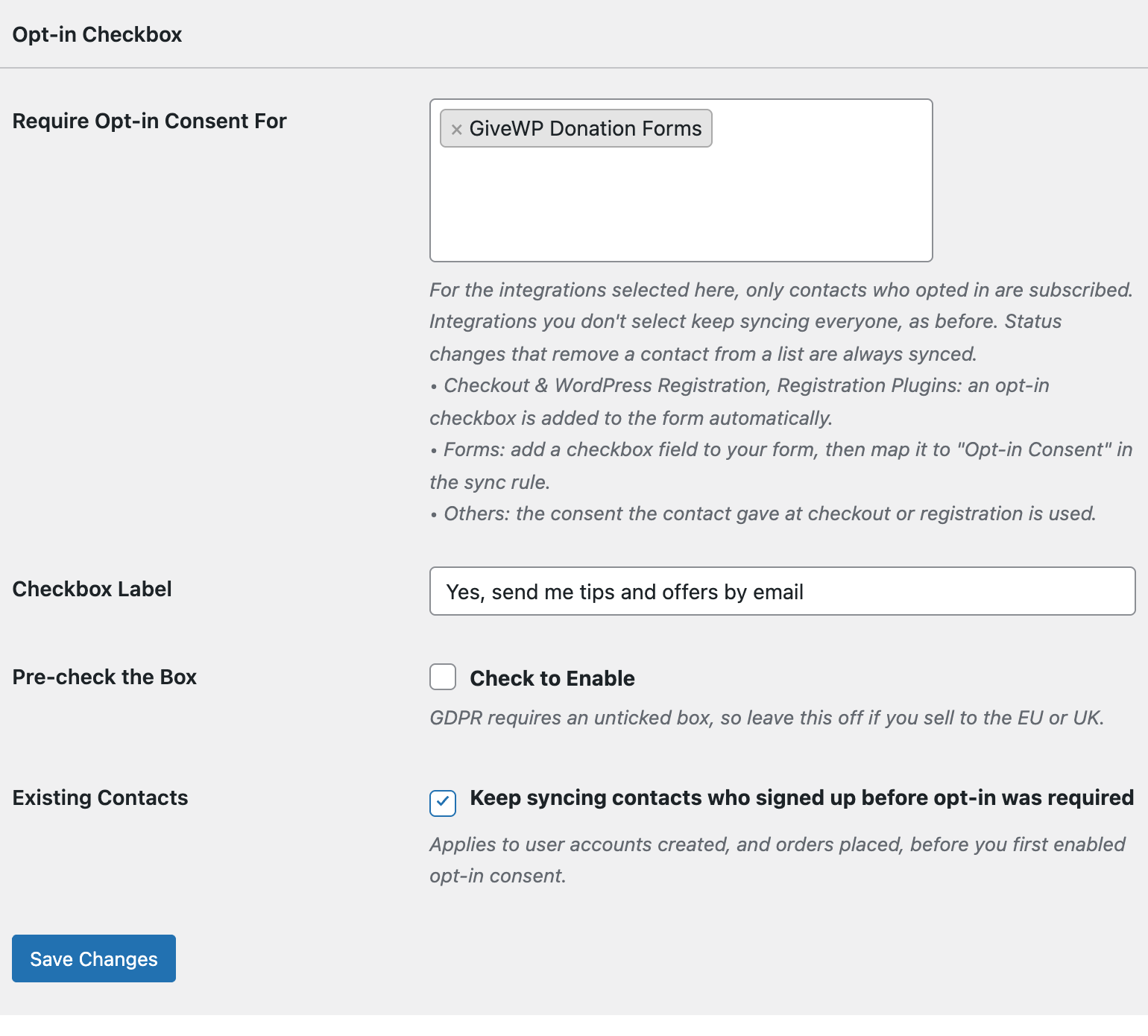
The checkbox is added to every GiveWP donation form on your WordPress site. There’s no form to pick and nothing to change inside GiveWP.
What Donors See
The checkbox appears just above the Donate button on both kinds of GiveWP forms.
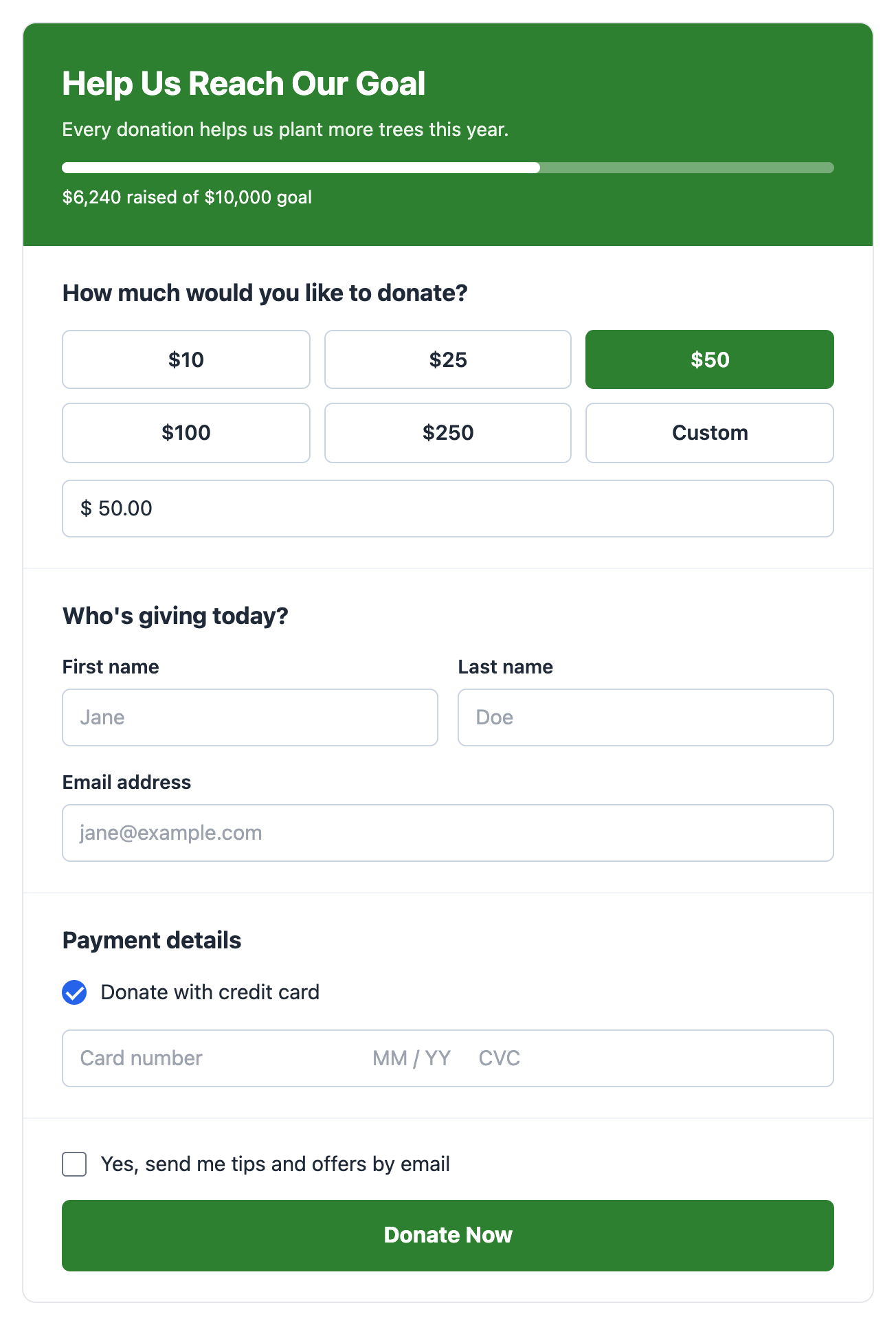
- Visual form builder forms. FuseWP adds the checkbox as a field at the end of the form. You won’t see it in the form builder, and it won’t show in the donation details or on the donor’s receipt.
- Legacy forms. The checkbox sits below the donation total, above the Donate button. These forms redraw their payment section when a donor picks a different payment method, and that redraw can clear the tick. Test your form, and if needed, ask donors to tick the box after choosing how to pay.
A logged-in donor who has already opted in doesn’t see the box again.
When a Donor Counts as Opted In
FuseWP keeps the tick on the donation itself first:
- That donation’s own sync rules run straight away when the box was ticked, so the donor is added to your list without waiting.
- The donor counts as opted in across your whole site once the donation is complete. From then on, other FuseWP syncs for them, such as a later course enrollment, go ahead too.
- A donation that is never completed doesn’t record consent for anyone. That stops someone from starting a donation with another person’s email address to sign them up, even if GiveWP creates a user account for that email along the way.
Recurring Donations
A recurring donation takes the tick from its first donation, so a monthly donor who opted in once keeps syncing as their subscription renews or changes status.
One timing detail: GiveWP creates the subscription a moment before its first donation exists. FuseWP skips the subscription’s very first sync for that reason, and it syncs on its next status change, which usually happens straight away when the first payment goes through.
Example: A Year-End Appeal
You run a year-end appeal on a visual builder form and have a GiveWP Donation Forms rule that adds donors to an “Appeal Supporters” list. A donor who gives $50 and ticks the box is added as soon as the donation is made, and counts as opted in once it completes. A donor who gives $50 without ticking is thanked, receipted and recorded in GiveWP, but not added to the list.
Earlier Donors and Data Requests
With Existing Contacts on, donations made before you first required opt-in keep syncing, including during a bulk sync of past donors. Rules that remove donors from a list, for example when a recurring donation is canceled, always run.
If a donor asks you to erase their data through Tools >> Erase Personal Data, FuseWP deletes their consent record and removes the tick from their GiveWP donations, so a later sync won’t add them back. More on this in Existing Contacts, Privacy & FAQ.
Conclusion
Turning on GiveWP Donation Forms adds a consent box above the Donate button on every donation form, so your supporter list grows only with donors who asked to hear from you. Gifts keep coming in from everyone, monthly donors keep their first answer, and consent is confirmed once the donation completes.