
Do your students enroll in LearnDash courses, or your affiliates join through AffiliateWP, without ever filling in a form where you could ask for email consent?
Many plugins FuseWP syncs from don’t have a signup form of their own. A LearnDash student is usually enrolled after buying a course in WooCommerce. An AffiliateWP affiliate often starts as a WordPress user. There is nowhere for FuseWP to put an opt-in checkbox at the moment of enrollment, so these integrations work differently: they use the consent the person already gave somewhere else on your site.
This article explains that model, which plugins it applies to, and how to set it up so your course, community and affiliate lists only include people who opted in. These integrations are part of FuseWP Pro.
Plugins That Use Consent Given Elsewhere
In Require Opt-in Consent For, these are listed under Others: uses the consent given at checkout or registration. Only the ones active on your site appear.
- LMS: LearnDash (Courses and Groups), Sensei LMS (Courses and Groups), MasterStudy LMS and FluentCommunity (Courses and Spaces).
- Membership: Restrict Content Pro.
- Affiliates: AffiliateWP and SliceWP.
- Payments: Gravity Forms Subscription Payments and WPForms Subscription Payments.
Some LMS and donation plugins do have a form FuseWP can add a checkbox to, so they aren’t in this group. See LifterLMS, Tutor LMS, Academy LMS and GiveWP for those.
How “Consent Elsewhere” Works
FuseWP stores consent against the person: their email address and, if they have one, their WordPress account. It doesn’t matter where they opted in. When a sync rule for one of the plugins above wants to add someone to a list, FuseWP checks whether that person has a consent record. If they do, the sync goes ahead. If they don’t, they’re skipped.
Consent can come from any opt-in point on your site, including:
- the WooCommerce, Easy Digital Downloads, MemberPress or Paid Memberships Pro checkout checkbox;
- the WordPress registration form or a registration plugin’s sign-up form;
- a paid GiveWP donation or WP Travel Engine booking with the box ticked;
- a form whose FuseWP sync rule maps a field to “Opt-in Consent”.
Example: LearnDash Courses Sold Through WooCommerce
You sell LearnDash courses as WooCommerce products and have a FuseWP rule that adds students of each course to a matching list. To make that list opt-in only:
- Go to FuseWP >> Settings >> General and scroll to Opt-in Checkbox.
- In Require Opt-in Consent For, select WooCommerce Checkout. This adds the checkbox to your checkout.
- Also select LearnDash Courses from the Others group.
- Set the Checkbox Label, for example “Send me course updates and study tips”, and click Save Changes.
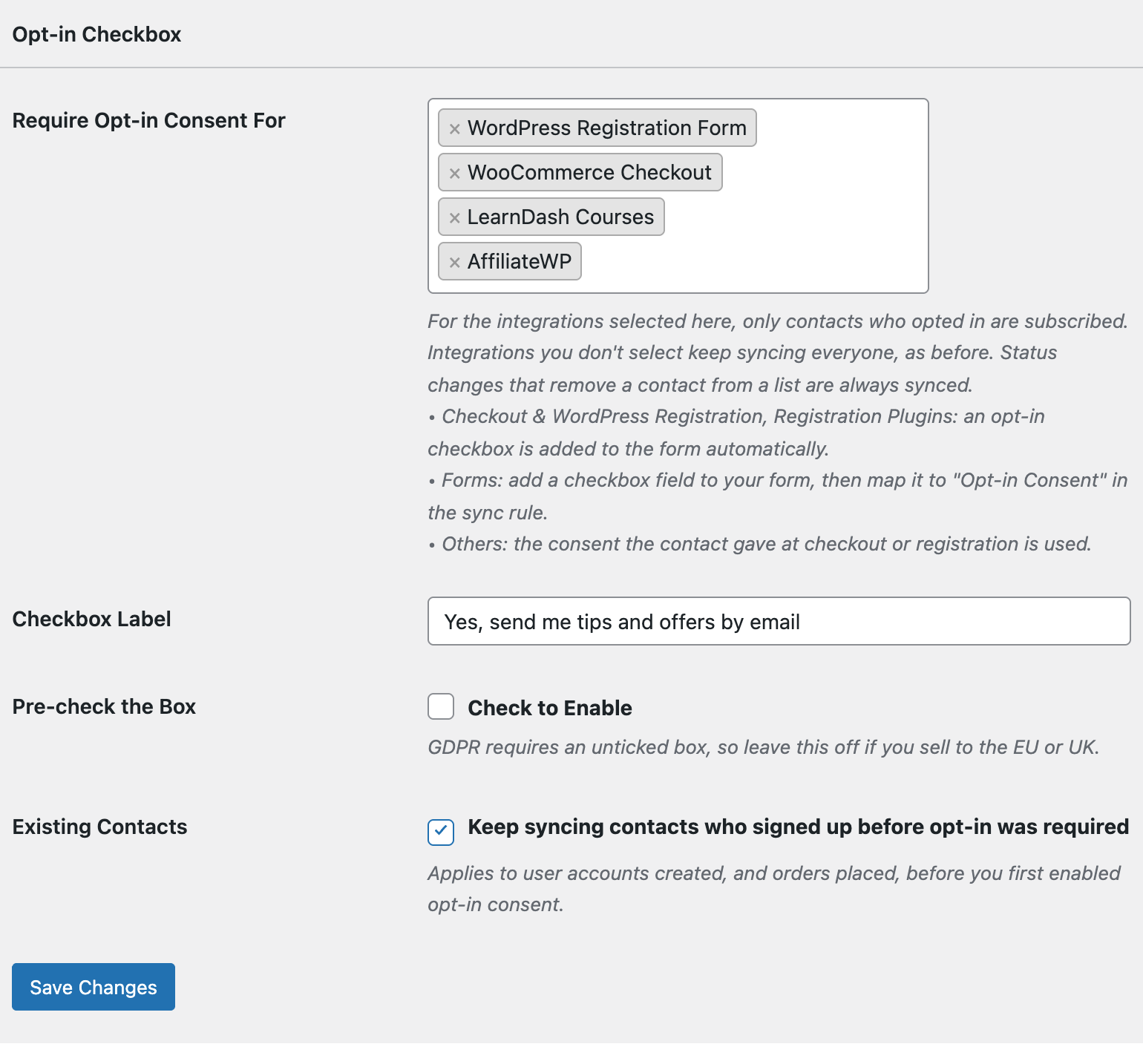
Now a student who ticks the box at checkout is synced when LearnDash enrolls them. A student who doesn’t tick it still gets the course, but your LearnDash rule leaves them off the list. The WooCommerce opt-in checkbox article covers the checkout side in detail.
Example: Affiliates Who Registered on Your Site
Say your affiliates first create a WordPress account through the standard registration page, then apply in AffiliateWP. Select WordPress Registration Form and AffiliateWP. People who ticked the box when they registered are added to your affiliate list once they join the program. The same pattern works for SliceWP.
Don’t Select These on Their Own
Selecting an integration from the Others group never adds a checkbox anywhere. If nothing else on your site collects consent, new students, members or affiliates from that plugin will never be synced. Always pair it with at least one checkout, registration form or form mapping that your audience actually passes through.
Students and Affiliates You Already Have
With Existing Contacts on, people whose WordPress account was created before you first required opt-in keep syncing, so existing students moving into a new course or group are not suddenly cut off. Untick it to require a consent record from everyone. Removals, such as taking a student off a list when their access ends, always sync. The Existing Contacts, Privacy & FAQ article explains consent records and GDPR erasure.
Setting up the sync rules themselves? See LearnDash, AffiliateWP or Restrict Content Pro.
Conclusion
Course enrollments, community spaces, affiliate signups and subscription payments rarely come with a form of their own, but your audience opts in somewhere before they get there. Select the plugin under Others, pair it with the checkout or registration form people use first, and FuseWP will only add those who said yes.