
Selling memberships with MemberPress and only want to email the members who said yes?
FuseWP syncs MemberPress members to your email marketing software or CRM based on their memberships. Once you turn on the opt-in checkbox for MemberPress, a consent box appears on your MemberPress registration forms. Members who tick it are synced. Members who don’t still join and get access; FuseWP just doesn’t add them to your list.
Below you’ll find how to switch it on, where the box shows, when consent is saved, and a few points that are specific to MemberPress. This feature requires FuseWP Pro.
A Quick Example
Suppose you run a course community with a monthly and a yearly MemberPress membership, and a FuseWP sync rule that adds both groups to a “Members” list in your email software. After this change, a new yearly member who ticks “Keep me posted about new lessons” lands on that list. A monthly member who leaves it unticked gets their membership, but stays off the list.
Setting It Up
- Make sure you have at least one MemberPress sync rule. If not, follow how to sync MemberPress members to your email marketing software.
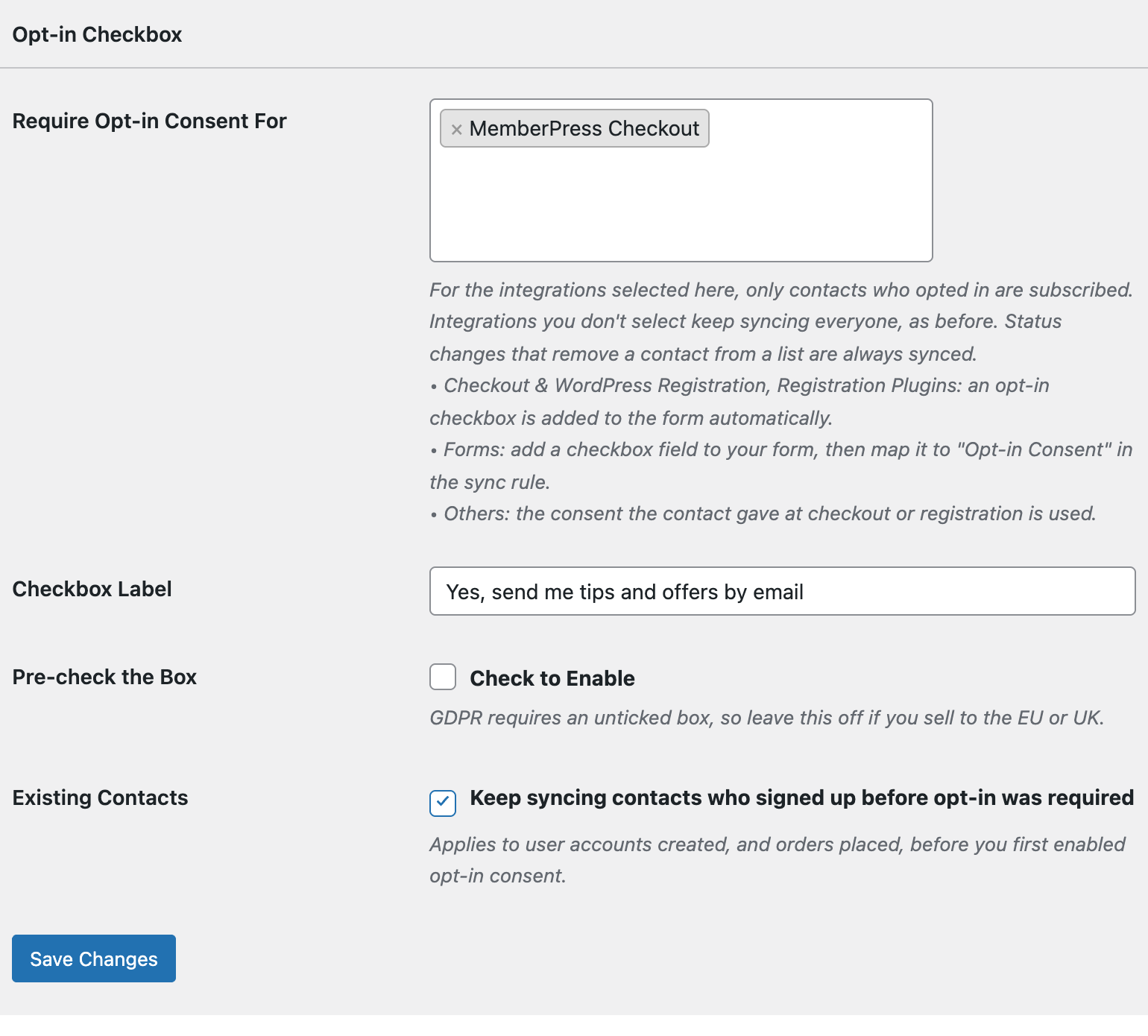
- Go to FuseWP >> Settings >> General and find the Opt-in Checkbox section.
- In Require Opt-in Consent For, choose MemberPress Checkout. It’s listed under Checkout & WordPress Registration: adds an opt-in checkbox.
- Set the Checkbox Label. This is the only text members see next to the box, so make it clear what they’re agreeing to.
- Click Save Changes.
Where Members See the Box
MemberPress gives every membership its own registration form. The checkbox is added to all of them, directly above the submit button, after the account and payment fields.
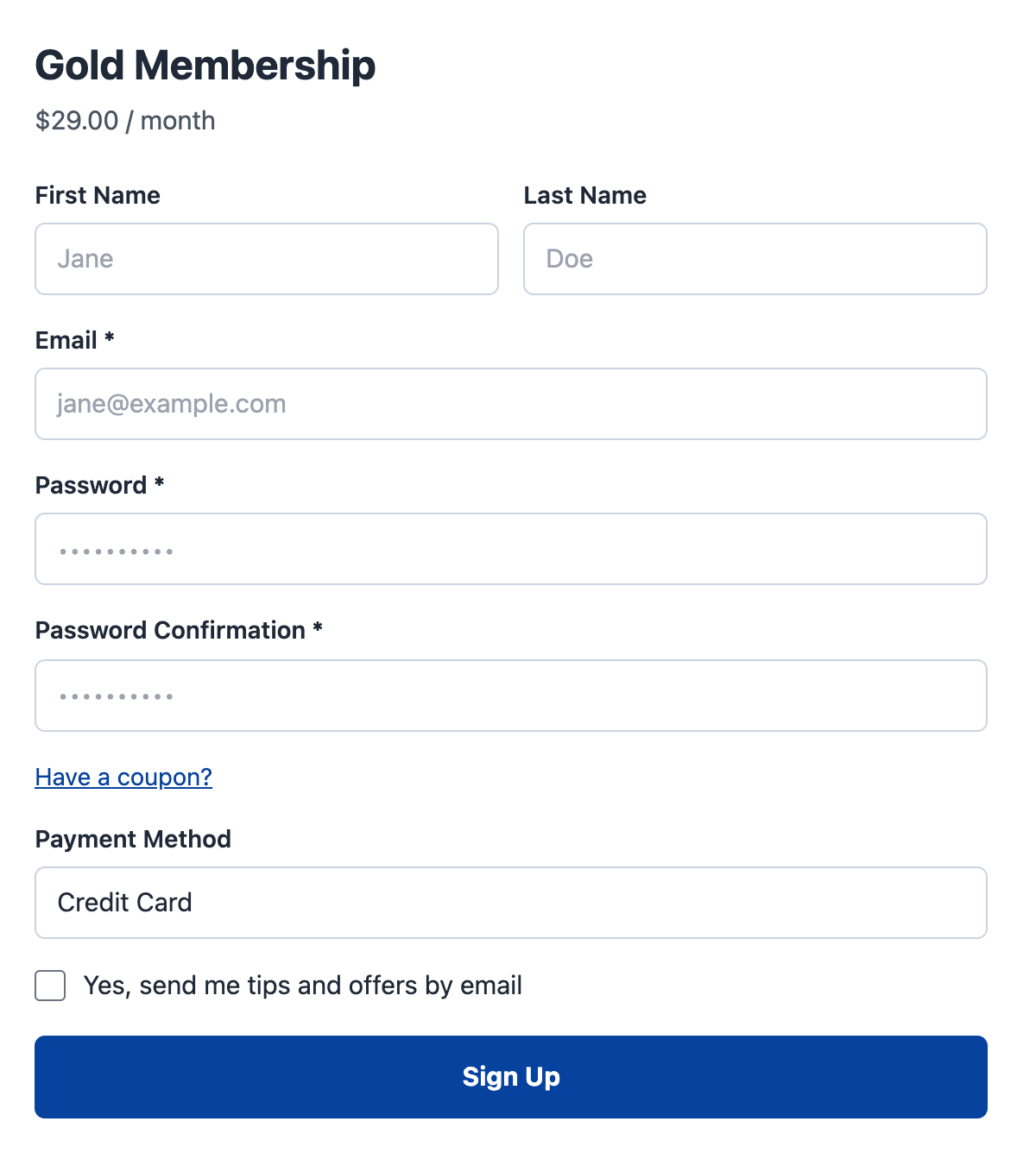
There’s nothing to set per membership: selecting MemberPress Checkout covers every MemberPress registration form on your site. A logged-in member who has already opted in doesn’t see the box again when they buy another membership.
Which Syncs Need Consent
This setting gates your MemberPress sync rules. Before one of those rules adds a member to a list, FuseWP checks that the member has a consent record. Rules for your other plugins aren’t touched unless you select those plugins as well.
A member who opted in anywhere on your site counts. If they ticked the box on your WordPress registration form months ago and buy a membership today, your MemberPress rules sync them straight away.
When Consent Is Saved
MemberPress members are recorded as opted in at the moment they sign up, when the registration form is submitted. FuseWP doesn’t wait for the payment to complete, because the tick is only available in that first request.
This has two consequences worth knowing:
- Offline payments. A member who signs up with an offline gateway is recorded as opted in right away, even though their transaction stays pending until you mark it complete.
- Off-site gateways. If the member is sent to another site to pay, consent is already saved before that payment completes. A member who ticks the box and then abandons the payment page still counts as opted in.
If you want proof that each address really belongs to the person who ticked the box, turn on double opt-in in your email marketing software. It asks every new subscriber to confirm by email first.
Test It With Your Gateway
Payment gateways in MemberPress don’t all complete a signup the same way, so run a test signup on a live registration form before you rely on the checkbox: once with the box ticked and once without. Check that only the ticked signup reaches your list.
Old Members and Removals
With Existing Contacts on, members whose accounts existed before you first turned on opt-in keep syncing, so renewals and membership changes for your current base carry on as before. Expired or cancelled memberships still remove members from lists without needing consent. For consent records, GDPR export and erasure, see Existing Contacts, Privacy & FAQ.
If your MemberPress members also take courses in an LMS that has no sign-up form of its own, the consent they give here carries over. See opt-in consent for LMS and other plugins without a signup form.
Conclusion
Selecting MemberPress Checkout adds a consent box to every MemberPress registration form and makes your MemberPress sync rules wait for a yes. Signups keep working for everyone, consent is saved the moment the form is submitted, and a quick test signup confirms it works with your gateway.