
Do you run a members-only site with Simple Membership and want new members to agree to your emails before you add them to your list?
FuseWP can add an opt-in checkbox to the Simple Membership registration form. Members who tick it are synced to your email marketing software or CRM. Members who leave it unticked still join and get access to your protected content. They just aren’t added to your list.
Here’s how to turn the checkbox on for Simple Membership, where it appears, and how FuseWP handles members whose email already has a WordPress account.
This is a free FuseWP feature. If you haven’t set up the opt-in checkbox before, Getting Started with the Opt-in Checkbox walks through the main settings.
How Simple Membership Members Reach Your List
When someone registers through Simple Membership, a WordPress user account is created for them alongside their membership. FuseWP syncs those users through User Roles sync rules. Selecting Simple Membership in the opt-in settings makes those rules wait until the member has ticked the box.
Turn It On
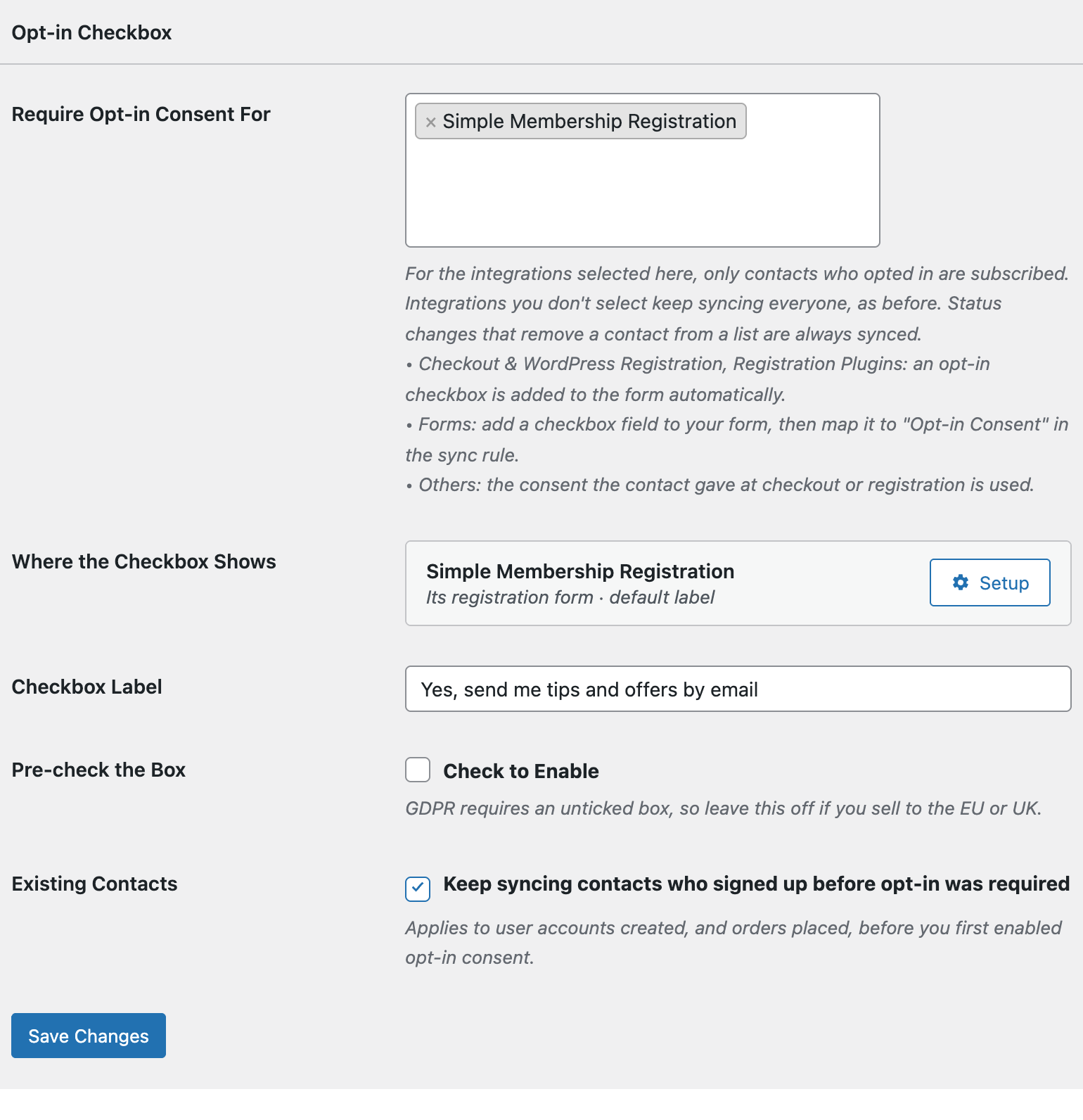
- Go to FuseWP >> Settings >> General and scroll to the Opt-in Checkbox section.
- In Require Opt-in Consent For, under Registration Plugins: adds an opt-in checkbox, select Simple Membership Registration. It only appears while Simple Membership is active.
- Enter your Checkbox Label. If it’s empty, members see “Subscribe to our newsletter”.
- Leave Pre-check the Box off if you have members in the EU or UK.
- Click Save Changes.
Giving the Checkbox Its Own Wording
Simple Membership has one registration form, the one shown by the [swpm_registration_form] shortcode. There are no forms to choose between, so in Where the Checkbox Shows its row simply reads “Its registration form”.
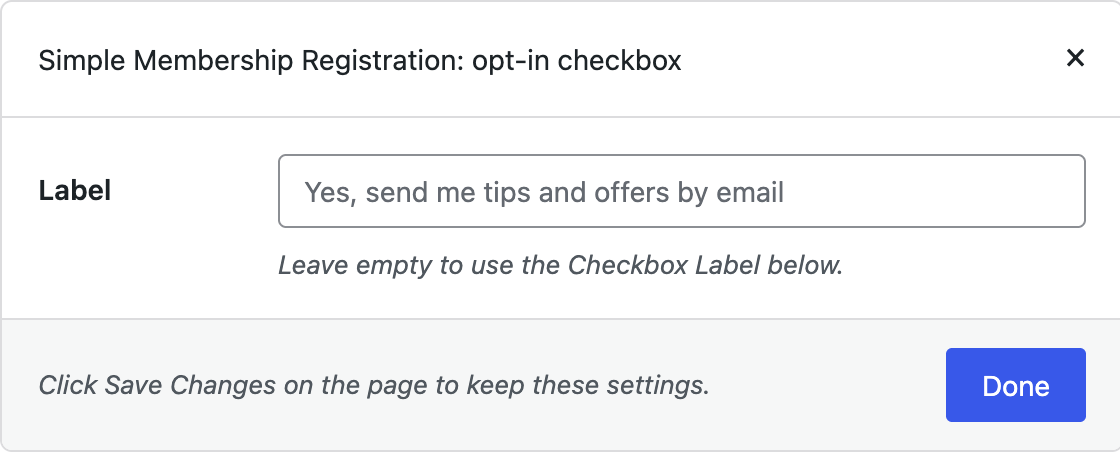
Click Setup if you want text written for your members, for example “Email me when new members-only content is published”. The popup has a single Label field. Leave it empty to use the main Checkbox Label. Click Done, then Save Changes.
On the Registration Page
The checkbox appears on the [swpm_registration_form] form, just above the submit button, below the fields Simple Membership asks for.
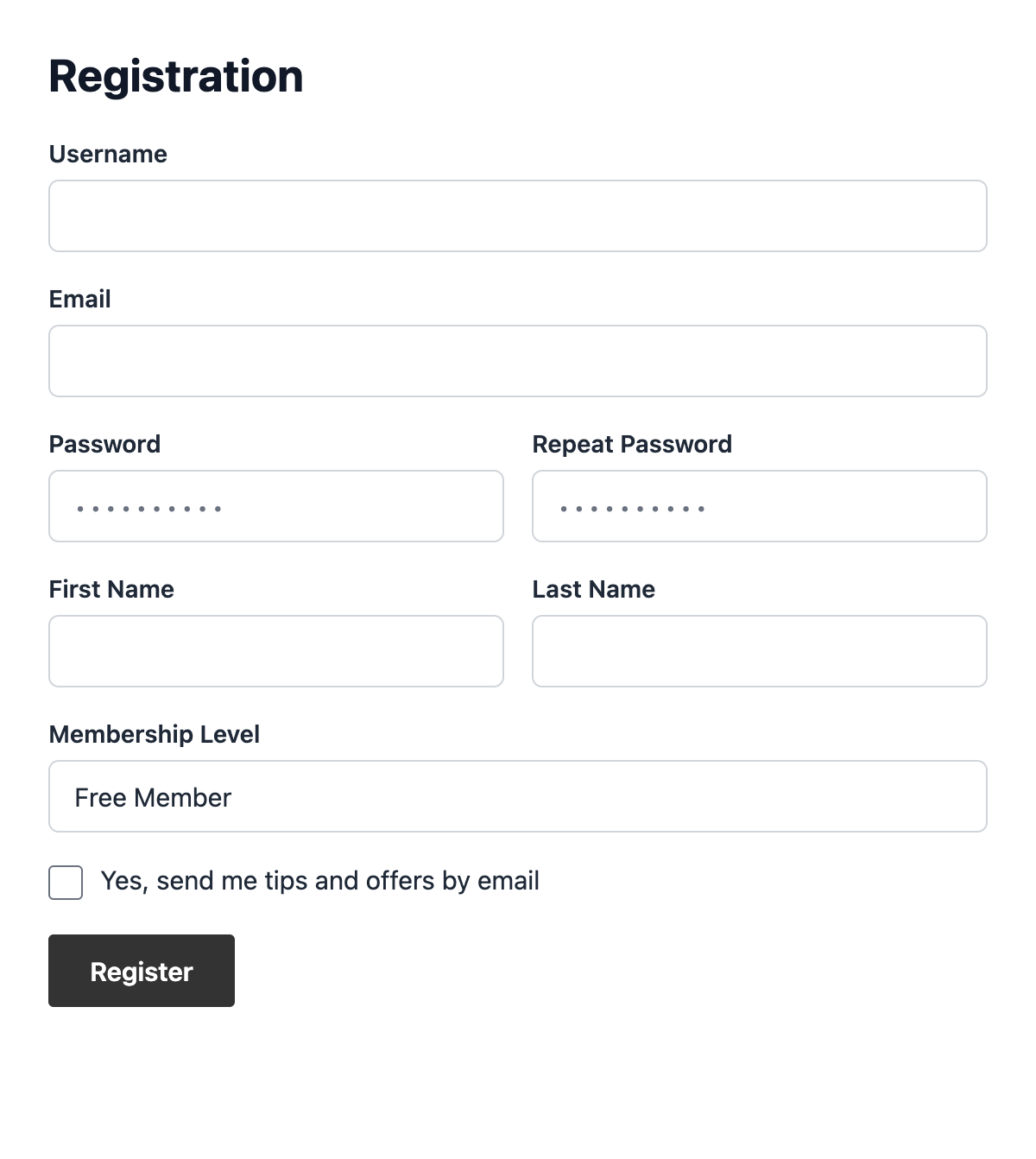
Visitors who are logged in don’t see it, since they aren’t signing up.
When the Member Counts as Opted In
Consent is saved when the member’s registration goes through and their account is created. If Simple Membership rejects the form, for example because the username is taken, nothing is recorded.
If your membership level needs email activation or admin approval, the account is still created at sign-up, so consent is recorded then, not when the member is activated or approved.
Members Who Already Have a WordPress Account
By default, Simple Membership refuses a registration if the email address already belongs to a WordPress user. Some sites change this with Simple Membership’s swpm_allow_existing_wp_user_registration filter, so that an existing user, such as a customer of your shop, can register as a member and have their membership linked to the account they already have.
FuseWP handles this case too. If that person ticks the box while registering, consent is recorded for their existing WordPress account. From then on, your User Roles sync rules can add them to your list.
Before You Publish
- One box only. If you added your own newsletter checkbox to the registration form, FuseWP doesn’t read it. Remove it.
- Custom forms. A theme or add-on that replaces Simple Membership’s registration form without its hooks won’t show the checkbox.
- Your current members keep syncing while Existing Contacts is on, and removals from your list always sync. See Existing Contacts, Privacy & FAQ for how consent is stored, exported and erased.
Conclusion
Selecting Simple Membership Registration adds a consent checkbox to your membership sign-up form and makes sure only members who ticked it are added to your email list, including members linked to an existing WordPress account. If some people sign up through the default WordPress form instead, see the WordPress registration opt-in checkbox.