
Does your site let visitors create their own account, and do you want only the new users who ask for your emails to end up on your list?
FuseWP can add an opt-in checkbox to the standard WordPress registration form. Visitors who tick it are synced to your email marketing software or CRM by your User Roles sync rules. Visitors who leave it unticked still get their account; they just aren’t added to your list.
This article explains how to switch the checkbox on, where it appears, and how it behaves when another plugin handles sign-ups on your site. The WordPress registration checkbox is free. If you haven’t used the opt-in checkbox before, read Getting Started with the Opt-in Checkbox first.
Before You Start
The WordPress registration form only exists when open registration is switched on. Go to Settings >> General and make sure Anyone can register is ticked next to Membership. If it isn’t, there is no sign-up page for FuseWP to add the checkbox to.
You also need at least one User Roles sync rule, for example one that adds every new Subscriber to a newsletter list. If you haven’t set one up, see how to sync WordPress users to your email list based on user roles.
Switching On the Checkbox
- Go to FuseWP >> Settings >> General and scroll down to the Opt-in Checkbox section.
- Open the Require Opt-in Consent For dropdown. Under Checkout & WordPress Registration: adds an opt-in checkbox, select WordPress Registration Form.
- Type your wording into Checkbox Label, for example “Email me product news and tutorials”. Left empty, the label reads “Subscribe to our newsletter”.
- Click Save Changes.
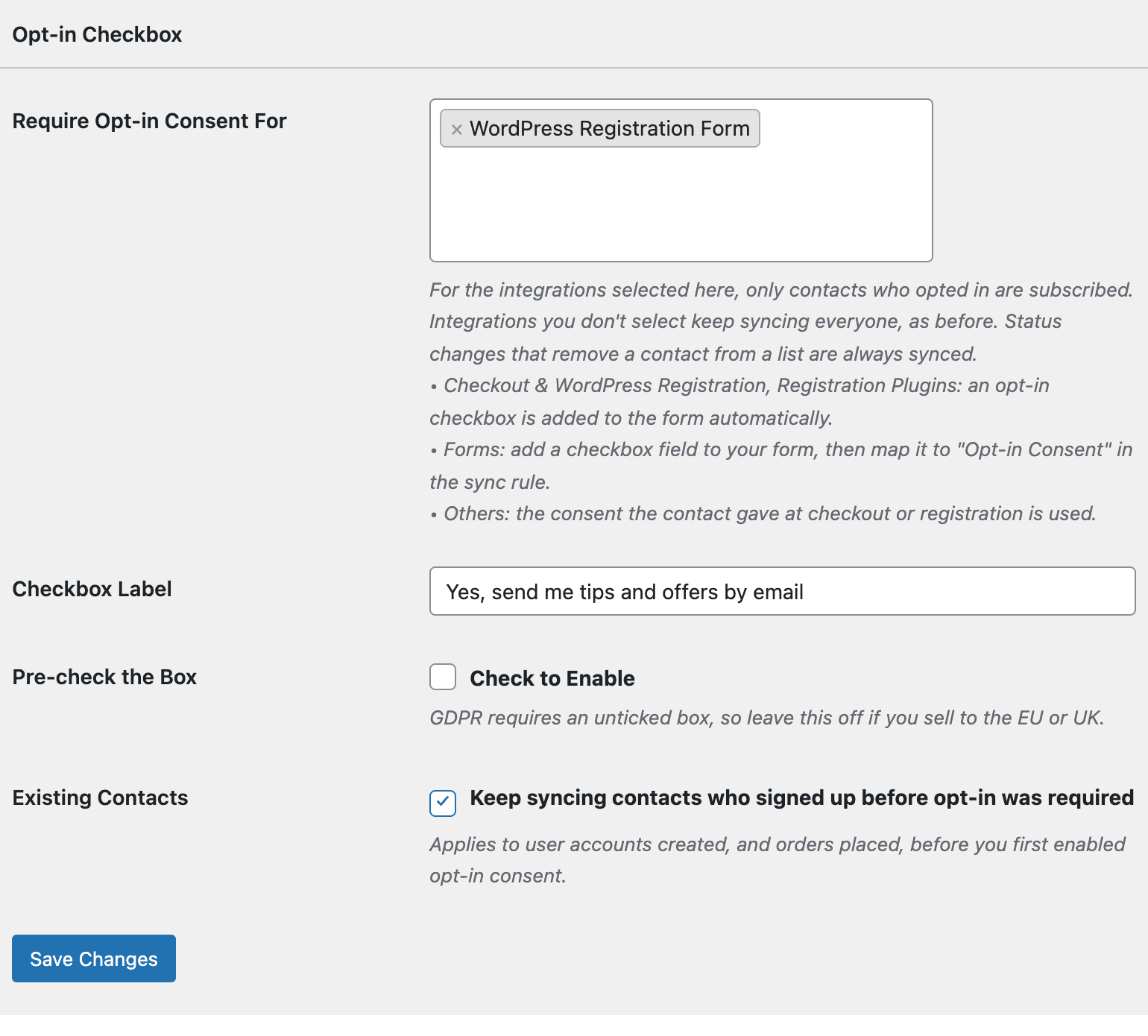
Leave Pre-check the Box off if any of your visitors are in the EU or UK. GDPR expects people to tick the box themselves.
The Sign-up Page After the Change
Open your registration page (wp-login.php?action=register) in a private browser window. Below the Username and Email fields you’ll see the checkbox with your label, unticked, above the Register button.
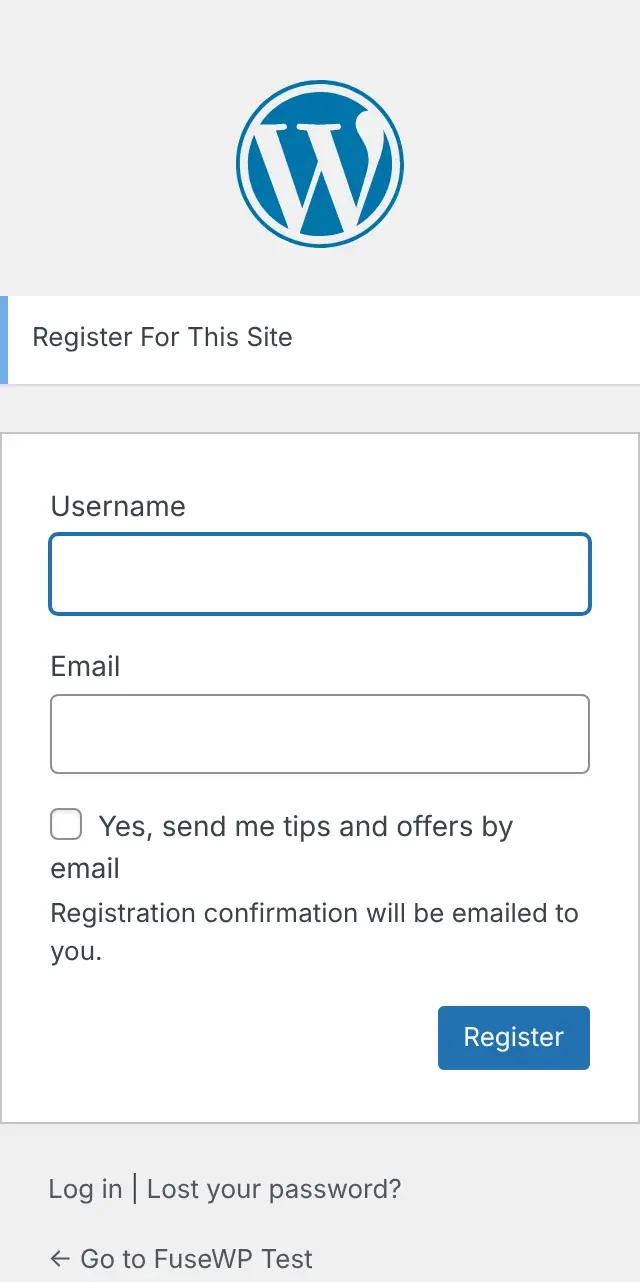
When a visitor ticks it and registers, FuseWP saves a consent record for that email address and links it to the new account. Your User Roles sync rules then add the user to your list as normal. If the box is left empty, the account is still created, but those sync rules skip the user.
What Gets Gated
Selecting WordPress Registration Form requires consent for your User Roles sync rules, and nothing else. That has a useful side effect: User Roles rules don’t only fire on sign-up. They also run when a role changes, or during a bulk sync. In every case, FuseWP only subscribes users who have opted in.
Consent belongs to the person, not the form. Say a customer ticked the opt-in box at your WooCommerce checkout and WooCommerce created an account for them. They have already opted in, so your User Roles rules sync them too, even though they never saw the WordPress sign-up page.
Accounts You Create Yourself
Consent is only recorded for a visitor who registers while logged out. When an administrator adds someone under Users >> Add New, the admin is not the person giving consent, so nothing is recorded. That user won’t be subscribed by your User Roles rules unless they opt in somewhere else on your site, or their account is older than the date you first turned on opt-in and Existing Contacts is on.
When Other Plugins Handle Registration
WordPress sign-ups often run through another plugin. How the checkbox behaves depends on how that plugin builds its form.
- Forms that reuse WordPress’s registration fields. Some plugins print the same WordPress registration fields on their own sign-up form. The checkbox appears there too and counts as consent from the WordPress Registration Form.
- Tutor LMS and wpForo. Both are listed separately under Registration Plugins. When you select them, their forms show their own checkbox in place of the WordPress one, so visitors never see two. See the Tutor LMS opt-in checkbox and the wpForo opt-in checkbox.
- Plugins that take over the sign-up page. UsersWP and some others redirect
wp-login.php?action=registerto their own registration form. Visitors then never see the WordPress form or its checkbox. Select that plugin under Registration Plugins instead, so the checkbox shows on the form people actually use.
Users Who Registered Earlier
With Existing Contacts on (the default), accounts created before you first required opt-in keep syncing as before, so role changes for your long-standing users aren’t interrupted. Untick it to require consent from every user, old and new. Removing a user from a list, for example when their role changes, always syncs whether they opted in or not. The Existing Contacts, Privacy & FAQ article covers the details.
Conclusion
A single setting is enough to make your WordPress registration page ask for consent before anyone joins your list. New users who say yes are synced by your User Roles rules straight away, and everyone else still gets an account. If a plugin runs your sign-ups instead, pick that plugin’s own entry so the checkbox appears where your visitors register.