
Offering a free download, checklist or template through a SureForms form, and want to send the file to everyone but only add people to your newsletter when they ask for it?
Lead magnet forms mix two requests: “send me the download” and, for some visitors, “keep emailing me”. FuseWP lets you separate them with a checkbox in your SureForms form. Only submissions with the box ticked are synced to your email marketing software or CRM; the rest are saved in SureForms and go no further.
This article covers adding the checkbox block, mapping it to FuseWP’s Opt-in Consent field, and a few SureForms-specific points, like how FuseWP finds fields in your form’s blocks.
The Opt-in Consent mapping is free. If you haven’t connected SureForms to your email platform yet, follow how to sync SureForms with your email marketing software. Getting Started with the Opt-in Checkbox explains the feature as a whole.
Add a Checkbox Block to the Download Form
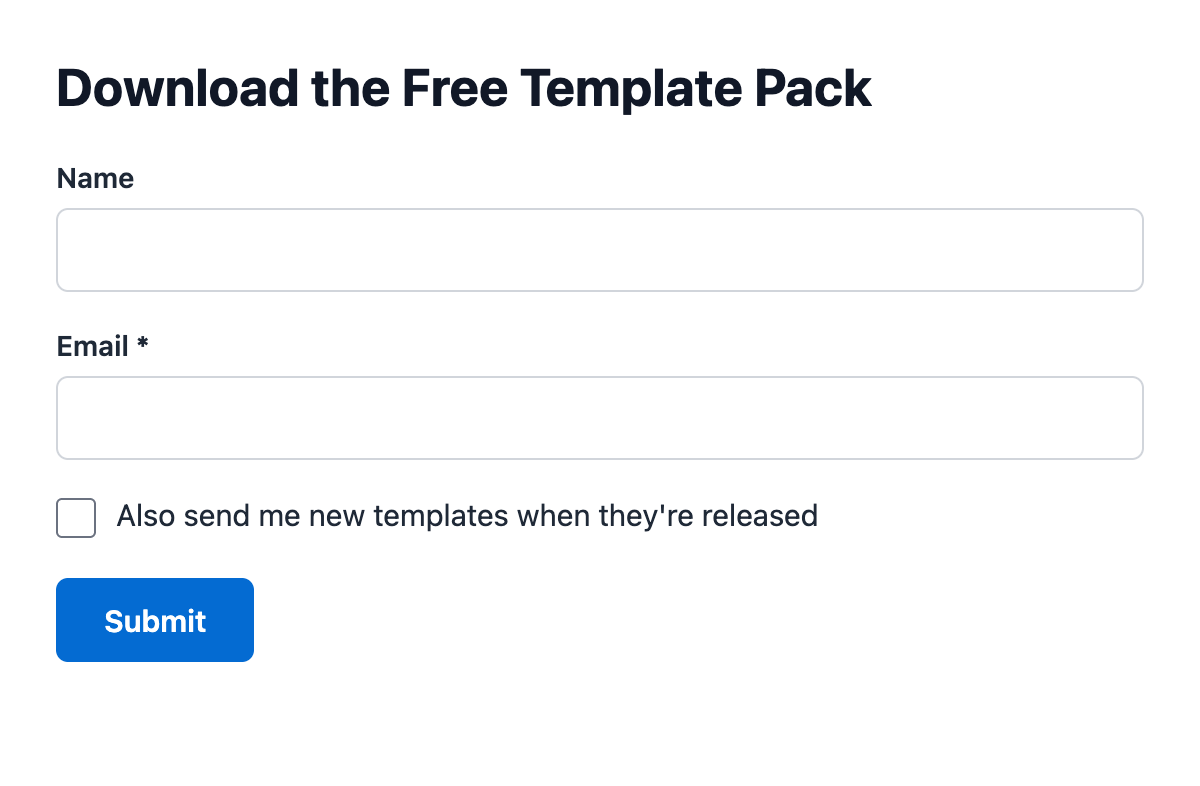
SureForms builds forms with blocks, and FuseWP uses your own block rather than adding one. Edit the form, insert a Checkbox field below the email field, and set its label to something specific, for example “Also send me new templates when they’re released”.
Two things to check in the block’s settings:
- Don’t make it required. A required box can’t be left unticked, so every download would also join your list.
- Give it a label. FuseWP lists SureForms fields by their labels. A field without one shows only its type, which is hard to tell apart on a longer form.
Placement inside columns or other layout blocks is fine. FuseWP looks through nested blocks to find your fields. Fields inside a repeater aren’t listed, so keep the consent checkbox outside one.
Map the Checkbox to Opt-in Consent
Go to FuseWP >> User Sync and open the rule for your download form, or add a rule with it as the Source. Only published SureForms forms are offered. A form without a title appears as “Form #” followed by its ID.
Then:
- In Destinations, select the After Form Submission event, your integration and your newsletter list.
- Map Lead Email Address to the form’s email field.
- Click Map Another Field in Map Custom Fields. Set the Data column to your checkbox and the right-hand column to Opt-in Consent, the option right under Lead Email Address.
- Click Save.
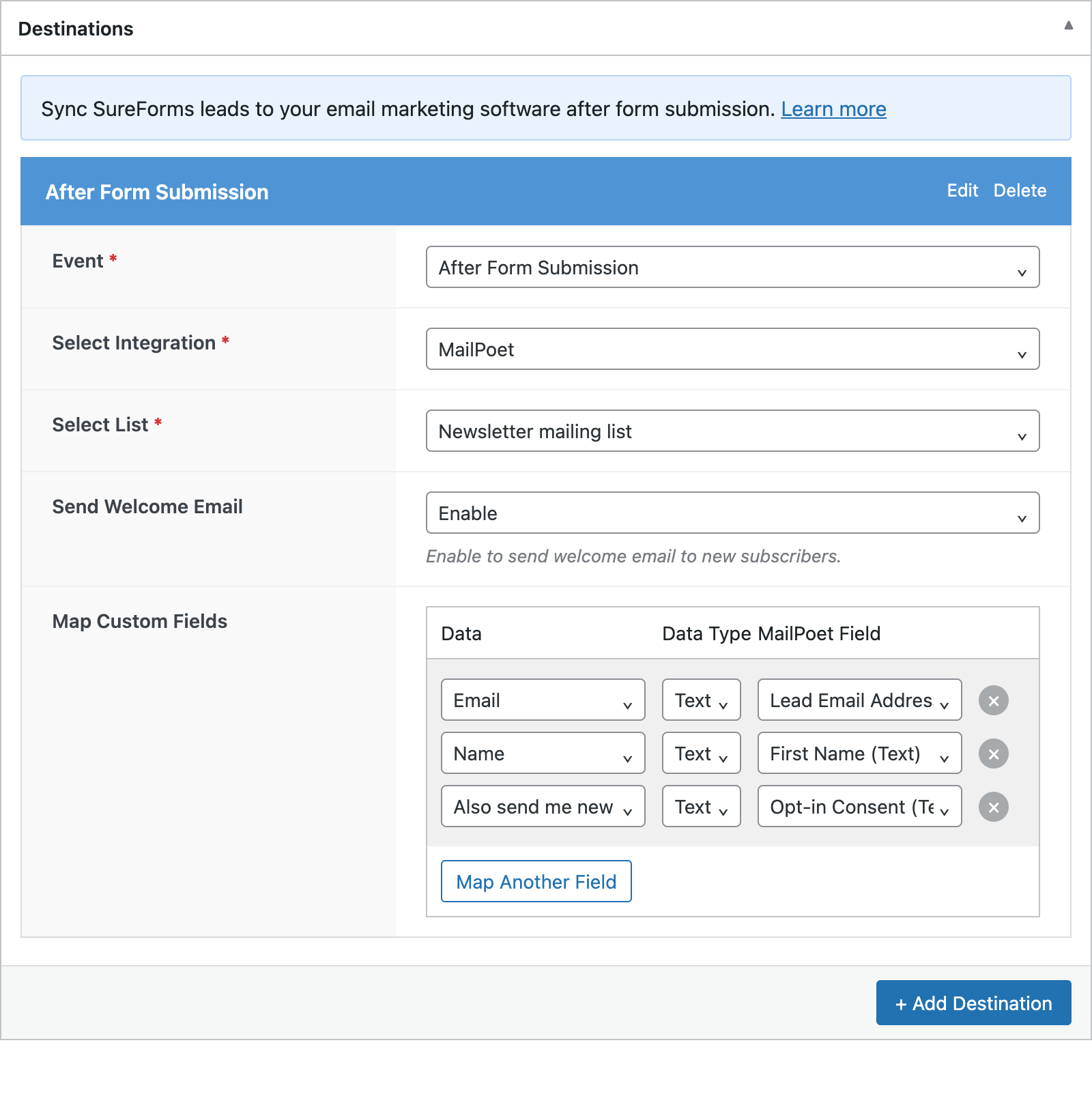
Along with your fields, the SureForms group in the list includes Entry ID, Form ID, Form Name and Entry Created Date. Form Name is worth mapping to a tag or custom field if several lead magnets feed the same list, so you know which download brought each subscriber in.
The Opt-in Consent row isn’t sent to your email software. FuseWP reads it to decide whether to sync.
Ticked, Unticked and Everything in Between
After each submission, FuseWP checks the value SureForms passes for your checkbox:
- Ticked: the subscriber is synced, and FuseWP records their consent.
- Unticked or empty: skipped for that destination.
- 0, n, no, false or off: also treated as unticked.
Any other value counts as consent. That’s fine for a checkbox, but not for a choice field where “No, just the download” is an option, since that text isn’t in the list above. Use a checkbox, or have a developer apply the fusewp_optin_form_consent_is_given filter.
Delivering the download itself is up to your SureForms setup, such as its confirmation message or email. FuseWP only controls who is added to your list.
One Opt-in, Recognised Everywhere
A ticked submission creates a consent record for that email address. If the same person later registers on your site or checks out somewhere FuseWP requires consent, they count as opted in already. The record keeps the email address, the form plugin and the time. It has no IP address, because form entries are processed in the background.
Optional: Gate Every SureForms Rule
To require consent from all SureForms rules, open FuseWP >> Settings >> General and go to the Opt-in Checkbox section. Under Require Opt-in Consent For, select SureForms from the Forms: map a form field to “Opt-in Consent” group and click Save Changes.
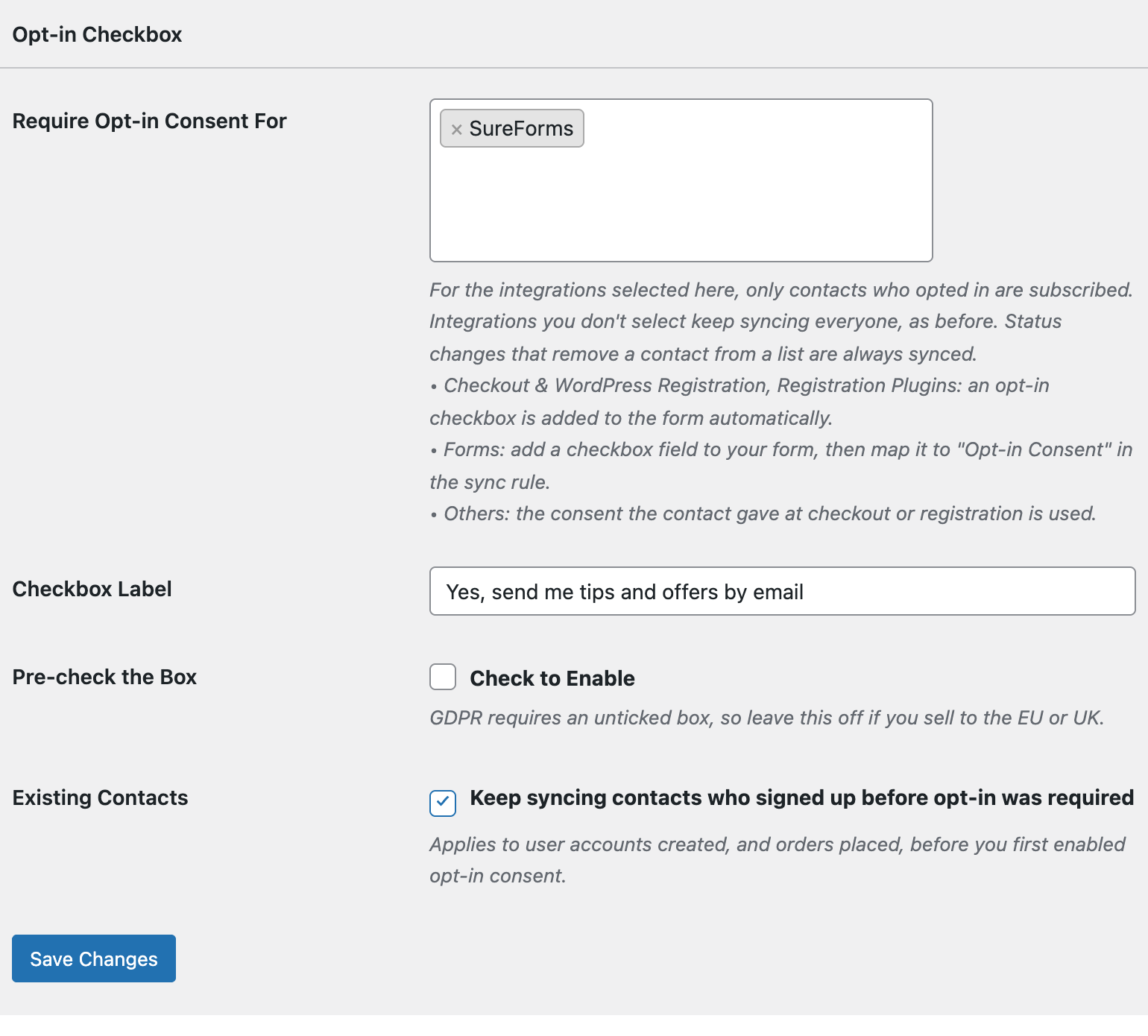
After this, SureForms rules without an Opt-in Consent mapping only sync people who have opted in elsewhere on your site. Rules with the mapping still follow their own checkbox.
Conclusion
With a labelled, optional checkbox mapped to Opt-in Consent, your SureForms lead magnets can hand out downloads freely while your newsletter fills with people who actually want it. Pair it with double opt-in in your email software if you also want proof that each address belongs to the subscriber. More on consent records is in Existing Contacts, Privacy & FAQ.