
Do you use WPForms to hand out a free guide, checklist or discount code, and want to know which of those leads actually agreed to hear from you again?
A lead magnet form is a fair trade: an email address for a download. Turning that address into a newsletter subscriber is a separate question, and in the EU and UK the person has to say yes to it. FuseWP lets you ask that question with a WPForms checkbox and only add leads who tick it to your email marketing software or CRM.
FuseWP doesn’t add a checkbox to WPForms for you. You add one in the form builder, then point FuseWP at it in your sync rule. The mapping is free. For the basic setup of a WPForms sync rule, see how to sync WPForms with your email marketing software.
Build the Consent Box in WPForms
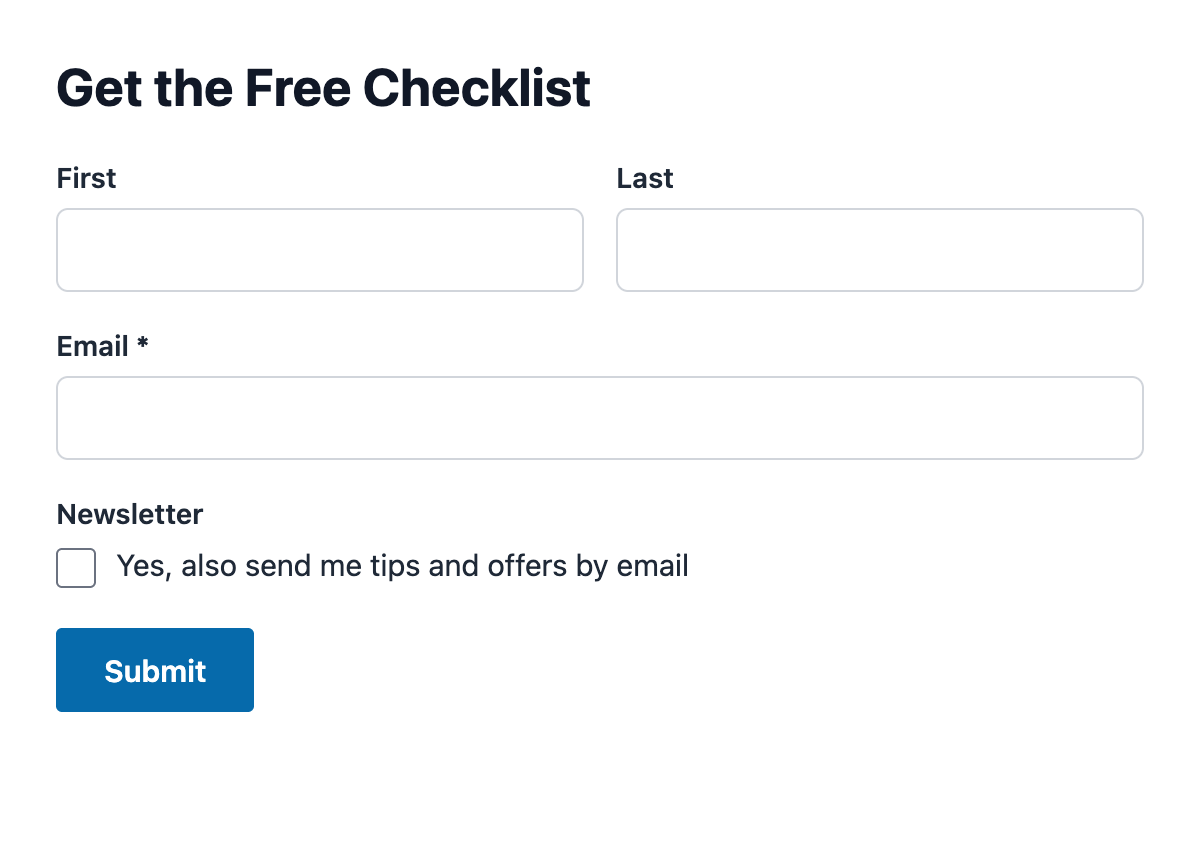
In the WPForms form builder, add a Checkboxes field below the email field. Give it a single choice, for example “Yes, also send me tips and offers by email”, and leave it unticked by default. You can hide the field label if the choice text says it all.
A few WPForms tips:
- Don’t make the field required. If people must tick it to get the download, the consent isn’t freely given.
- Don’t use the GDPR Agreement field for this. WPForms designed it as a required “I agree” box, which brings the same problem.
- Stick to one choice. If the field has several choices, ticking any of them counts as consent.
Save the form. Your lead magnet form now shows the optional checkbox under the email field.
Point FuseWP at the Checkbox
Go to FuseWP >> User Sync and open the rule for your lead magnet form, or add one with the form as the Source. In the destination:
- Set the event to After Form Submission, then choose your integration and the list your newsletter subscribers go to.
- Under Map Custom Fields, make sure your email field is mapped to Lead Email Address.
- Click Map Another Field. In the Data column, choose your checkbox. WPForms fields are listed by their label.
- On the right, choose Opt-in Consent, which sits directly under Lead Email Address.
- Click Save.
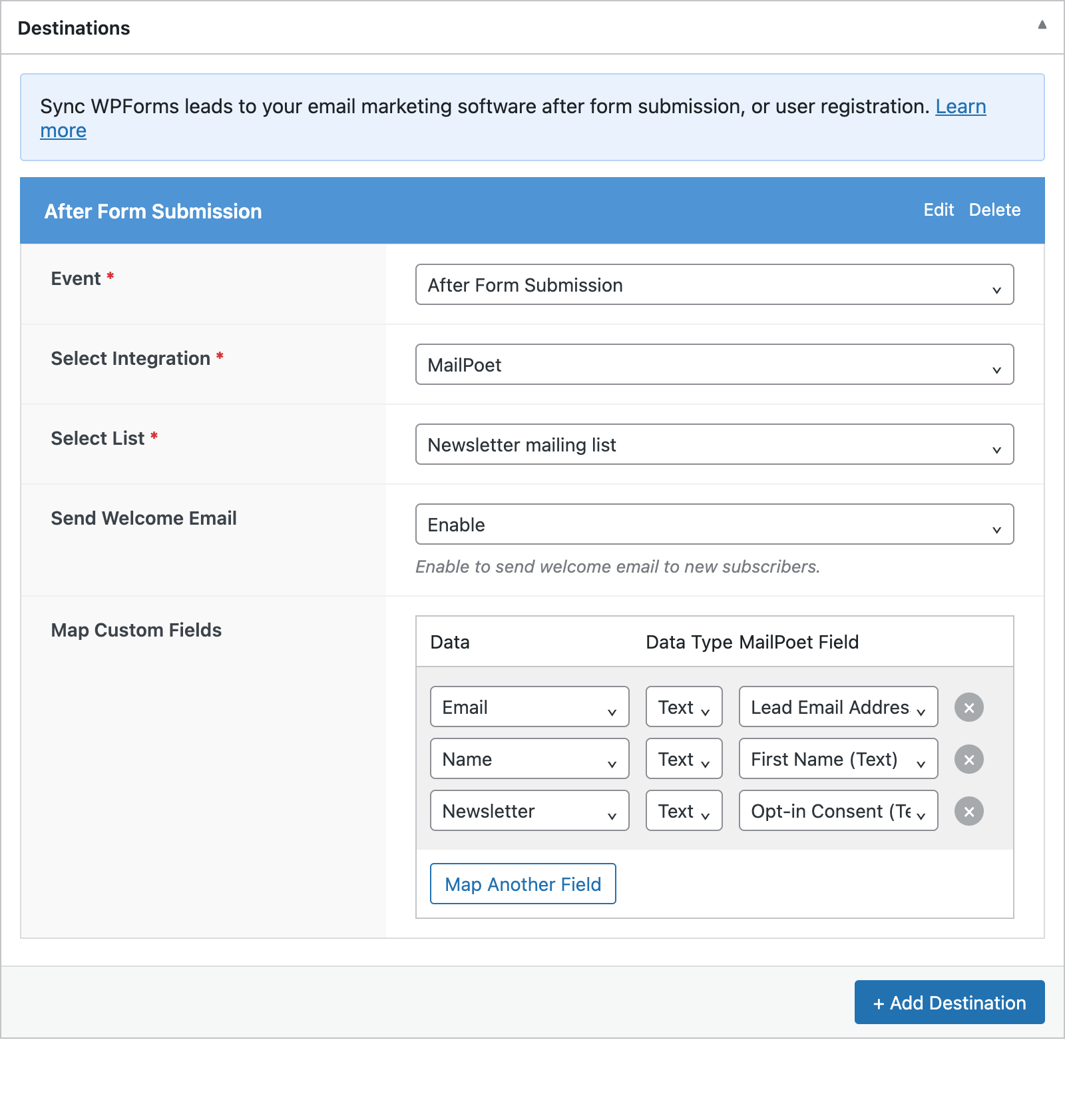
From now on, a ticked checkbox sends the choice text through to FuseWP and the lead is synced. An unticked checkbox sends nothing, and the lead is skipped. Your WPForms notifications and confirmation, including the download link, are not affected either way. FuseWP keeps the Opt-in Consent mapping to itself, so no extra field shows up in your email platform.
Example: One Form, Two Lists
Say everyone who downloads your checklist should get it by email, but only those who tick the box should join your newsletter. Use two destinations in the same rule, adding the second with + Add Destination:
- A destination that sends every lead to a “Checklist downloads” list, with no Opt-in Consent mapping.
- A destination that sends leads to your “Newsletter” list, with the checkbox mapped to Opt-in Consent.
The consent check belongs to the destination it’s mapped in, so the first list still gets everyone. Only send everyone to a list if your privacy policy covers emailing them about the download.
WPForms User Registration Forms
If you use the WPForms User Registration addon, FuseWP Pro also offers an After User Registration event for WPForms rules. Map your checkbox to Opt-in Consent in that destination too if new members should only be subscribed when they tick it. FuseWP Pro is needed for this event; the After Form Submission event is free.
WPForms – Subscription Payments is a separate FuseWP source with no field mapping for consent. It relies on consent given elsewhere on your site, as explained in opt-in consent for plugins without a signup form.
Optional: Make Consent Required for Every WPForms Rule
You don’t need to change any settings for the mapping to work. Only do this if you want to be sure no WPForms rule can add people who never opted in.
Go to FuseWP >> Settings >> General, scroll to Opt-in Checkbox, and in Require Opt-in Consent For select WPForms under Forms: map a form field to “Opt-in Consent”. Click Save Changes.
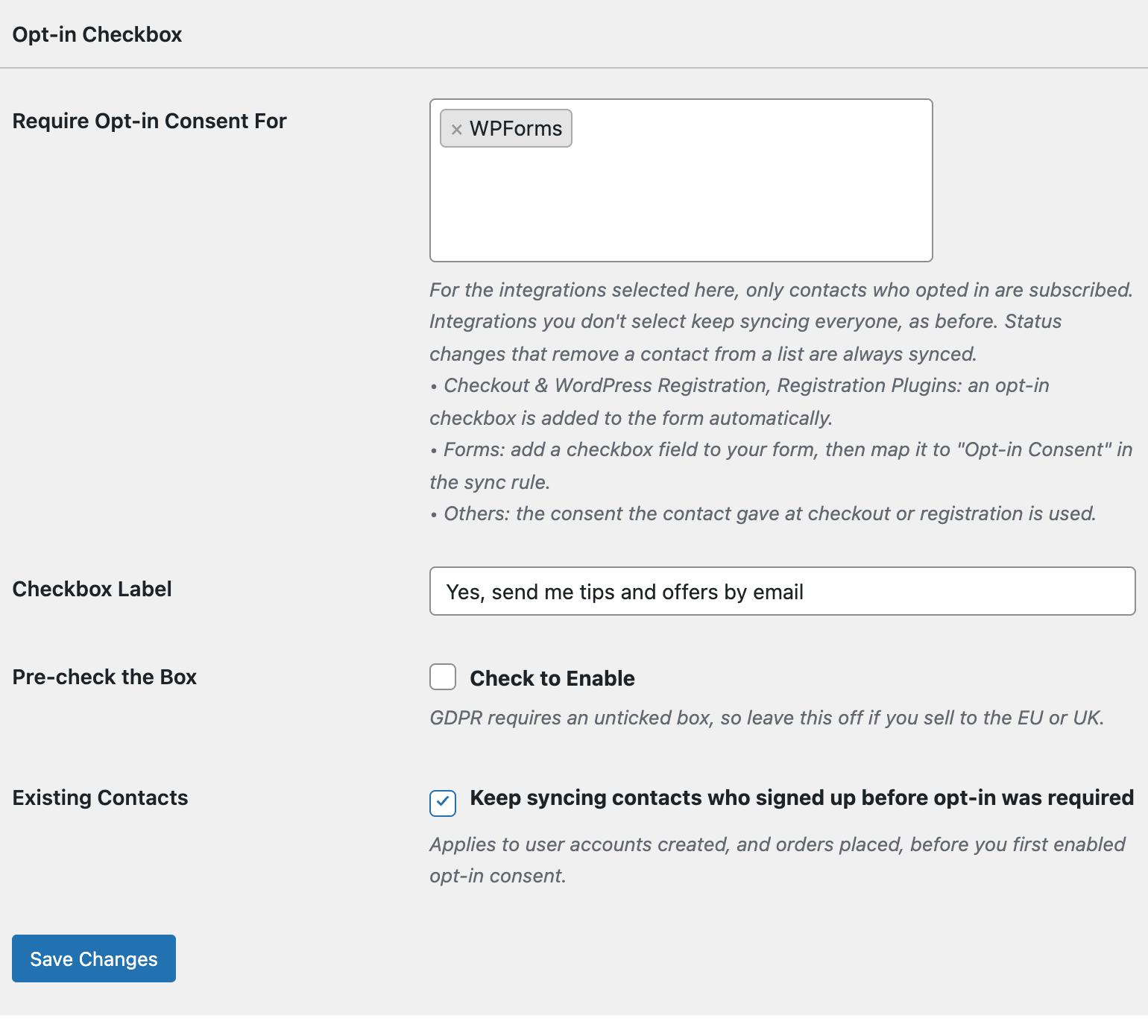
With WPForms selected, rules that map a checkbox keep working as above. Rules with no Opt-in Consent mapping only sync people who have already opted in somewhere else on your site, such as at checkout or registration.
Good to Know
- Consent travels with the lead. Once someone ticks the box, FuseWP records their consent, so other integrations that require it will sync them too.
- Values that mean “no”. Empty, 0, n, no, false and off count as not ticked. A radio button or dropdown with a “No thanks” option would count as yes, so use a checkbox or have a developer use the
fusewp_optin_form_consent_is_givenfilter. - Old entries. Bulk syncing past entries needs WPForms Pro, which stores entries. Those entries go through the same consent check.
- No IP address. The consent record keeps the email, the form and the date. IP addresses aren’t stored for form entries.
Conclusion
Your WPForms lead magnet keeps delivering downloads to everyone, while your newsletter only grows with people who asked to be on it. Read Existing Contacts, Privacy & FAQ for how consent is stored and erased, or Getting Started with the Opt-in Checkbox for the bigger picture.