
Do you run a membership community on Ultimate Member and want new members to decide for themselves whether they join your email list?
FuseWP can add an opt-in checkbox to your Ultimate Member register forms. Members who tick it are added to your email marketing software or CRM. Members who leave it unticked still get their account and profile as usual; FuseWP simply doesn’t add them to your list.
In this article, you will learn how to switch the checkbox on, choose which register forms show it, and how it sits alongside Ultimate Member’s own privacy policy checkbox and its account approval settings.
The opt-in checkbox is free in FuseWP. If you are new to the feature, read Getting Started with the Opt-in Checkbox first.
Before You Begin
Every Ultimate Member sign-up creates a WordPress user account, and FuseWP sends new users to your list with User Roles sync rules. If you don’t have one yet, see how to connect Ultimate Member to your email marketing software and how to sync users based on their role.
Once the checkbox is on, your User Roles sync rules only subscribe new members who ticked it.
Switching On the Checkbox
- Go to FuseWP >> Settings >> General and scroll to the Opt-in Checkbox section.
- In Require Opt-in Consent For, look under Registration Plugins: adds an opt-in checkbox and select Ultimate Member Registration. It is only listed while Ultimate Member is active.
- Optionally, change the Checkbox Label.
- Click Save Changes.
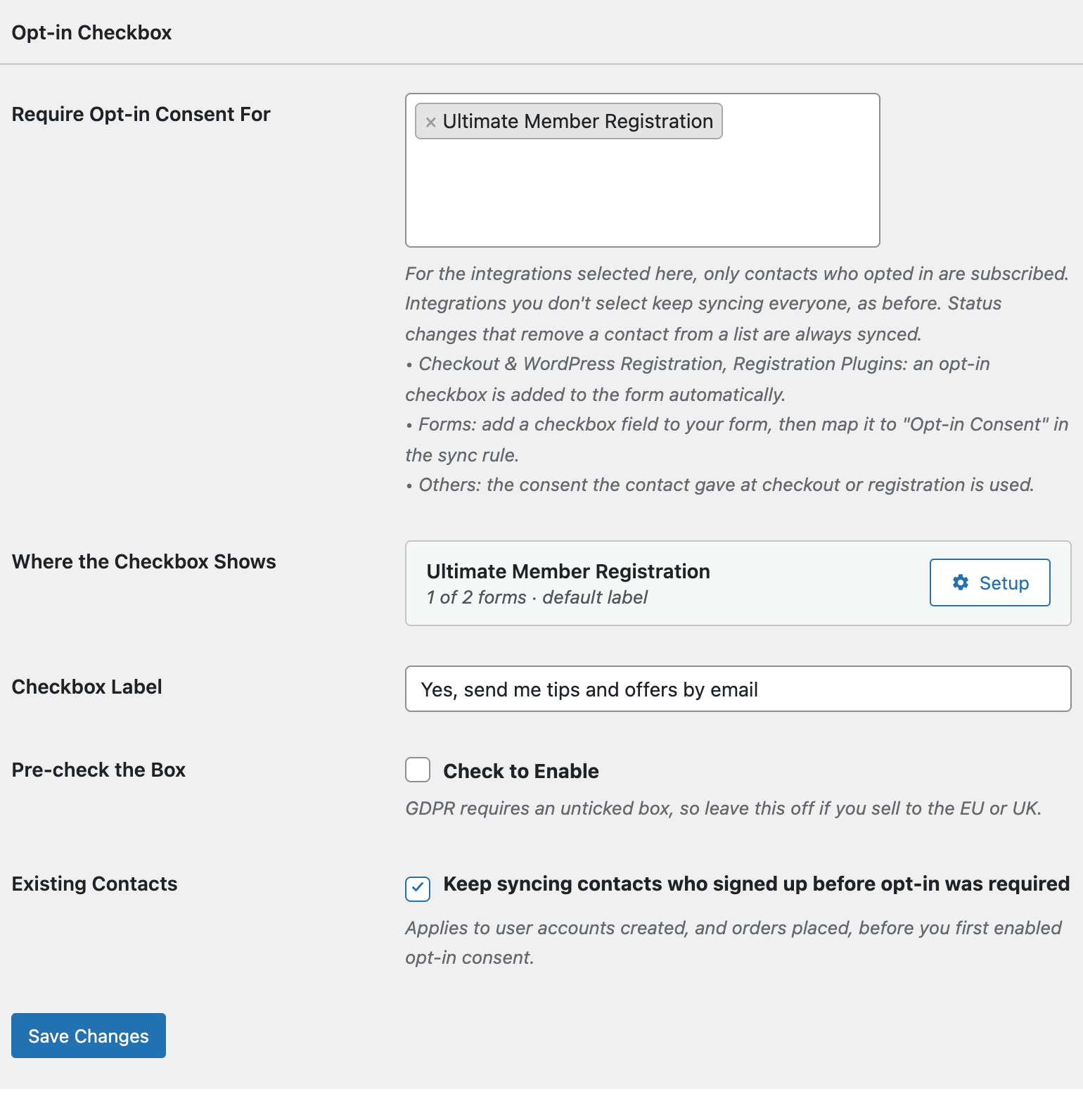
After saving, a Where the Checkbox Shows row appears with an entry for Ultimate Member Registration and a Setup button.
Choosing Which Register Forms Show It
Ultimate Member lets you build more than one register form, for example one for regular members and another for coaches or vendors. Click Setup to decide where the checkbox goes:
- Show on: keep All registration forms, or pick Only these forms and select the forms you want. You can type in the box to search.
- Label: text used on Ultimate Member forms only. Leave it empty to use the Checkbox Label setting.
Click Done, then Save Changes.
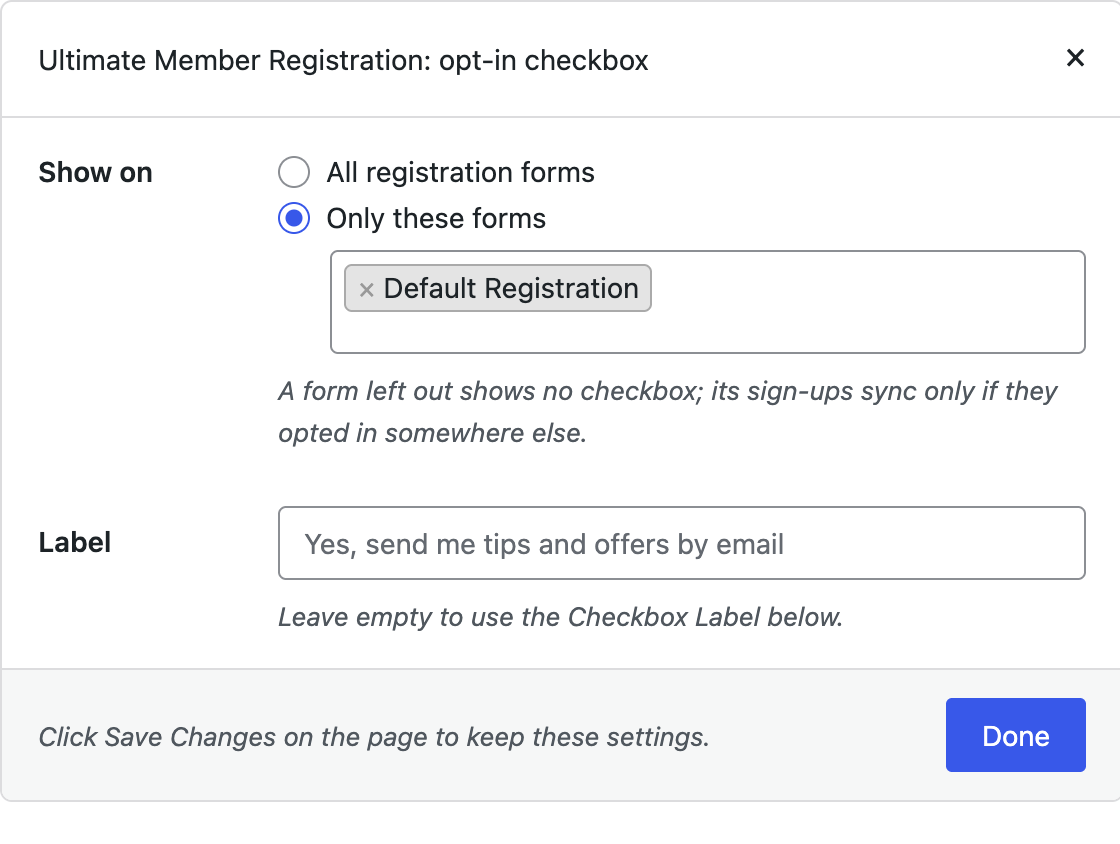
Only forms set to the Register type are listed. Login and profile forms never show the checkbox. If your site has just one register form, the popup only shows the Label field and the checkbox goes on that form.
What New Members See
The checkbox appears at the bottom of the register form, after your fields and just above the Register button. It is unticked unless you turn on Pre-check the Box, which you should leave off if you have members in the EU or UK.
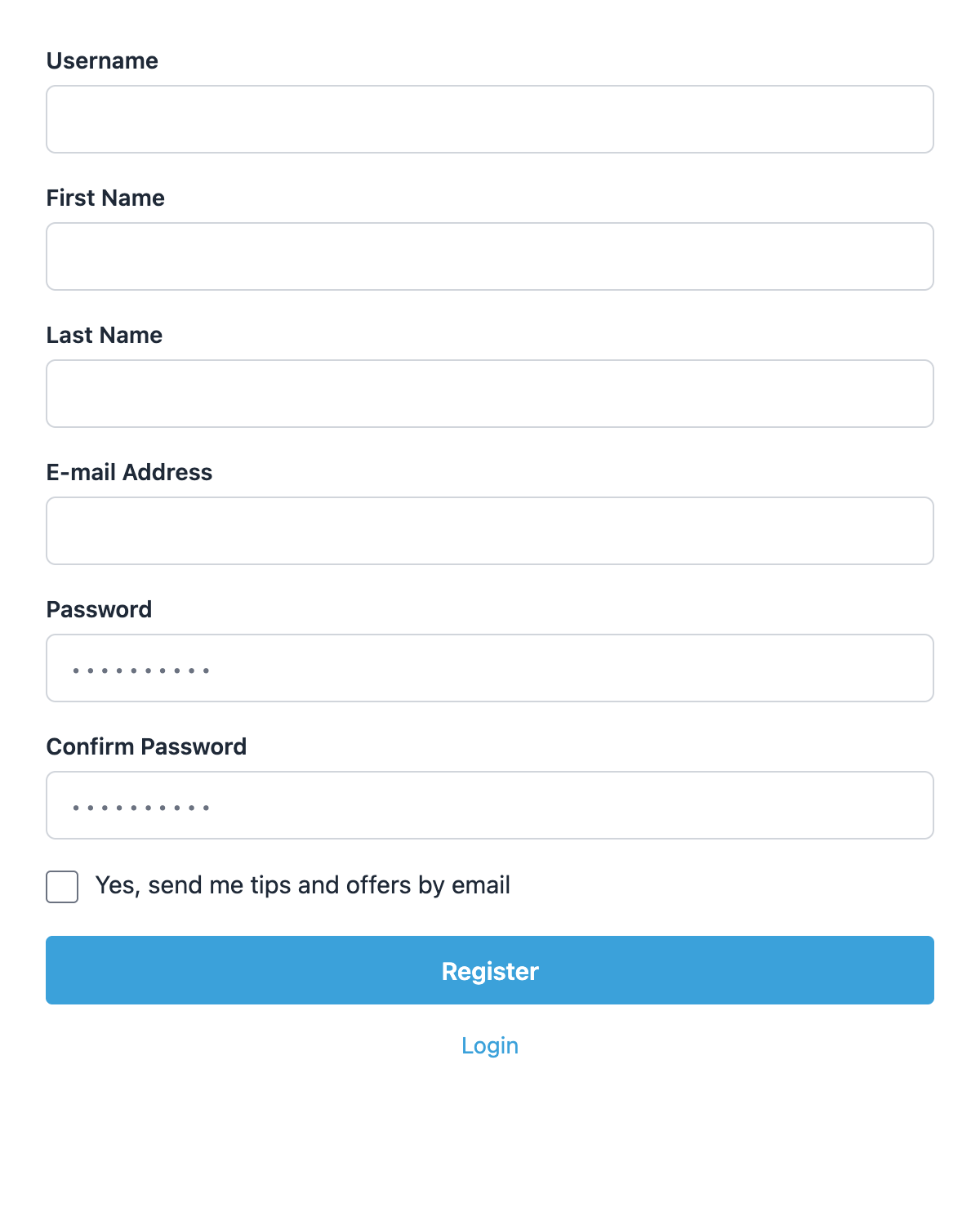
The checkbox is hidden from anyone who is already logged in. So if you, as an admin, add someone through a front-end register form, you won’t see it, and FuseWP won’t record consent on that person’s behalf.
Ultimate Member’s Privacy Checkbox Is Not Marketing Consent
Ultimate Member can add a GDPR checkbox to its register forms, asking members to agree to your privacy policy before their account is created. That box is a condition of signing up. It is not permission to send marketing emails, and FuseWP does not read it.
The two work side by side: the privacy agreement stays required to register, while FuseWP’s checkbox is optional and only controls whether the member joins your list.
For the same reason, don’t add your own “subscribe” field in the Ultimate Member form builder. FuseWP ignores it and members would see two similar boxes.
Email Activation and Admin Review
Ultimate Member can require new members to confirm their email address, or wait for an admin to approve them. In both cases Ultimate Member creates the account straight away and holds the login until it’s confirmed or approved.
FuseWP therefore records consent at sign-up, when the account is created, not when the member clicks the activation link or you approve them. A sign-up that fails, for example because the username is taken, creates no account and records nothing.
Example: A Coaching Community With Two Forms
Say your site has a “Client Sign Up” form and a “Coach Application” form, and your weekly tips email is meant for clients. In the Setup popup, choose Only these forms, select “Client Sign Up”, and set the label to “Send me weekly coaching tips by email”.
Keep in mind that consent is required for all your User Roles sync rules. A form left out shows no checkbox, so coaches who sign up won’t be added to any list by those rules unless they opt in somewhere else on your site. If coaches should be on a list too, show the checkbox on both forms.
Good to Know
- Existing members keep syncing. With Existing Contacts on (the default), accounts created before you first turned on opt-in consent sync as before.
- Removals still sync. Status changes that take a member off a list are always synced, with or without consent.
- Custom templates. The checkbox is added through Ultimate Member’s own form hooks. A theme or add-on that replaces the register form template without those hooks won’t show it.
Conclusion
With FuseWP’s opt-in checkbox on your Ultimate Member register forms, only members who asked for your emails reach your list, and everyone else still joins your community as normal. To learn how consent is stored, exported and erased, see Existing Contacts, Privacy & FAQ.