
Do you want to add a “subscribe to our newsletter” checkbox to WooCommerce checkout, and only add customers who tick it to your email list or CRM?
FuseWP enables you to add an opt-in checkbox to WooCommerce checkout. Customers who tick it are synced to your email marketing software or CRM. Customers who leave it unticked still check out normally; they just aren’t added to your list.
In this article, you will learn how to add an opt-in checkbox to the WooCommerce classic and block checkout, and how FuseWP handles guest orders, subscriptions and renewals.
This feature requires FuseWP Pro. If you are new to the opt-in checkbox, start with Getting Started with the Opt-in Checkbox.
Adding the Opt-in Checkbox to WooCommerce Checkout
First, make sure you have a WooCommerce sync rule, for example one with WooCommerce Products as the source, that sends customers to your email list.
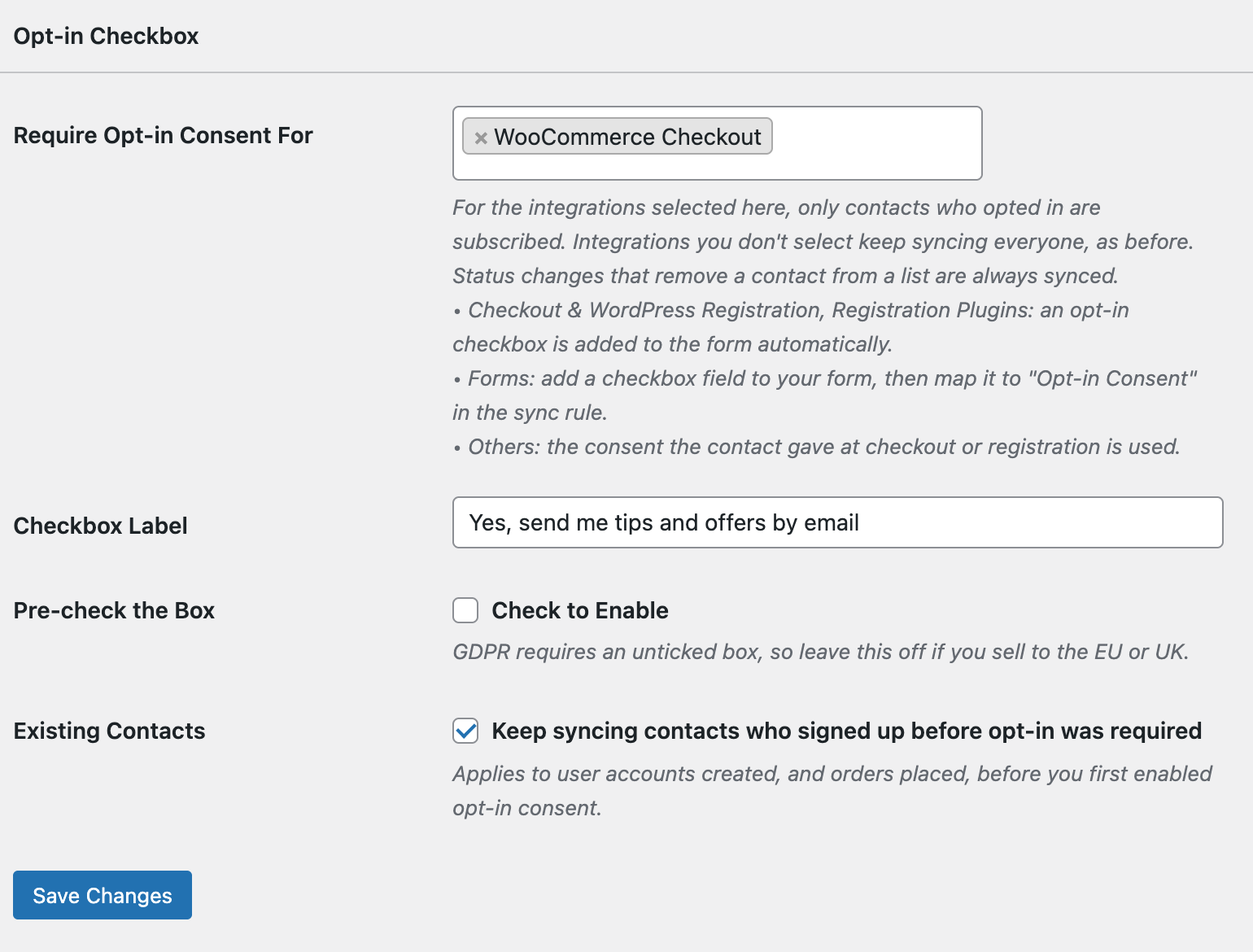
Go to FuseWP >> Settings >> General and scroll to the Opt-in Checkbox section. In Require Opt-in Consent For, select WooCommerce Checkout.
Set the Checkbox Label, for example “Yes, send me tips and offers by email”, and click Save Changes.
What Customers See
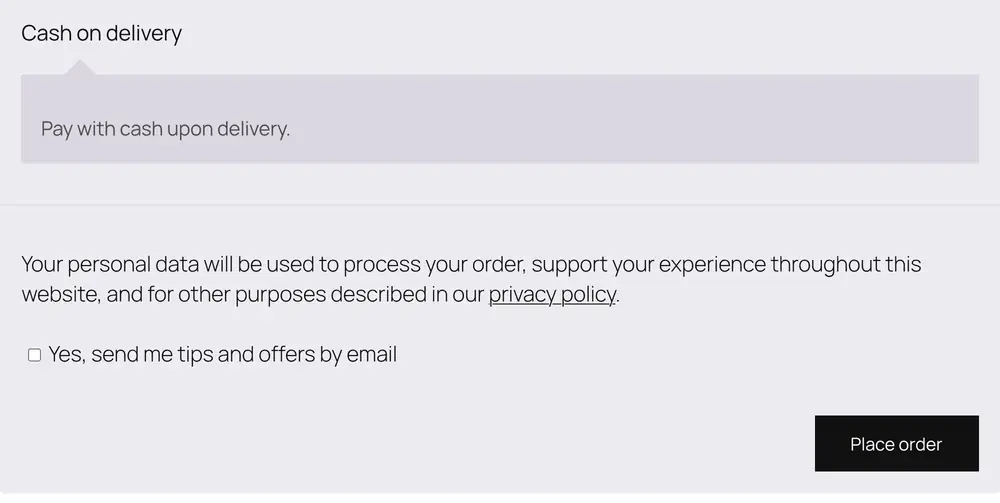
On the classic checkout, the checkbox appears just above the Place order button, unticked.
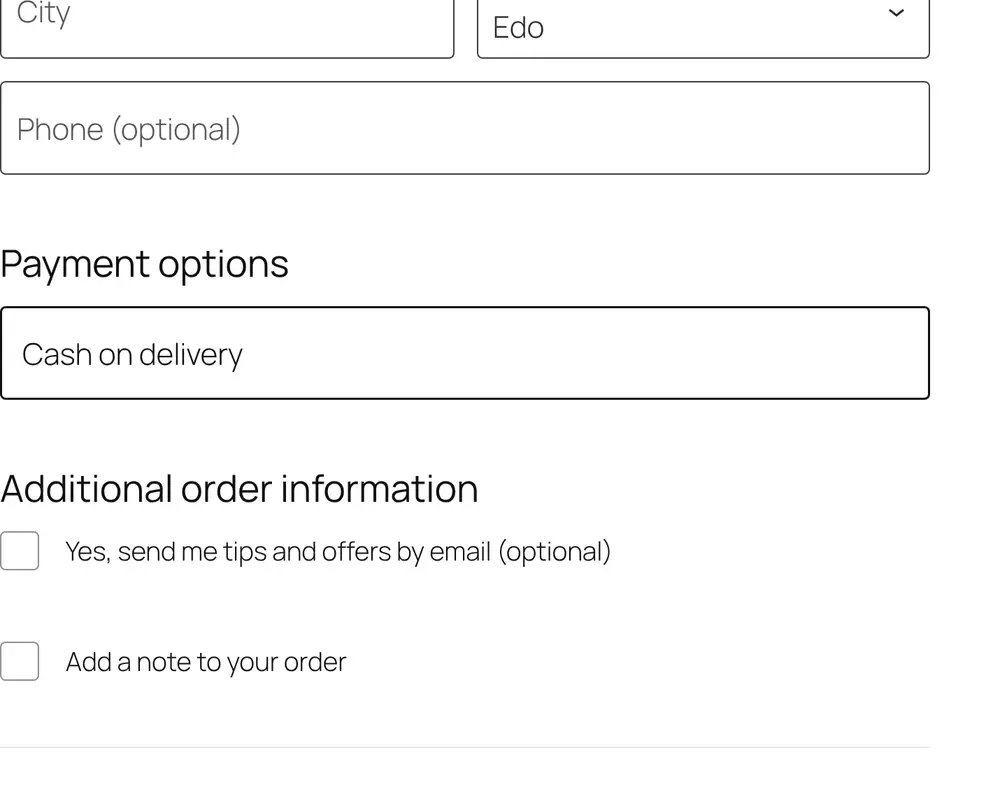
On the newer block-based checkout, the checkbox appears under Additional order information. WooCommerce adds “(optional)” to the label because customers don’t have to tick it.
Which Syncs It Affects
Selecting WooCommerce Checkout requires consent for these FuseWP sync sources:
- WooCommerce Products
- WooCommerce Product Categories
- WooCommerce Product Tags
- WooCommerce Subscriptions
- WooCommerce Memberships
Your other integrations are not affected unless you select them too.
When the Customer Counts as Opted In
- The order syncs straight away if the customer ticked the box. The tick is saved on the order.
- The customer counts as opted in for the rest of your site once the order is paid, that is, when it reaches Processing or Completed. From then on, anything else they do, such as another order or a course enrollment, also syncs.
- Unpaid or failed orders only carry the tick for that order. This stops someone from starting a checkout with another person’s email address and abandoning it to sign them up.
Subscriptions and Renewals
A WooCommerce subscription follows the order that created it. If the customer ticked the box at checkout, their renewals, status changes and cancellations keep syncing without asking again.
Customers Who Are Already Logged In
On the classic checkout, the checkbox is hidden for logged-in customers who already opted in, so they aren’t asked twice. On the block checkout it is always shown, and ticking it again changes nothing.
Things to Know
- Guest orders placed before you turned this on keep syncing when Existing Contacts is on, for example during a bulk sync of old orders.
- The block checkout can’t show a pre-ticked box. The Pre-check the Box setting applies to the classic checkout only.
- Removing customers from lists still syncs without consent, for example moving a customer off a list when their order is refunded or their subscription ends.
Conclusion
With the FuseWP opt-in checkbox on your WooCommerce checkout, only customers who asked for your emails are added to your list, while everyone can still check out as normal. For how consent is stored and erased, see Existing Contacts, Privacy & FAQ.