
Do you want students who register on your Academy LMS site to agree to your emails before FuseWP adds them to your list?
On most Academy LMS sites, people arrive in one of two ways. They create an account with a registration form, or they buy a course through the shop plugin Academy is connected to, such as WooCommerce or Easy Digital Downloads. FuseWP handles both, and this article shows you how.
You will learn how to add FuseWP’s opt-in checkbox to Academy’s student and instructor registration forms, what it holds back, and how to cover paid course sales.
The checkbox on Academy’s registration forms is free. The Academy LMS course sync rules and the shop checkboxes are part of FuseWP Pro. If you haven’t used the feature before, read Getting Started with the Opt-in Checkbox.
Where the Checkbox Goes
FuseWP adds the checkbox just above the submit button on Academy’s two registration forms:
- the student registration form;
- the instructor registration form.
It works whether you placed the forms with Academy’s registration shortcodes or with its Registration Form block. You don’t need to edit the forms.
Turn It On
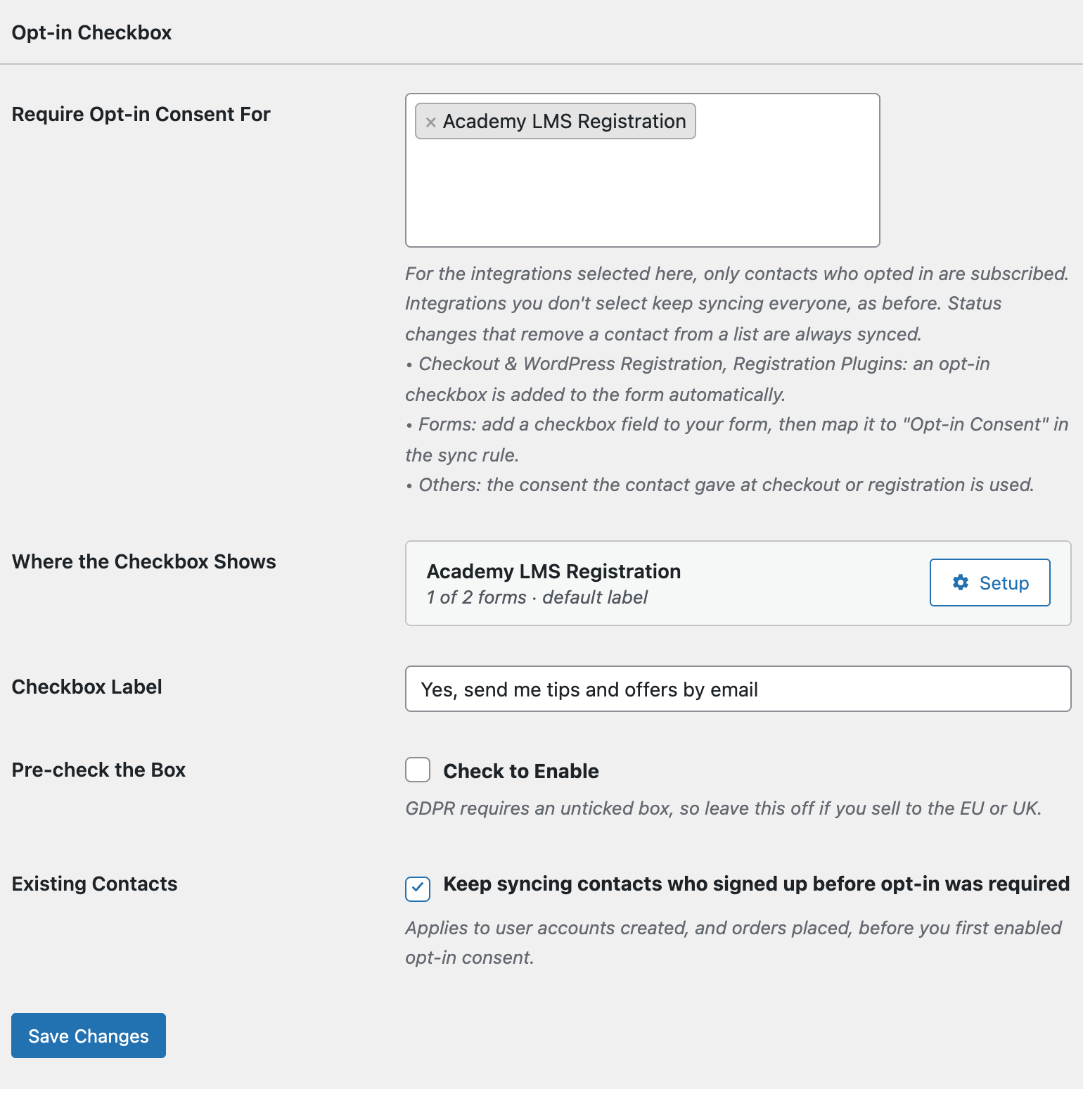
- Visit FuseWP >> Settings >> General and scroll to Opt-in Checkbox.
- In Require Opt-in Consent For, pick Academy LMS Registration. It is in the Registration Plugins: adds an opt-in checkbox group, and only appears while Academy LMS is active.
- Click Save Changes.
Pick the Forms and Write the Label
Next to Academy LMS Registration in Where the Checkbox Shows, click Setup:
- Show on: All registration forms covers both, or choose Only these forms and select “Student registration” or “Instructor registration”.
- Label: the wording on Academy’s forms. An empty label uses the Checkbox Label setting.
Click Done, then Save Changes.
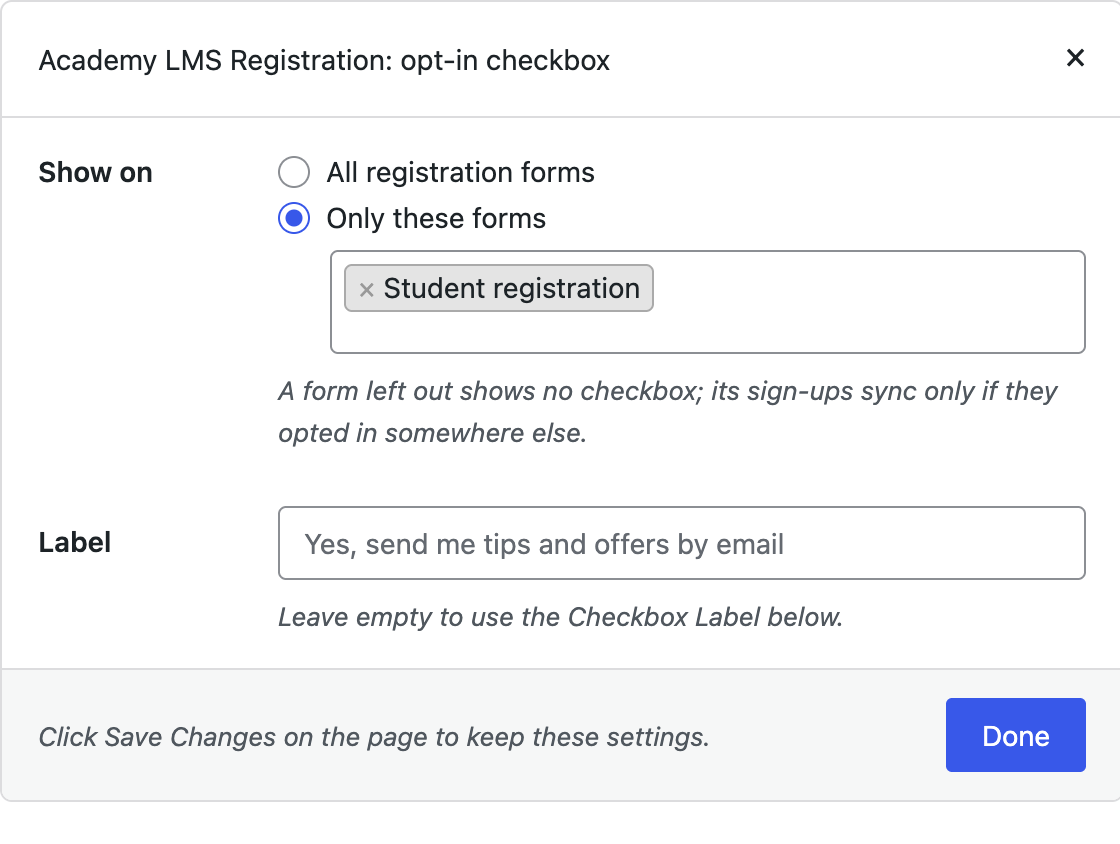
If you choose Only these forms but don’t select any, the checkbox shows nowhere. And a form you leave out gives no one the chance to opt in there, so its sign-ups sync only if they opted in elsewhere.
What Visitors See
The checkbox appears unticked, below the last field and just above the register button. It is hidden from anyone who is already logged in.
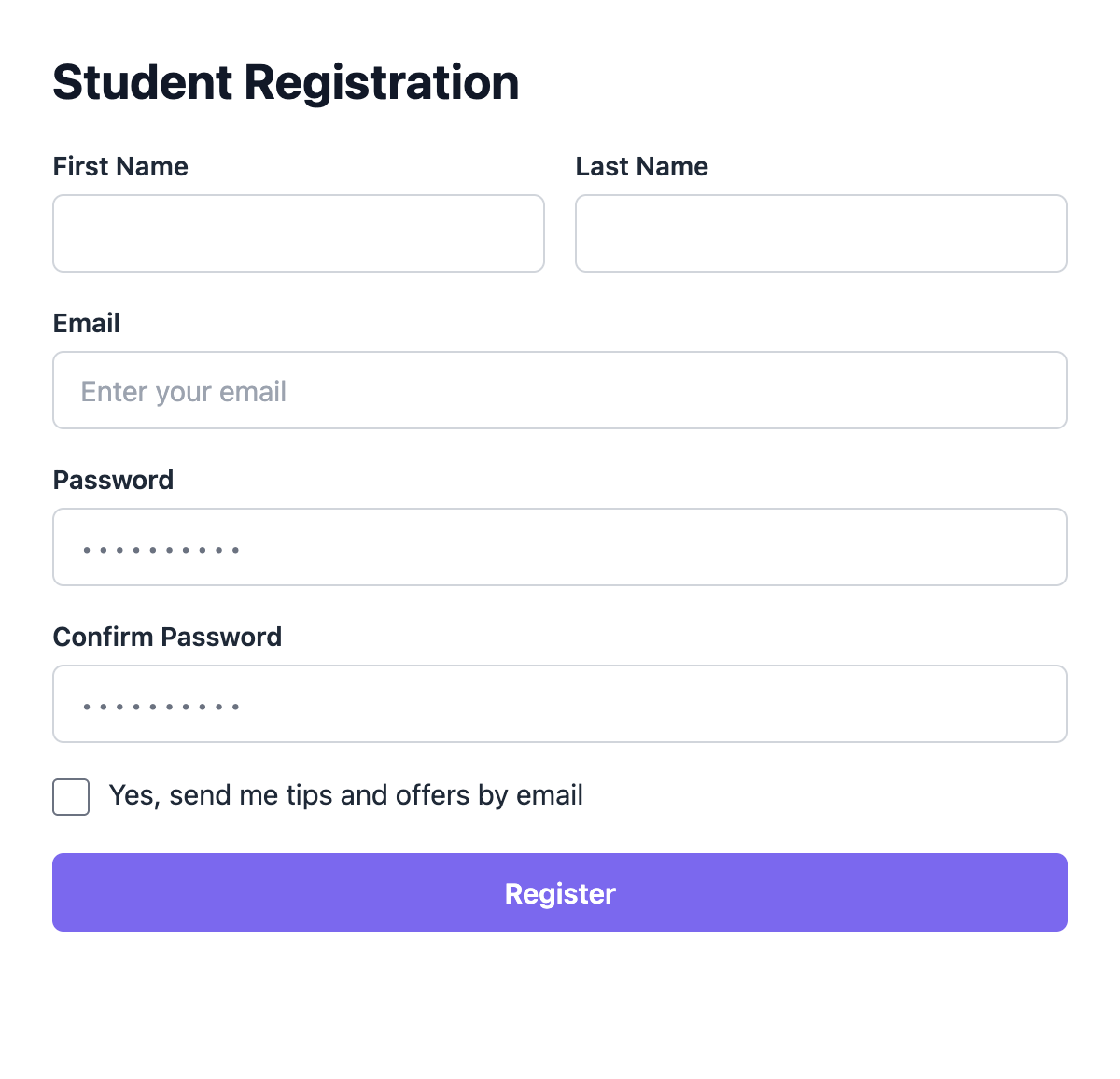
Consent is recorded when Academy creates the account. If registration fails, for example because the email address is already in use, nothing is recorded.
What It Holds Back
Once Academy LMS Registration is selected, these sync rules only subscribe people who opted in:
- User Roles, for every new account;
- Academy LMS Courses (Pro);
- Academy LMS Course Categories (Pro);
- Academy LMS Course Tags (Pro).
Learn how to build these rules in how to sync Academy LMS with your email marketing software.
Nobody is blocked from learning. A student who skips the box is still registered and enrolled; FuseWP just doesn’t add them to your list.
Paid Courses Go Through Your Shop
Academy LMS sells paid courses through the shop plugin it’s set up with, so the checkbox for buyers belongs on that shop’s checkout. Select WooCommerce Checkout or Easy Digital Downloads Checkout as well (both Pro). See the WooCommerce checkout opt-in guide for details.
If you skip this, a buyer who never ticked a box anywhere is not added by your Academy LMS course sync rules.
Example: A Coding Bootcamp With Free and Paid Courses
Picture a site with a free “HTML Basics” course and paid bootcamps sold through WooCommerce. You select Academy LMS Registration, set the label to “Email me new lessons and course launches”, and also select WooCommerce Checkout.
A learner registers, ticks the box, and takes the free course. Months later they buy a bootcamp. Because consent belongs to the person, they’re already opted in: the classic WooCommerce checkout doesn’t ask them again, and your Academy LMS Courses rule adds them to the bootcamp list once they’re enrolled.
Before You Go Live
- Existing Contacts is on by default, so students who registered before you required opt-in consent keep syncing.
- A theme or add-on that replaces Academy’s registration templates without its form hooks won’t show the checkbox. Register a test account to check.
Conclusion
FuseWP’s opt-in checkbox on Academy LMS’s registration forms, together with your shop’s checkout checkbox, means every route into your courses asks for consent before anyone joins your list. For how consent is stored and erased, read Existing Contacts, Privacy & FAQ.