
Do you take tour bookings with WP Travel Engine and want to send trip offers only to travellers who agreed to hear from you?
Travel companies often rely on email to fill next season’s departures, but a booking isn’t the same as permission to market. FuseWP can add an opt-in checkbox to the WP Travel Engine checkout. Travellers who tick it are synced to your email marketing software or CRM. Travellers who don’t still book their trip; they just aren’t added to your list.
In this article you’ll set up the checkbox, see where it appears on the checkout, and learn when a booking counts as consent, including deposits and off-site payments.
What’s Free and What’s Pro
Adding the checkbox to the checkout is free. The sync rules it gates, WP Travel Engine Trips and WP Travel Engine Trip Types, are part of FuseWP Pro. If you haven’t built those rules yet, start with how to sync WP Travel Engine to your email marketing software.
Turning It On
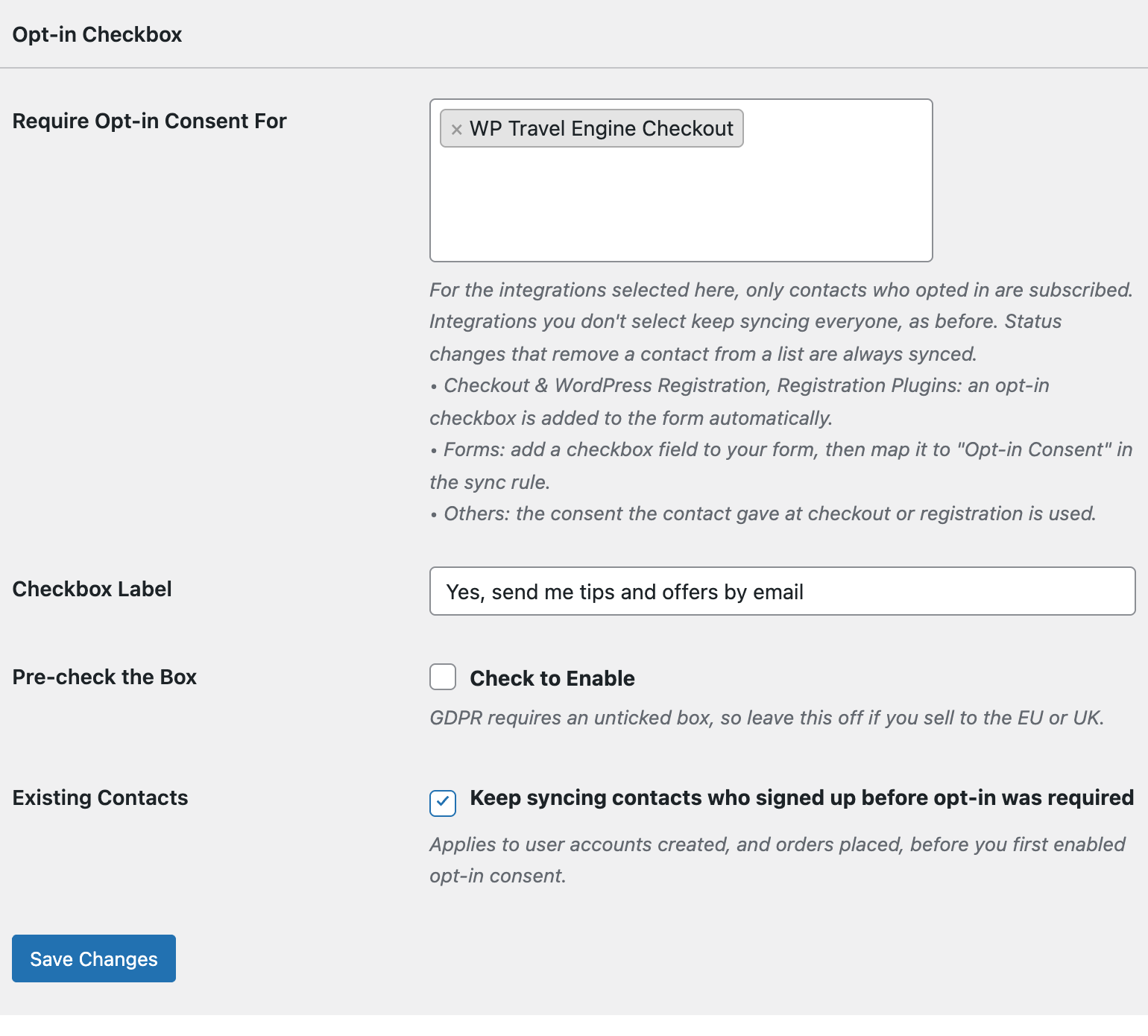
Head to FuseWP >> Settings >> General and scroll down to Opt-in Checkbox.
Click into Require Opt-in Consent For and choose WP Travel Engine Checkout from the Checkout & WordPress Registration: adds an opt-in checkbox group. It’s only listed while WP Travel Engine is active.
Give the box a label your travellers will understand, for example “Send me early-bird offers on new tours”, then click Save Changes.
Where Travellers See It
On the checkout, the opt-in checkbox is placed directly under WP Travel Engine’s Terms and Conditions checkbox, above the booking button.
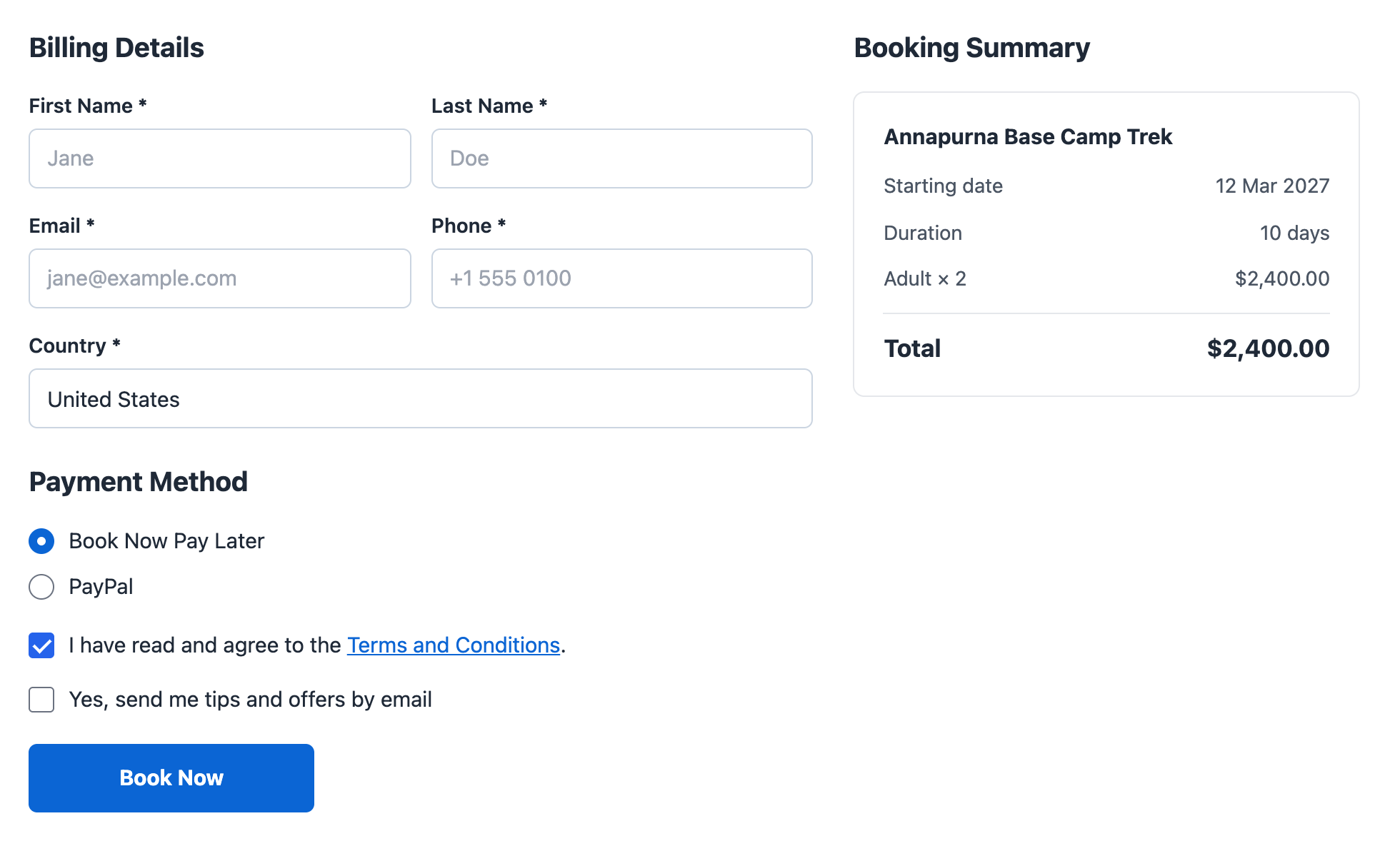
That spot was chosen on purpose. Parts of the WP Travel Engine checkout are reloaded when a traveller changes their payment method or their cart, which would clear a tick placed there. The terms area stays put, so a traveller who ticks the box and then switches from card to bank transfer keeps their tick.
If Pre-check the Box is on, the box starts ticked. Leave it off if you take bookings from the EU or UK. Travellers who are logged in and already opted in won’t see the box again.
How a Booking Becomes Consent
When a traveller submits the checkout with the box ticked, FuseWP saves the tick on the booking. Then two things happen at different times:
- The booking’s own syncs go ahead straight away. Your Trips and Trip Types rules add the traveller to their lists even before the booking is paid.
- The traveller counts as opted in across your site once the booking is paid. That covers every status WP Travel Engine treats as paid, including a partial deposit and a received check, as well as a completed payment or a zero-total booking.
A booking that is never paid records no consent for anyone, even if WP Travel Engine created a user account for that email address. So someone can’t book with another person’s email to put them on your list beyond that one booking.
Off-site Payment Gateways
When you use a gateway that sends travellers to another site to pay, consent is recorded when WP Travel Engine marks the payment as completed, usually once the gateway reports back. Until then, only the booking’s own syncs use the tick.
Example: Deposits for a Summer Trek
You sell a ten-day summer trek with a 20% deposit, and a WP Travel Engine Trips rule adds everyone who books it to a “Summer Trek” list. A traveller who ticks the box and pays the deposit is added to that list straight away, and counts as opted in for the rest of your site from the moment the deposit is received. A traveller who books the same trek without ticking still gets their place, but stays off the list.
Past Bookings and Privacy
With Existing Contacts on, bookings made before you first required opt-in keep syncing, which is handy when you run a bulk sync of last year’s travellers. Removing travellers from lists always syncs, consent or not.
If a traveller asks to be forgotten through Tools >> Erase Personal Data, FuseWP deletes their consent record and clears the tick from their bookings, so they aren’t added back on the next sync. See Existing Contacts, Privacy & FAQ for more.
Conclusion
With the opt-in checkbox sitting under your Terms and Conditions box, every WP Travel Engine booking gives travellers a clear choice about your emails. Bookings work exactly as before, deposits and completed payments turn a tick into lasting consent, and your trip lists only hold people who want to hear about your next adventure.