
Is your WS Form form a longer, multi-tab application, such as a volunteer sign-up, a course enquiry or a membership application, and you only want applicants on your mailing list if they agree to it?
FuseWP can hold back every WS Form submission that doesn’t carry a tick in your consent checkbox. Applicants who tick it are synced to your email marketing software or CRM. Applicants who don’t still submit their application normally; WS Form stores it, and FuseWP doesn’t add them to your list.
In this article, you’ll place a consent checkbox in a tabbed WS Form form, map it to FuseWP’s Opt-in Consent field, and see how WS Form values and conditional logic affect the result.
Mapping Opt-in Consent costs nothing extra; it’s part of the free plugin. If you’re new to syncing WS Form, read how to sync WS Form with your email marketing software first, and see Getting Started with the Opt-in Checkbox for the bigger picture.
Where to Put the Checkbox in a Tabbed Form
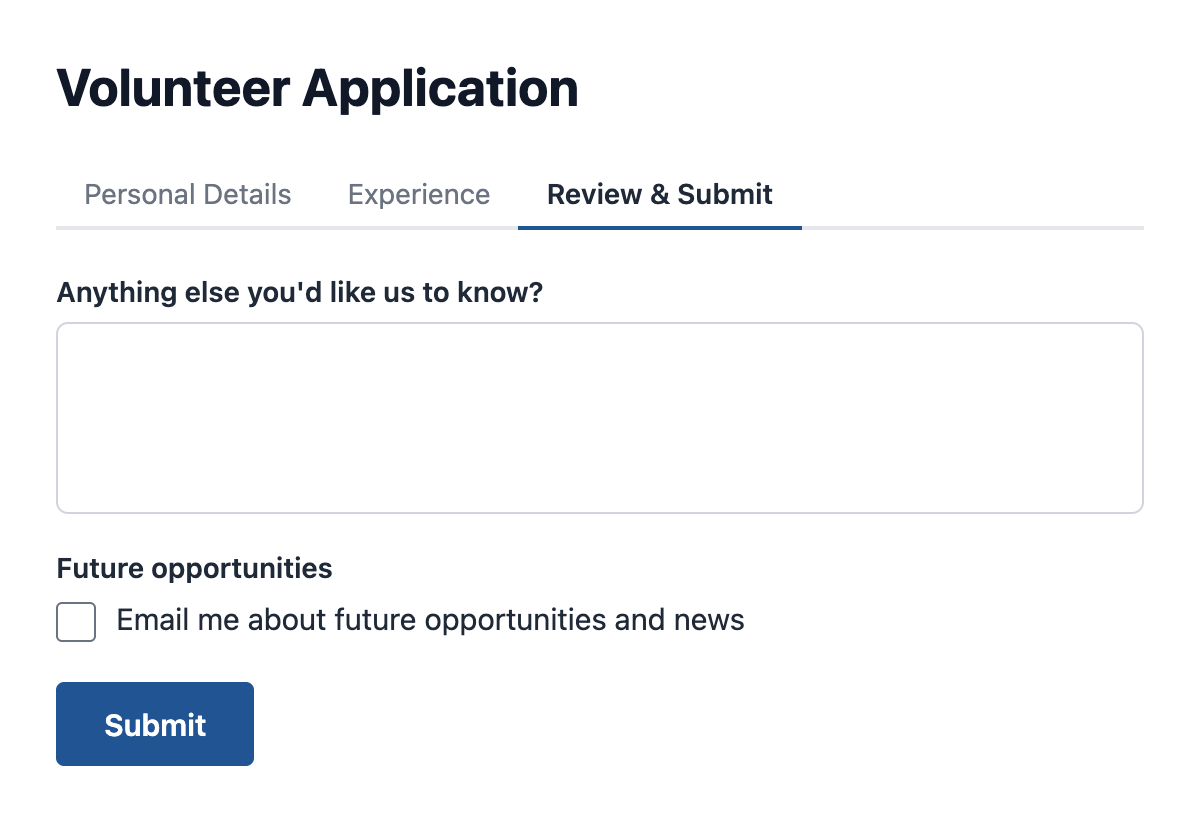
FuseWP doesn’t add a field to WS Form. In the WS Form layout editor, add a Checkbox field with a single option such as “Email me about future opportunities and news”. Give the field a clear label as well, because that’s the name you’ll pick in FuseWP.
The checkbox can live on any tab. FuseWP reads fields from every tab and section of the form, so a consent box on the final “Review & Submit” tab is found just like one on the first tab. A spot near the submit button tends to work best, since applicants decide after they’ve seen everything you’re asking.
Mapping the Field in Your WS Form Sync Rule
Go to FuseWP >> User Sync. Open the rule for your application form, or create one and pick the form as the Source. FuseWP lists published WS Form forms only, so a brand-new form won’t appear until you publish it.
- In Destinations, choose After Form Submission as the event, then your integration and list.
- Map Lead Email Address to the applicant’s email field.
- Below the existing rows in Map Custom Fields, use Map Another Field to add one more. Pair your consent checkbox (Data side) with Opt-in Consent, listed straight after Lead Email Address.
- Save the rule.
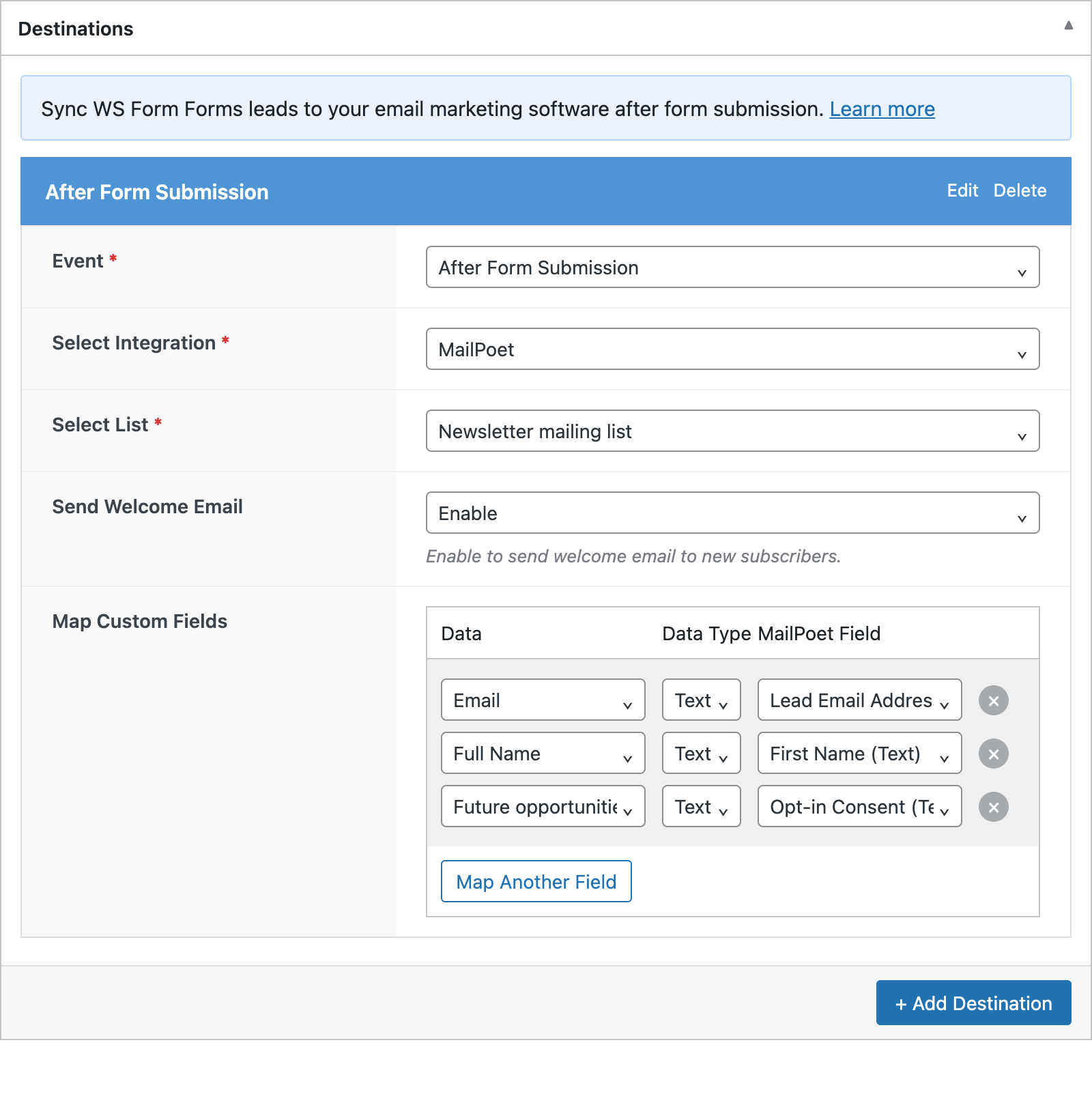
Under the WS Form heading, the Data list shows every field by label, except submit buttons, followed by Entry ID, Form ID, Form Name and Created At. The Opt-in Consent row stays inside FuseWP and isn’t sent to your email software.
How WS Form Values Are Read
FuseWP runs once WS Form has finished processing the submission. WS Form saves checkbox answers as a list of the options that were ticked. When only one option is ticked, FuseWP turns that list into the option’s text, which counts as consent. When nothing is ticked, the value is empty and the entry is skipped for that destination.
Besides empty, FuseWP reads 0, n, no, false and off as not ticked; any other value is consent. Radio buttons or selects with a “No thanks” option would therefore count as a yes. Use a checkbox, or ask a developer to use the fusewp_optin_form_consent_is_given filter.
Conditional Logic and Skipped Tabs
WS Form’s conditional logic can hide fields or whole tabs. If a rule hides your consent checkbox, for example on a branch for a certain applicant type, those applicants can’t tick it, so their submissions arrive empty and won’t be synced. That’s the safe outcome, but double-check your logic if a group of applicants never reaches your list.
What a Tick Means Beyond This Form
When FuseWP syncs a ticked submission, it also stores a consent record for the applicant’s email address. Other FuseWP integrations that require consent will treat that person as opted in. If the email matches a WordPress user, the record is tied to that account too. Form entries are processed in the background, so the record has no IP address.
Optional: Require Consent Across All WS Form Rules
For sites with several WS Form forms, you can make consent the rule rather than the exception. Visit FuseWP >> Settings >> General, open the Opt-in Checkbox section, and in Require Opt-in Consent For select WS Form under Forms: map a form field to “Opt-in Consent”. Click Save Changes.
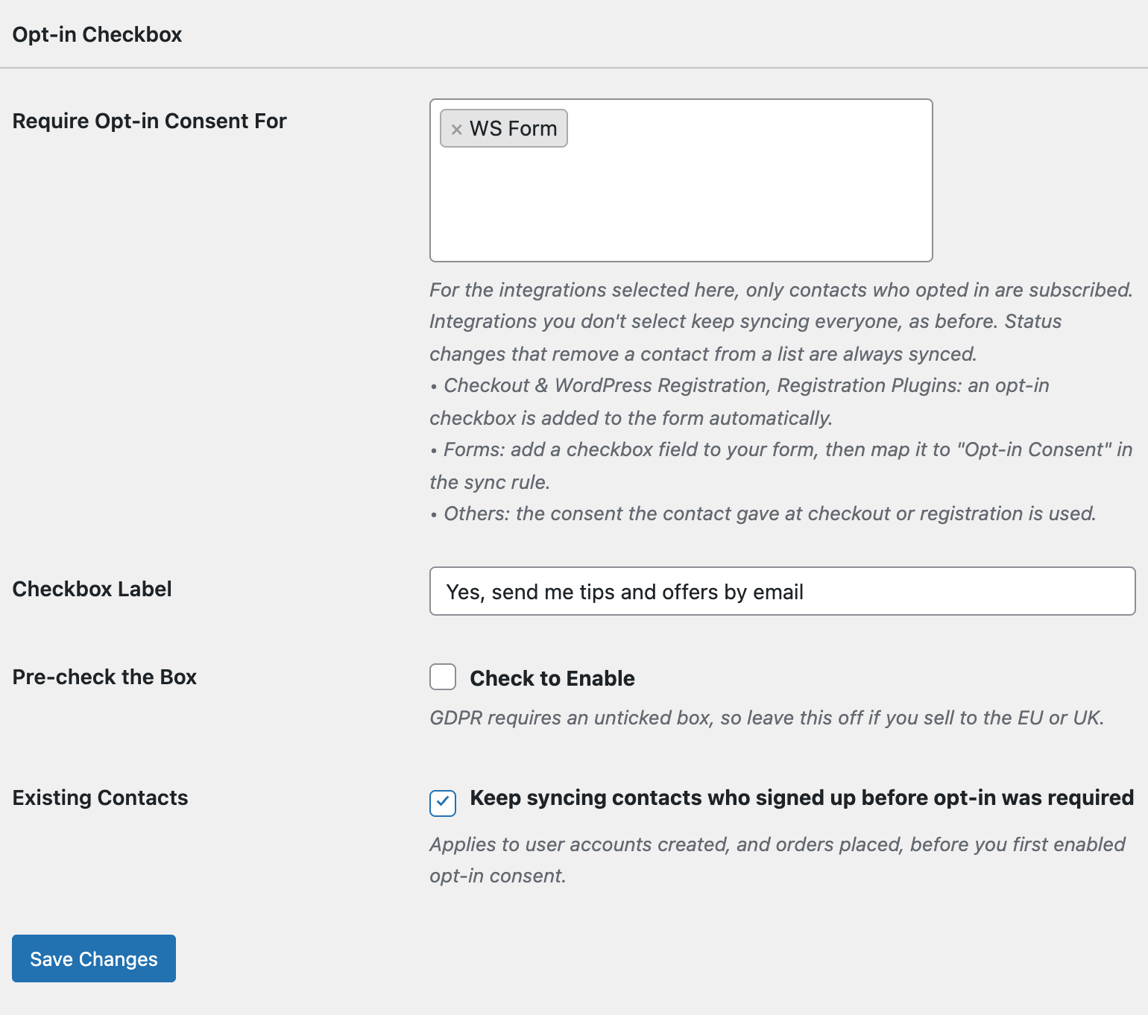
Any WS Form rule that doesn’t map Opt-in Consent will then sync only people who already opted in somewhere else on your site, while mapped rules keep following their checkbox.
If you want to add applications that arrived earlier, a bulk sync runs the same check, so only past submissions with a ticked box are added.
Conclusion
However many tabs your WS Form application has, one consent checkbox mapped to Opt-in Consent decides who joins your list, and FuseWP finds it wherever it sits. To learn how consent records are kept, exported and erased, see Existing Contacts, Privacy & FAQ.