
Does your Contact Form 7 contact form add everyone who sends you a message to your email list, even people who only had a question?
Someone filling in your contact form wants a reply, not necessarily a newsletter. With FuseWP, you can add a “send me tips and offers” checkbox to your Contact Form 7 form and only sync the people who tick it to your email marketing software or CRM. Everyone else’s message still reaches your inbox as usual.
FuseWP doesn’t inject a checkbox into Contact Form 7. You add the checkbox yourself with a form tag, then tell FuseWP which field it is. This is free in FuseWP. If you haven’t connected Contact Form 7 to your email list yet, start with how to sync Contact Form 7 with your email marketing software.
Step 1: Add a Consent Checkbox Tag to Your Form
Open your form in Contact Form 7 and add a checkbox tag where you want the box to appear, usually just above the submit button:
[checkbox newsletter-consent use_label_element "Yes, send me tips and offers by email"]
The part after checkbox, here newsletter-consent, is the field name. Remember it, because that’s the name FuseWP lists when you map fields. use_label_element lets visitors tick the box by clicking its text.
Keep it to a single option: with several, ticking any one counts as consent. Save the form, and visitors see the checkbox, unticked, below your message field.

Can I Use an Acceptance Checkbox Instead?
Yes, but add the optional option. Contact Form 7’s acceptance checkbox is designed for “I agree to the terms” boxes, so by default the form won’t send until it is ticked. That would force everyone to subscribe just to contact you. Written as optional, it works as a normal consent box:
[acceptance newsletter-consent optional] Yes, send me tips and offers by email [/acceptance]
Ticked, it counts as consent; unticked, it comes through empty. For most sites, the plain checkbox tag is simpler.
Step 2: Map the Field to Opt-in Consent
Go to FuseWP >> User Sync and open the sync rule for your contact form, or add a new one with that form as the Source.
- In the destination, set the event to After Form Submission and pick your integration and list.
- Under Map Custom Fields, map your email field to Lead Email Address if you haven’t already.
- Click Map Another Field. In the Data column, choose newsletter-consent (or whatever you named your tag).
- In the field column on the right, choose Opt-in Consent. You’ll find it right after Lead Email Address in the list.
- Click Save.
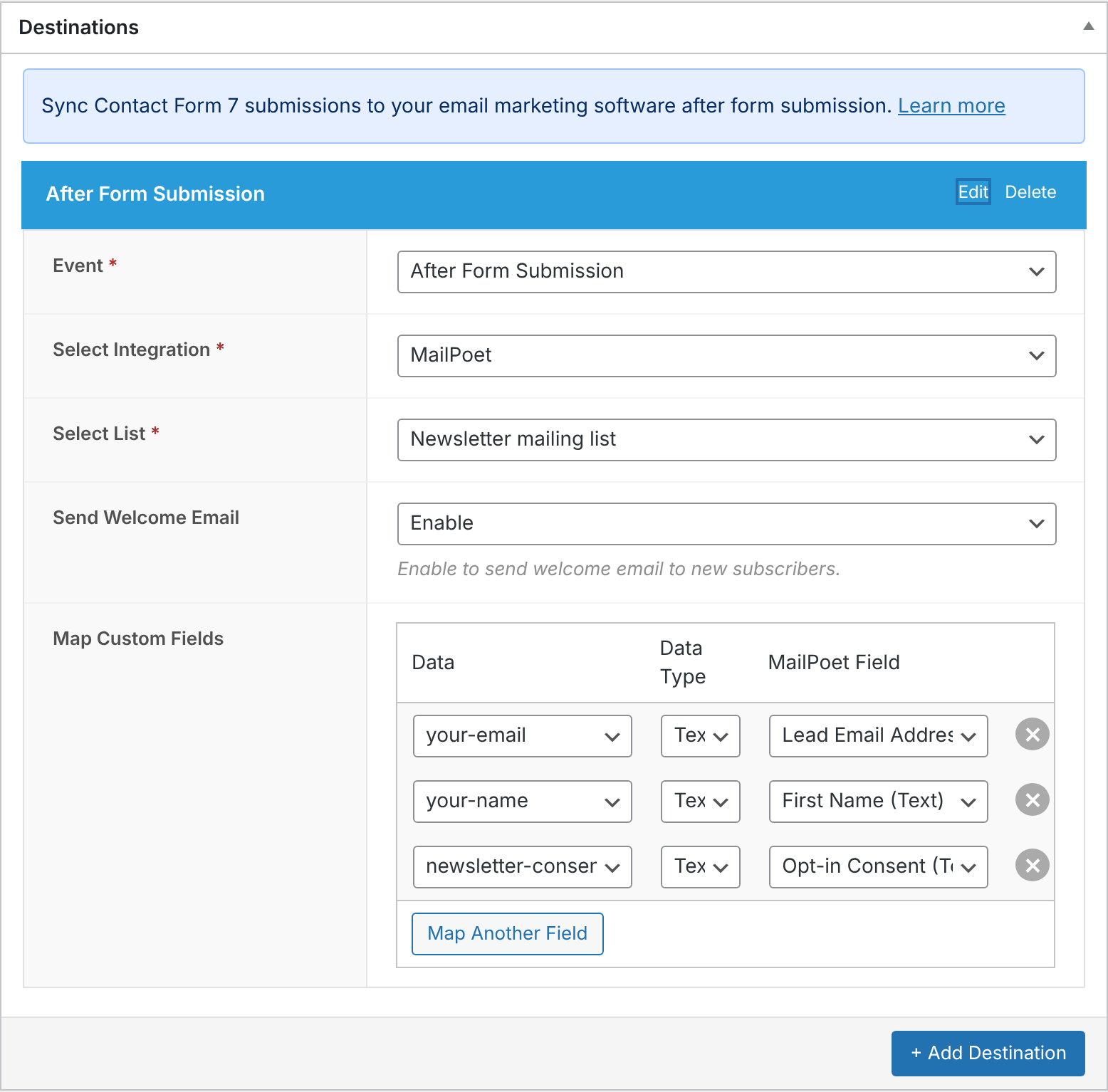
Opt-in Consent is a FuseWP-only mapping. It tells FuseWP whether to sync the entry and is never sent to your email platform as a field.
What Happens When the Form Is Sent
- Box ticked: the person is added to your list, and FuseWP records their consent.
- Box left unticked: the entry is skipped. Contact Form 7 still sends you the email notification, so you can reply as normal.
- Spam or failed validation: FuseWP only syncs Contact Form 7 submissions that went through to the mail step, so entries flagged as spam or rejected by validation never sync, ticked or not.
FuseWP treats an empty value, or a value of 0, n, no, false or off, as “not ticked”. Any other value counts as consent. That’s why a checkbox works best. A radio button with a “No thanks” option would still send a value and count as yes. If you really need a radio button, a developer can adjust the rule with the fusewp_optin_form_consent_is_given filter.
A Tick Counts Across Your Site
Consent belongs to the person. If someone ticks the box on your contact form and later buys from your store, integrations that require consent, such as a WooCommerce checkout, will sync them too.
The consent record stores the email address, the form it came from and the date. Form entries are processed in the background, so the visitor’s IP address isn’t stored for them.
Step 3 (Optional): Require Consent for All Contact Form 7 Rules
The mapping in Step 2 is all you need. If you have several Contact Form 7 rules and want consent to be required for every one of them, go to FuseWP >> Settings >> General, scroll to the Opt-in Checkbox section and select Contact Form 7 under the Forms: map a form field to “Opt-in Consent” group in Require Opt-in Consent For. Click Save Changes.
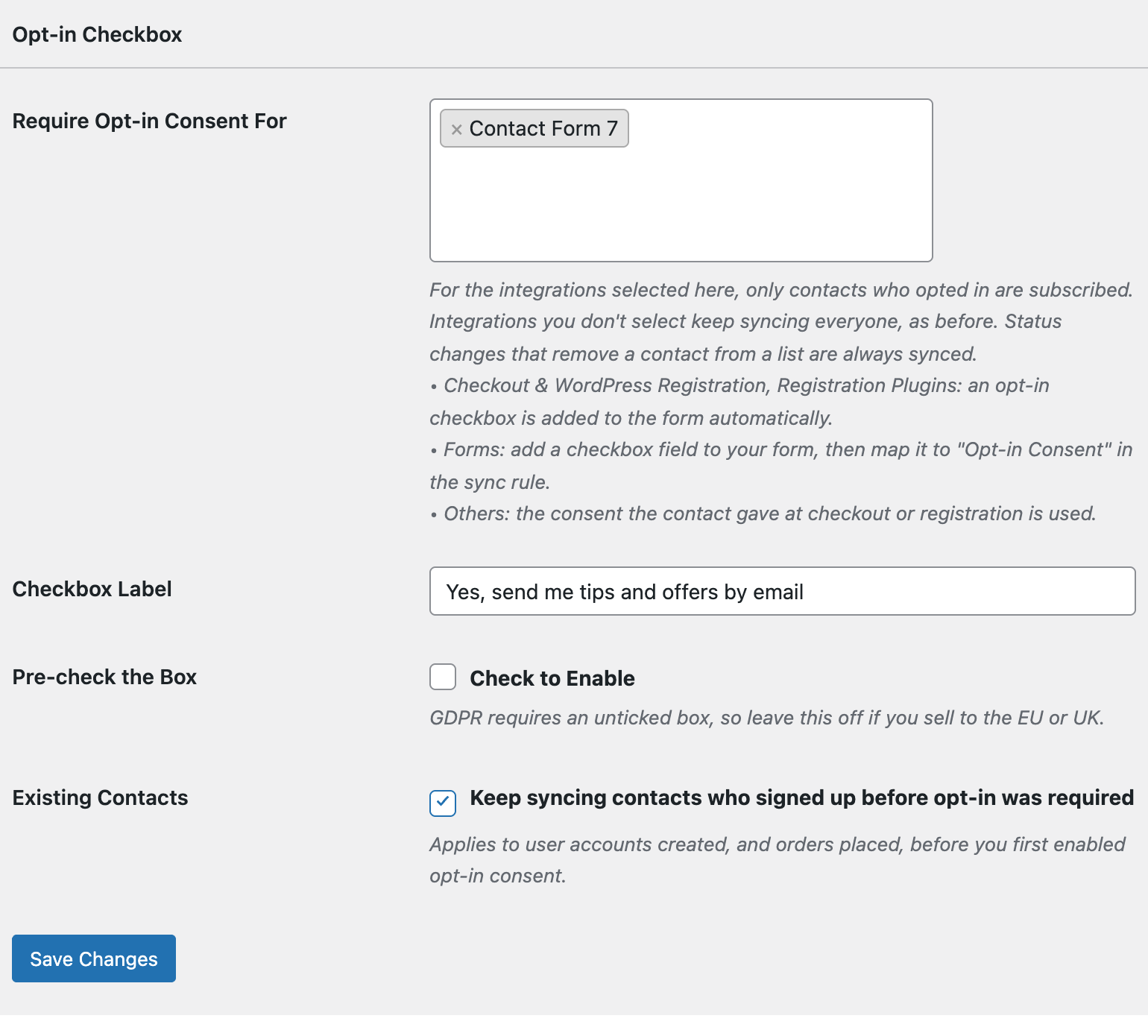
Once Contact Form 7 is selected, a rule without an Opt-in Consent mapping only syncs people who already opted in somewhere else on your site, for example at checkout. Rules with the mapping keep using their checkbox. The Checkbox Label and Pre-check the Box settings don’t apply here, because the checkbox is your own form tag.
Bulk Syncing Old Contact Form 7 Entries
Contact Form 7 doesn’t store entries, so FuseWP bulk syncs past submissions from the Contact Form DB 7 (CFDB7) plugin. Rules with the consent mapping only add old entries where the box was ticked.
Conclusion
One checkbox tag and one field mapping are enough to stop your Contact Form 7 contact form from filling your list with people who only wanted an answer. For how consent records are stored, exported and erased, see Existing Contacts, Privacy & FAQ.