
Do you want students who join your LifterLMS school to opt in before they’re added to your email list?
On a LifterLMS site, a student can come in through three doors: the registration form, the checkout for an access plan, or the one-click enroll button a logged-in student sees on a free plan. FuseWP can add its opt-in checkbox to all three, and you choose which ones show it. Students who tick it are synced to your email marketing software or CRM. Students who don’t still register, enroll, and learn exactly as before.
In this article, you will learn where the checkbox can appear in LifterLMS, which sync rules it affects, and when a student counts as opted in.
New to the feature? Start with Getting Started with the Opt-in Checkbox.
The Three Places the Checkbox Can Go
- Registration form: the
[lifterlms_registration]shortcode and the sign-up form on LifterLMS’s account page. The checkbox sits just above the register button and is only shown to visitors who aren’t logged in. - Checkout: the checkout for both free and paid access plans, above the terms and the button. A visitor with no account gets one when they check out.
- Free enrollment button: the short form LifterLMS shows a logged-in student so they can enroll in a free plan with one click.
On the checkout and free enrollment form, the checkbox appears for logged-in students who haven’t opted in yet. Once a student has opted in, it’s hidden, so nobody is asked twice.
Turning It On
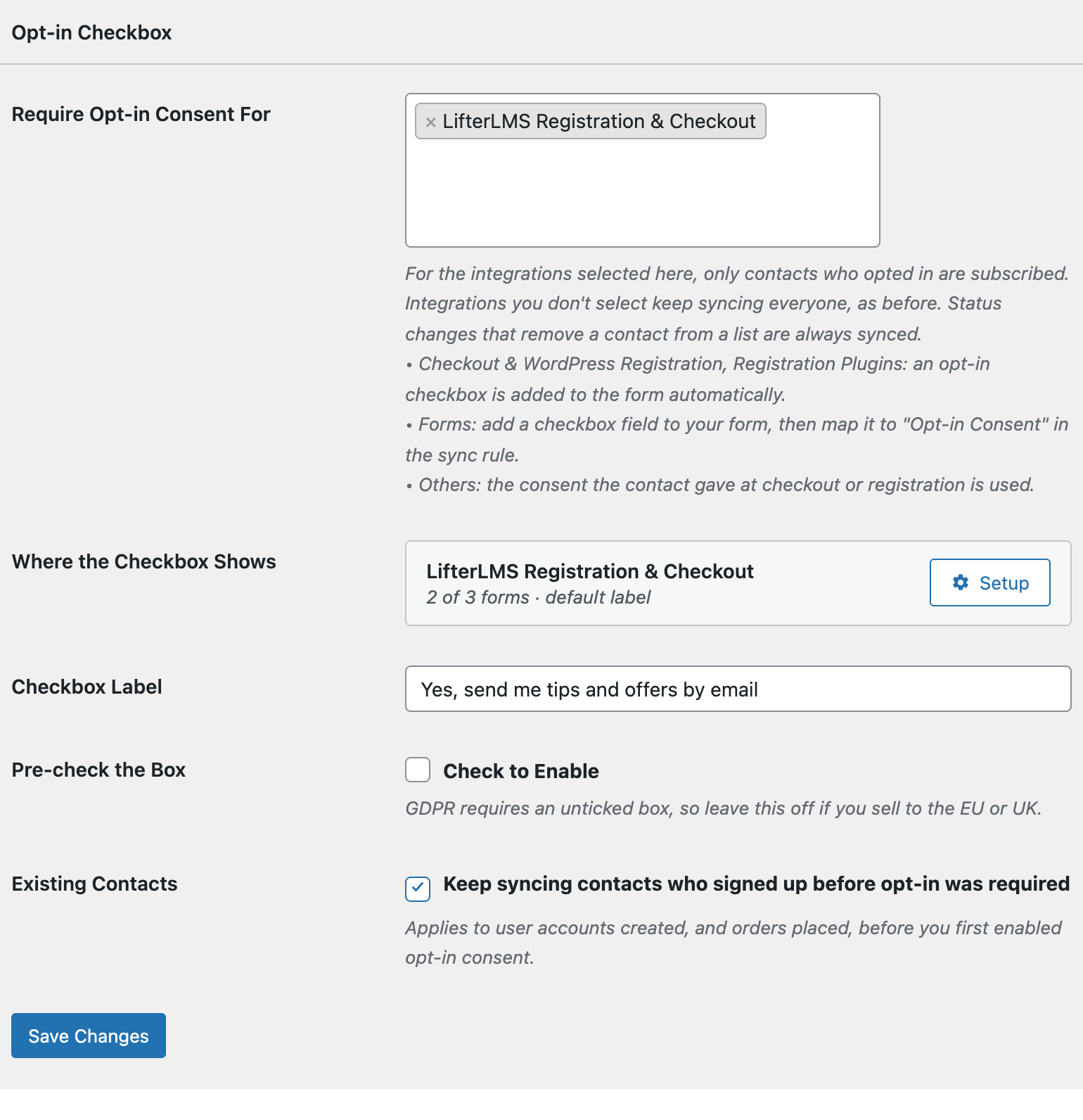
- Go to FuseWP >> Settings >> General and find the Opt-in Checkbox section.
- In Require Opt-in Consent For, under Registration Plugins: adds an opt-in checkbox, select LifterLMS Registration & Checkout.
- Click Save Changes.
Picking the Forms and Label
In Where the Checkbox Shows, click Setup next to LifterLMS Registration & Checkout. Under Show on, keep All registration forms to use all three places, or choose Only these forms and select from “Registration form”, “Checkout” and “Free enrollment button (logged-in students)”.
The Label field sets the wording on LifterLMS forms, such as “Email me when new courses open”. Leave it empty to use your main Checkbox Label. Click Done, then Save Changes.
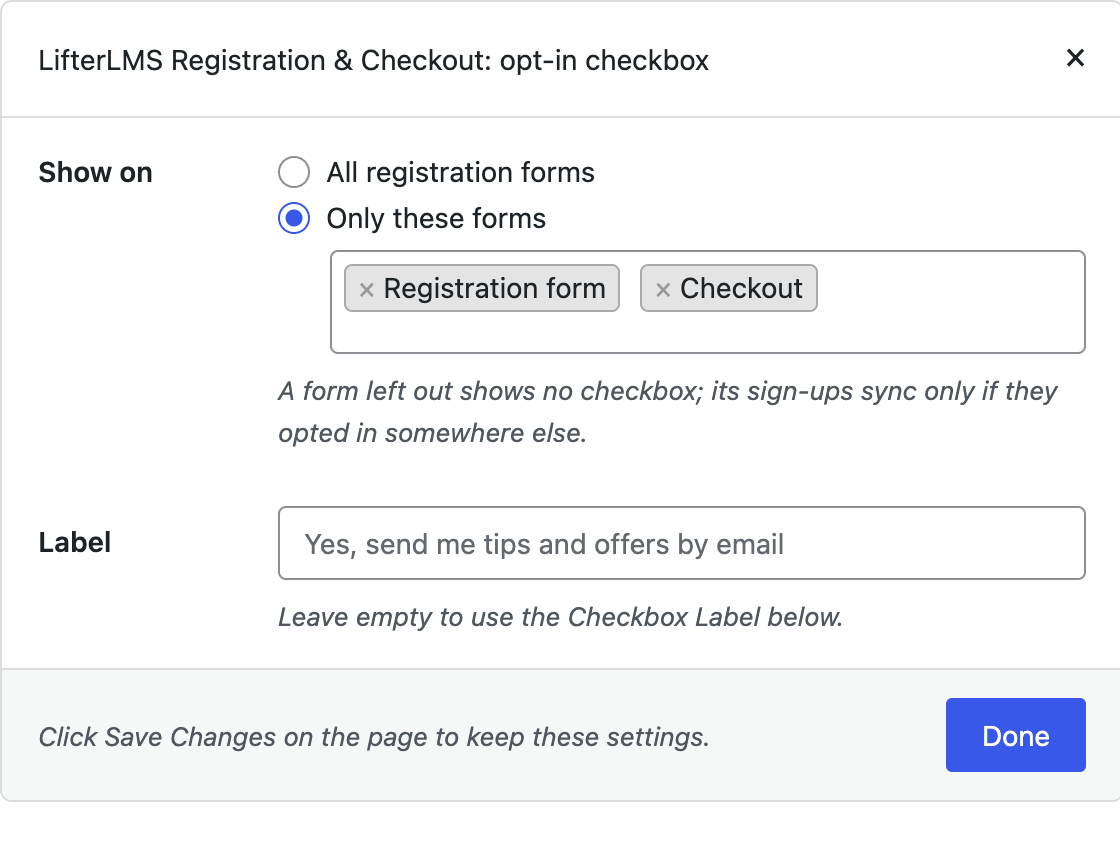
Think before leaving a place out. A form without the checkbox gives students no way to opt in there, so anyone who joins only through it is synced only if they opted in somewhere else on your site.
What Students See
Here is the checkbox on the LifterLMS registration form, unticked and just above the button:
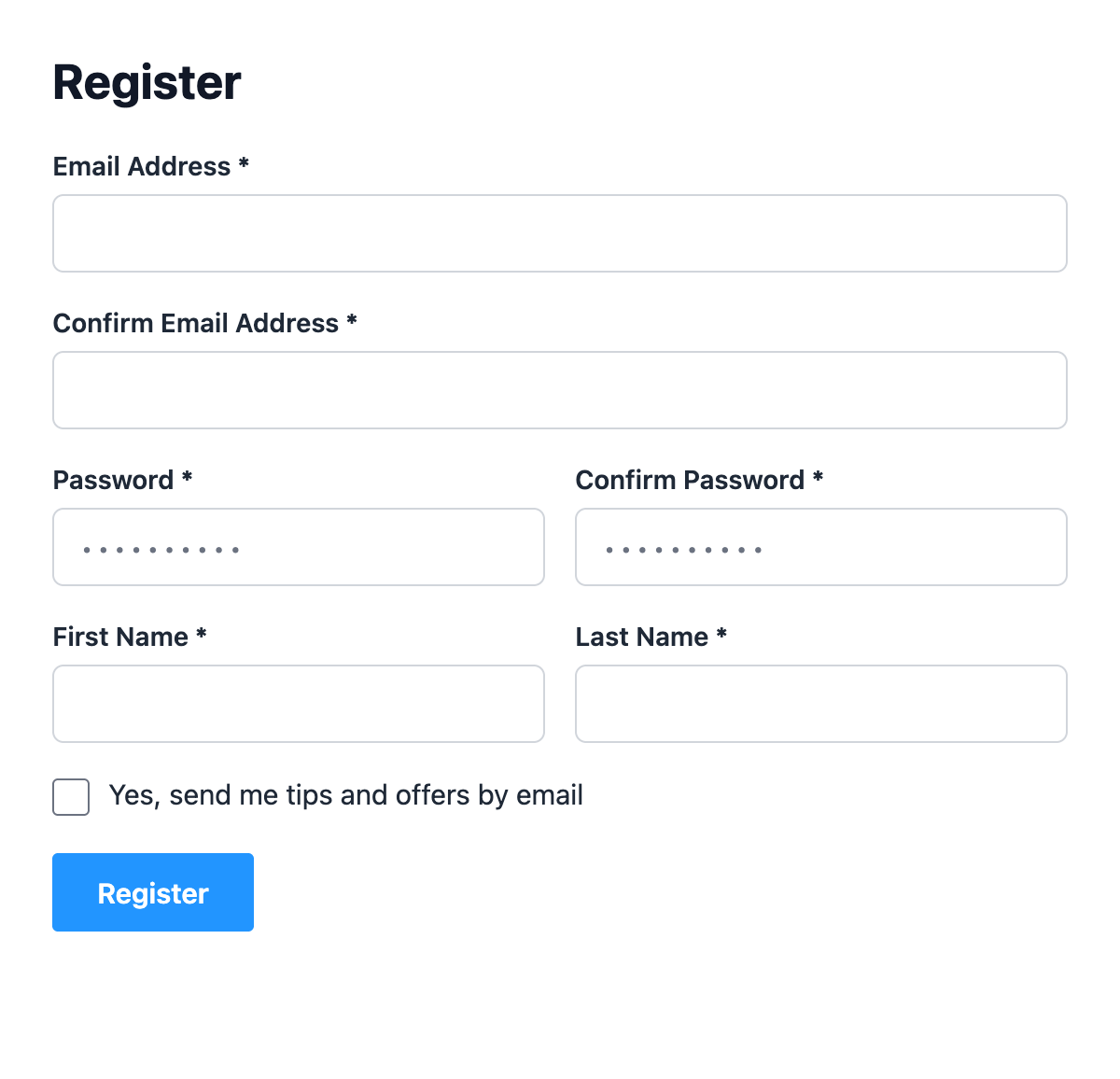
It looks the same on the checkout and the free enrollment form, using the same label.
Which Sync Rules Wait for Consent
Selecting LifterLMS Registration & Checkout requires consent for:
- User Roles, which syncs the new WordPress account;
- LifterLMS Course;
- LifterLMS Membership.
A student who doesn’t tick the box still gets their account, course, and membership. They just aren’t added to your list by these rules. Rules that take a student off a list still run without consent. To set up the rules themselves, see how to sync LifterLMS with your email marketing software.
When a Student Counts as Opted In
- New visitors, on the registration form or at checkout, opt in when LifterLMS creates their account. If the sign-up fails, for example because the email address is already registered, nothing is recorded.
- Logged-in students at checkout or on the free enrollment form opt in once LifterLMS has accepted the checkout and created the order. For a paid plan, that is before the payment is confirmed.
Consent belongs to the student, not to one course. Once they have opted in, their later enrollments and memberships sync too.
Example: From a Free Course to a Paid Membership
Suppose you offer a free “Start Here” course and sell an annual membership. Existing students enroll in the free course with the one-click button, and newcomers use the registration form.
Show the checkbox on both, with the label “Send me lessons and member offers”. A student who ticks it while enrolling in the free course is now opted in. When they later buy the membership, the checkout doesn’t ask again, and your LifterLMS Membership sync rule adds them to your members list.
Good to Know
- Students from before keep syncing while Existing Contacts is on (the default).
- Your own newsletter field added to a LifterLMS form isn’t read by FuseWP. Remove it so students only see one box.
- Custom templates that replace LifterLMS’s forms without its hooks won’t show the checkbox.
Conclusion
With FuseWP’s opt-in checkbox on your LifterLMS registration form, checkout, and free enrollment button, your list fills with students who asked to hear from you, while enrollment works as it always has. For how consent records are kept and erased, see Existing Contacts, Privacy & FAQ.