
Is your Tutor LMS site signing up both students and instructors, and do you want each of them to choose whether they join your email list?
Tutor LMS has separate registration forms for students and for instructors, plus its own checkout for paid courses. FuseWP’s opt-in checkbox can go on any of the three. People who tick it are added to your email marketing software or CRM; people who don’t still register, apply to teach or buy a course as usual.
This article covers the setup, the choice between student and instructor forms, free courses, and when consent is recorded on Tutor LMS.
The checkbox is free. The Tutor LMS course sync rules it gates need FuseWP Pro. For the basics of the feature, read Getting Started with the Opt-in Checkbox.
Set It Up in Three Steps
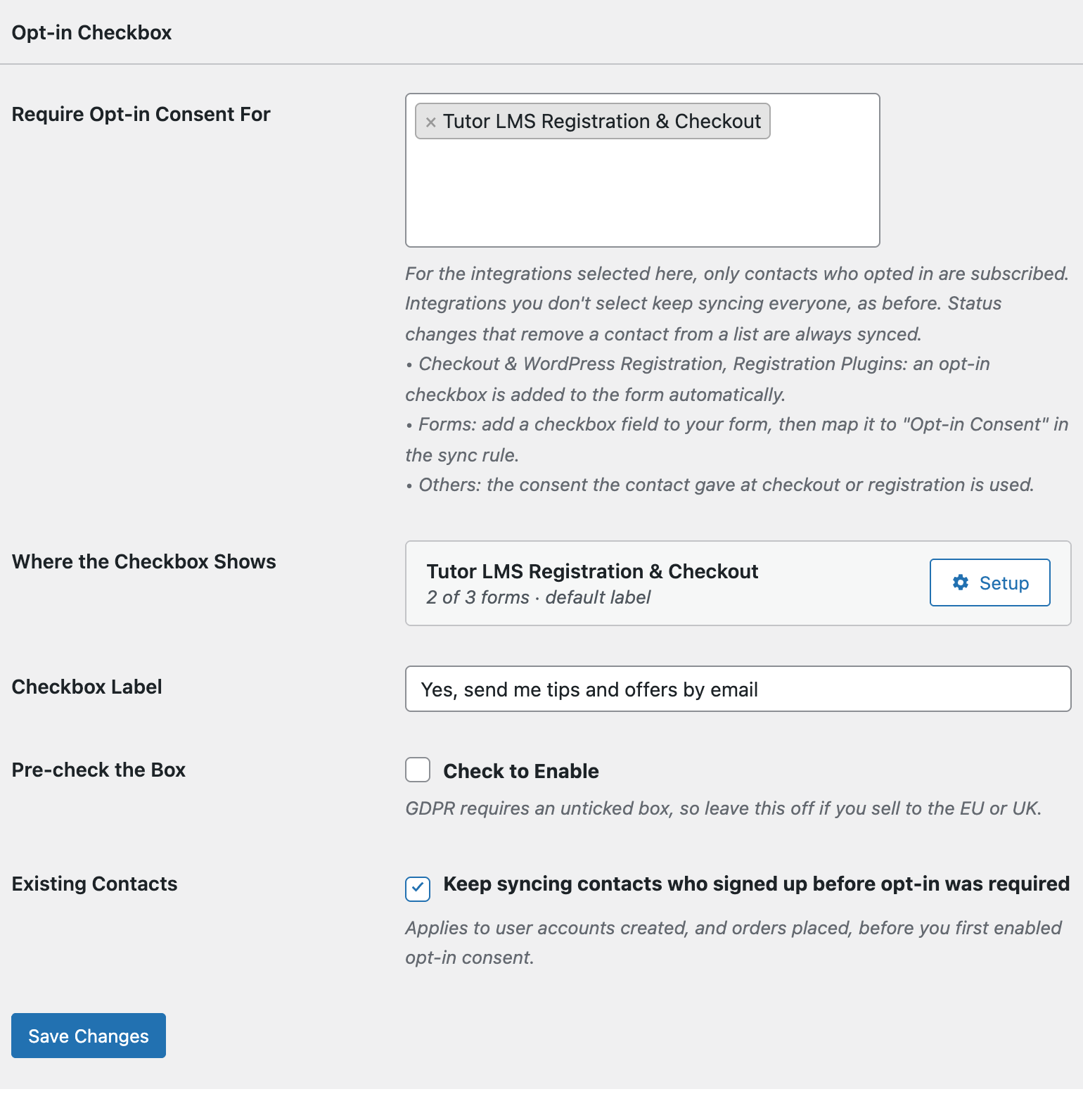
- Go to FuseWP >> Settings >> General and scroll to Opt-in Checkbox.
- In Require Opt-in Consent For, select Tutor LMS Registration & Checkout from the Registration Plugins: adds an opt-in checkbox group.
- Click Save Changes.
Students, Instructors, or Both?
Click Setup next to Tutor LMS in Where the Checkbox Shows. Under Show on, choose All registration forms, or Only these forms and pick from “Student registration”, “Instructor registration” and “Checkout”.
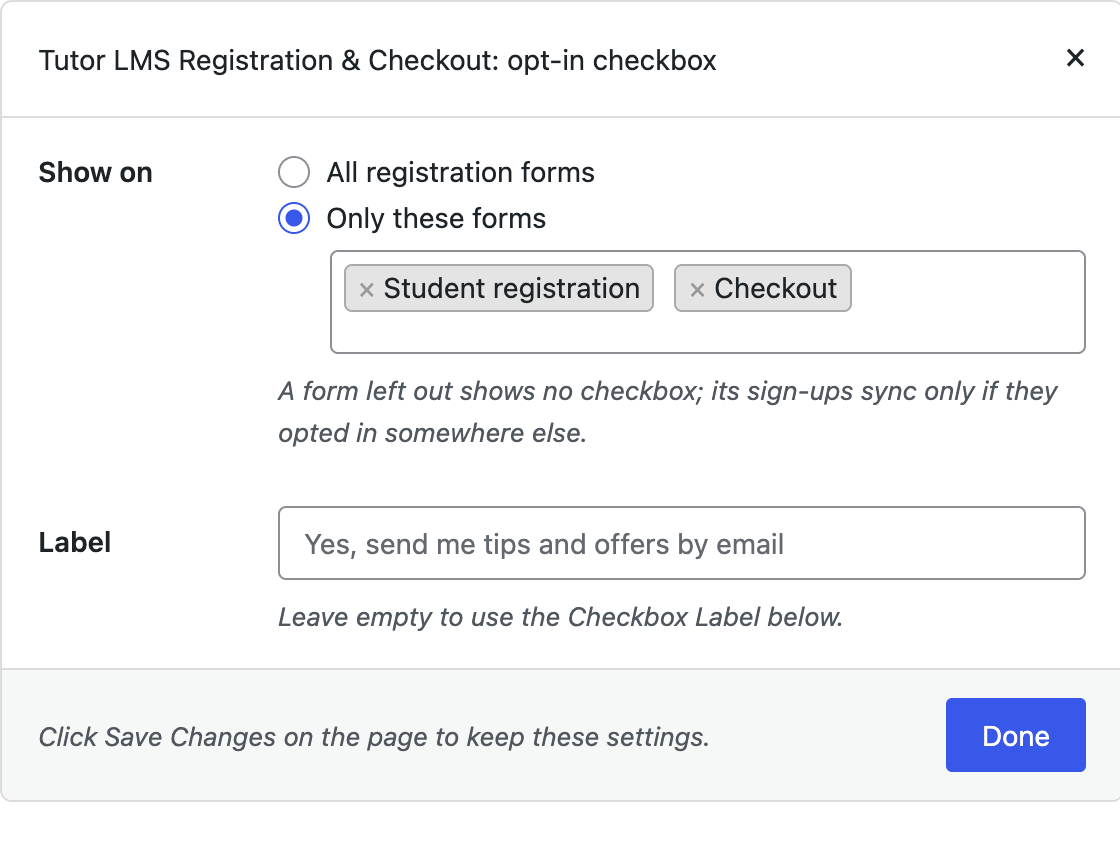
Leaving the instructor form out can look tidy if your newsletter is for learners, but there’s a catch. Consent is required for all your User Roles sync rules, so instructors who sign up through a form without the checkbox won’t be added to any list by those rules, unless they opt in elsewhere. If you keep a separate list for instructors, for example to send teaching guidelines to a language school’s tutors, keep the checkbox on the instructor form too.
The Label is shared by all Tutor LMS forms, so word it to suit both groups, such as “Keep me updated by email about new courses and news”. Leave it empty to fall back to the Checkbox Label. Click Done, then Save Changes.
Where the Checkbox Appears
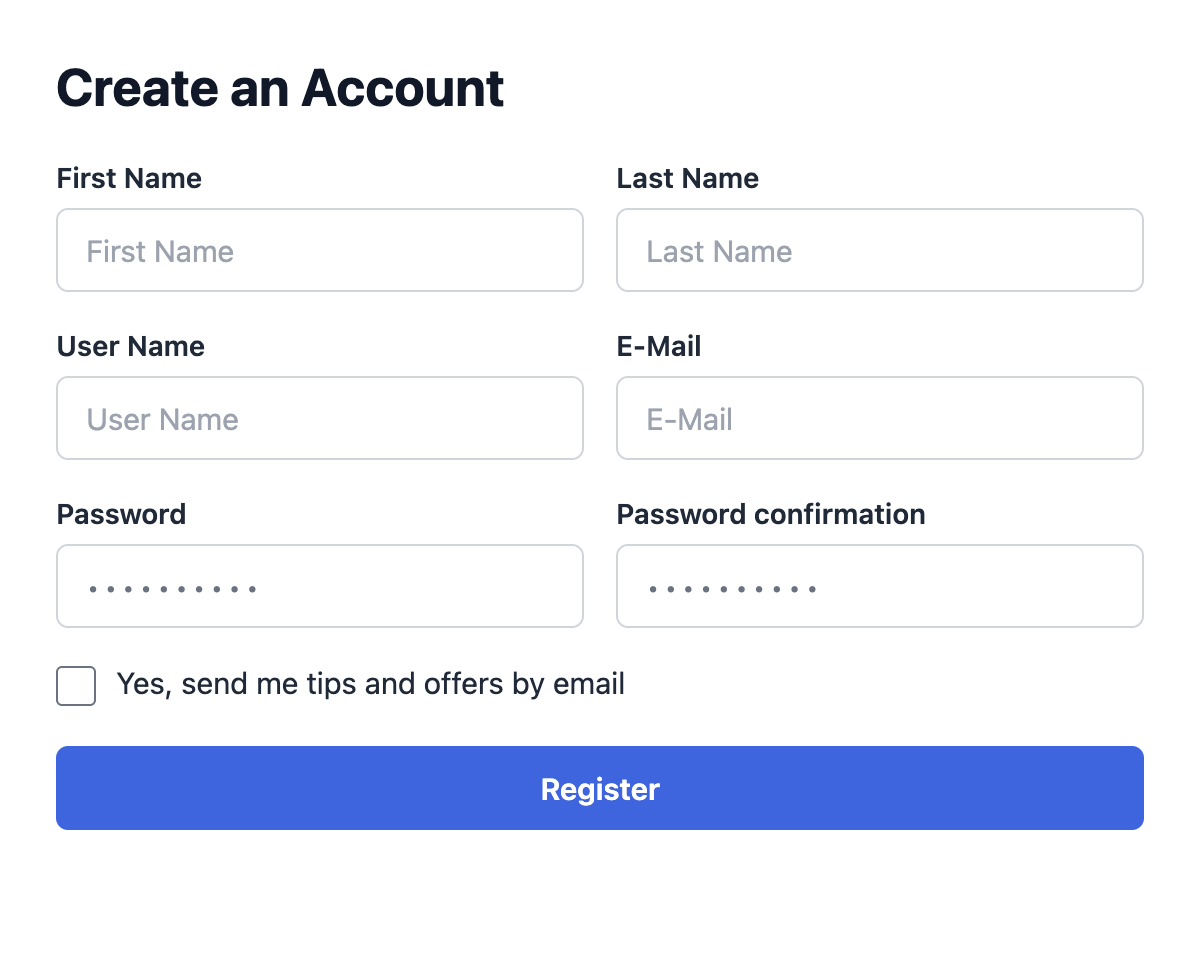
On the student and instructor registration forms, the checkbox shows below the form fields, in the place Tutor LMS lets other plugins add theirs, before the register button. Logged-in visitors don’t see it there.
On Tutor’s checkout, it sits just above the pay button. It shows to logged-in students who haven’t opted in yet and is hidden once they have.
Why There’s Only One Checkbox on Tutor’s Sign-Up Forms
Tutor LMS’s registration forms run WordPress’s own registration hook. If you selected WordPress Registration Form, its checkbox would show up on Tutor’s forms too.
Selecting Tutor LMS Registration & Checkout swaps it for Tutor’s own. Visitors see a single box, consent is recorded under Tutor LMS, and your Setup choices for each form apply.
What About Free Courses?
Tutor’s “Enroll Now” button for a free course isn’t a form, so there’s nowhere to put a checkbox. Those enrollments sync only if the student opted in at registration or somewhere else on your site.
Since students need an account before enrolling, keeping the checkbox on the student registration form gives nearly every free-course student the chance to opt in. This is the same approach used for LMS plugins without a sign-up form of their own, described in opt-in consent for LMS and other plugins.
Which Sync Rules Are Affected
- User Roles: new student and instructor accounts.
- Tutor LMS Courses (Pro)
- Tutor LMS Course Categories (Pro)
- Tutor LMS Course Tags (Pro)
Students who don’t opt in are still enrolled; they just aren’t subscribed by these rules. See how to sync Tutor LMS with your email marketing software to set them up.
When Consent Is Recorded
- At registration, when Tutor creates the account. A sign-up that fails records nothing.
- At checkout, for a logged-in student, once Tutor has accepted the checkout and created the order.
The checkbox is added to Tutor LMS’s own checkout. If you sell your courses through WooCommerce instead, use the WooCommerce checkout opt-in checkbox (Pro).
Conclusion
With FuseWP’s opt-in checkbox on Tutor LMS, students and instructors join your list by choice, and you decide which forms ask. For existing contacts, consent records and GDPR tools, see Existing Contacts, Privacy & FAQ.