
Do you sell subscription plans with Paid Member Subscriptions and want to ask new subscribers, right on the sign-up form, if they also want your emails?
FuseWP can add an opt-in checkbox to the Paid Member Subscriptions registration form. A subscriber who ticks it is synced to your email marketing software or CRM. One who leaves it unticked still picks a plan, pays and gets access as normal, but isn’t added to your list.
This guide covers where the checkbox appears on the Paid Member Subscriptions form, how to set its wording, and what it means for your plan sync rules.
Adding the checkbox is free in FuseWP. The Paid Member Subscriptions plan sync rules it also holds back need FuseWP Pro. New to this feature? Getting Started with the Opt-in Checkbox explains the basics.
Setting It Up
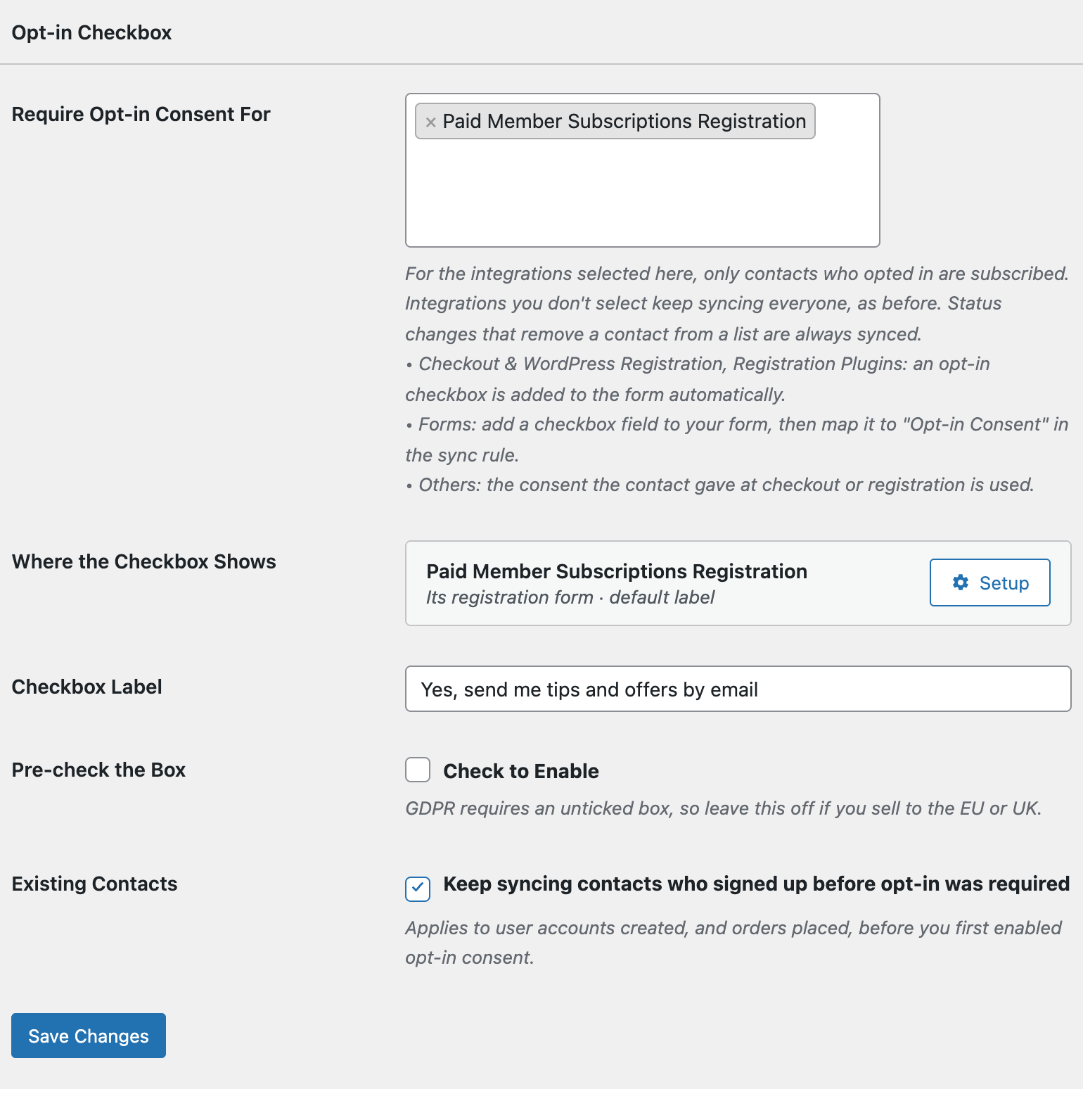
Open FuseWP >> Settings >> General and find the Opt-in Checkbox section.
In Require Opt-in Consent For, look under Registration Plugins: adds an opt-in checkbox and select Paid Member Subscriptions Registration. You’ll only see it while Paid Member Subscriptions is active.
Set a Checkbox Label if you’d like something other than “Subscribe to our newsletter”, then click Save Changes.
One Form, One Label
Paid Member Subscriptions has a single registration form, the one you place with the [pms-register] shortcode. So there is no form list to pick from. In the Where the Checkbox Shows row, Paid Member Subscriptions is summed up as “Its registration form”.
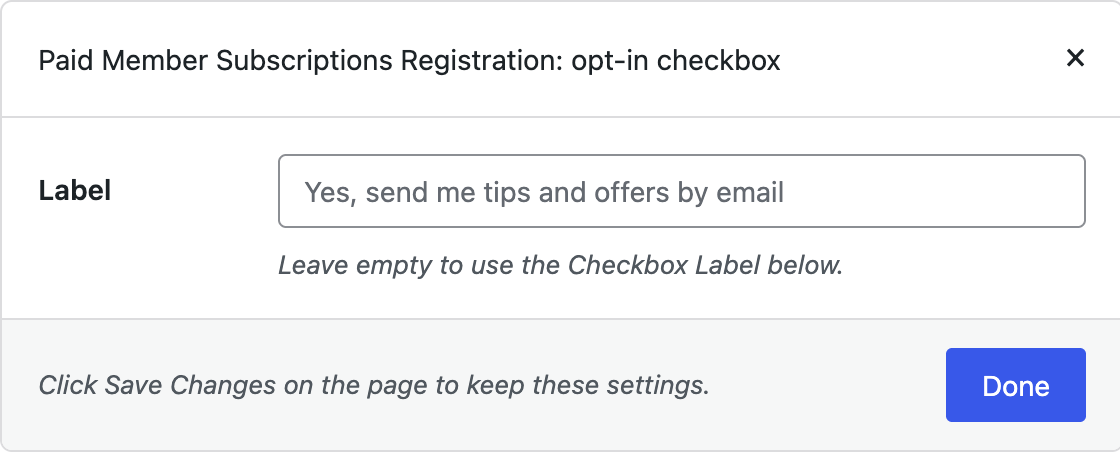
Click Setup if you want this form to use its own wording. The popup only has a Label field. For a subscription site, something like “Email me tips for getting the most from my membership” works well. Leave it empty to fall back to the main Checkbox Label. Click Done, then Save Changes.
Where Subscribers See the Checkbox
On the [pms-register] form, the checkbox comes after the list of subscription plans, just above the Register button. Subscribers fill in their details, choose a plan, and then decide whether to tick the box before they register.
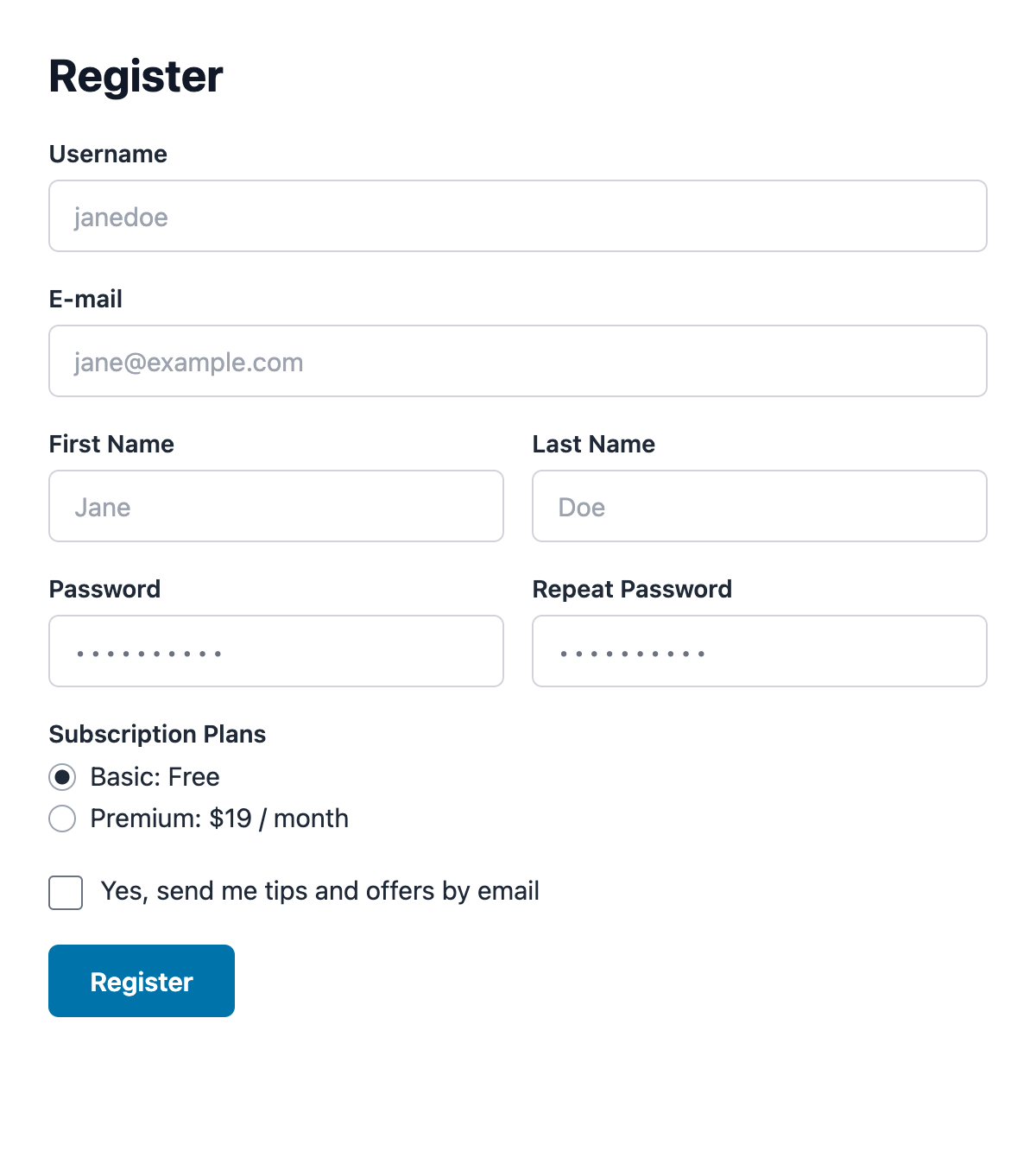
The checkbox isn’t shown to visitors who are already logged in, since they aren’t creating an account.
The Sync Rules It Affects
Once Paid Member Subscriptions Registration is selected, these sync rules only add subscribers who ticked the box:
- User Roles sync rules, which run for every new account;
- Paid Member Subscriptions plan sync rules (FuseWP Pro).
For example, you might have a “Monthly” and an “Annual” plan, each with a sync rule that tags subscribers in your CRM. Someone who signs up for the Annual plan without ticking the box gets the plan, but isn’t tagged or added. If they opt in later somewhere else on your site, such as another checkout with FuseWP’s checkbox, their plan starts syncing from then on.
When Consent Is Saved
Consent is saved at the moment Paid Member Subscriptions creates the new account. If registration fails, for example because an email address is already in use or a required field is empty, no consent is recorded and nothing syncs.
FuseWP keeps the first time someone opted in, along with where they did it. That record covers the person, not one plan, so a later plan change keeps syncing without asking again.
Using Profile Builder With Paid Member Subscriptions
Some sites register members with Profile Builder and Email Confirmation, then show the Paid Member Subscriptions plan form after the person confirms their email. By then the account already exists, so FuseWP doesn’t show a checkbox on that plan form. Ask for consent on the Profile Builder form instead, by also selecting Profile Builder Registration. See the Profile Builder opt-in checkbox for how that works.
Before You Go Live
- Remove any newsletter field you built yourself. FuseWP doesn’t read it, so you’d show two boxes.
- Custom registration templates that skip Paid Member Subscriptions’ own form hooks won’t show the checkbox.
- Current subscribers who joined before you turned this on keep syncing while Existing Contacts is on, and cancellations and expirations always sync. More in Existing Contacts, Privacy & FAQ.
Conclusion
With one setting, your Paid Member Subscriptions registration form asks new subscribers for consent below the plan list, and your plan and user role sync rules only add the people who said yes.