
Do you use Profile Builder for front-end registration on your WordPress site, and want new users to opt in before they’re added to your email list?
FuseWP can add an opt-in checkbox to Profile Builder registration forms. If a new user ticks it, FuseWP syncs them to your email marketing software or CRM. If they don’t, Profile Builder registers them as usual, and FuseWP doesn’t add them to your list.
In this guide, you’ll learn how to turn the checkbox on for Profile Builder, how form selection works with Profile Builder Pro, and how consent is handled when you use Email Confirmation.
This feature is free in FuseWP. If you’re starting out, see Getting Started with the Opt-in Checkbox.
Adding the Checkbox to Profile Builder
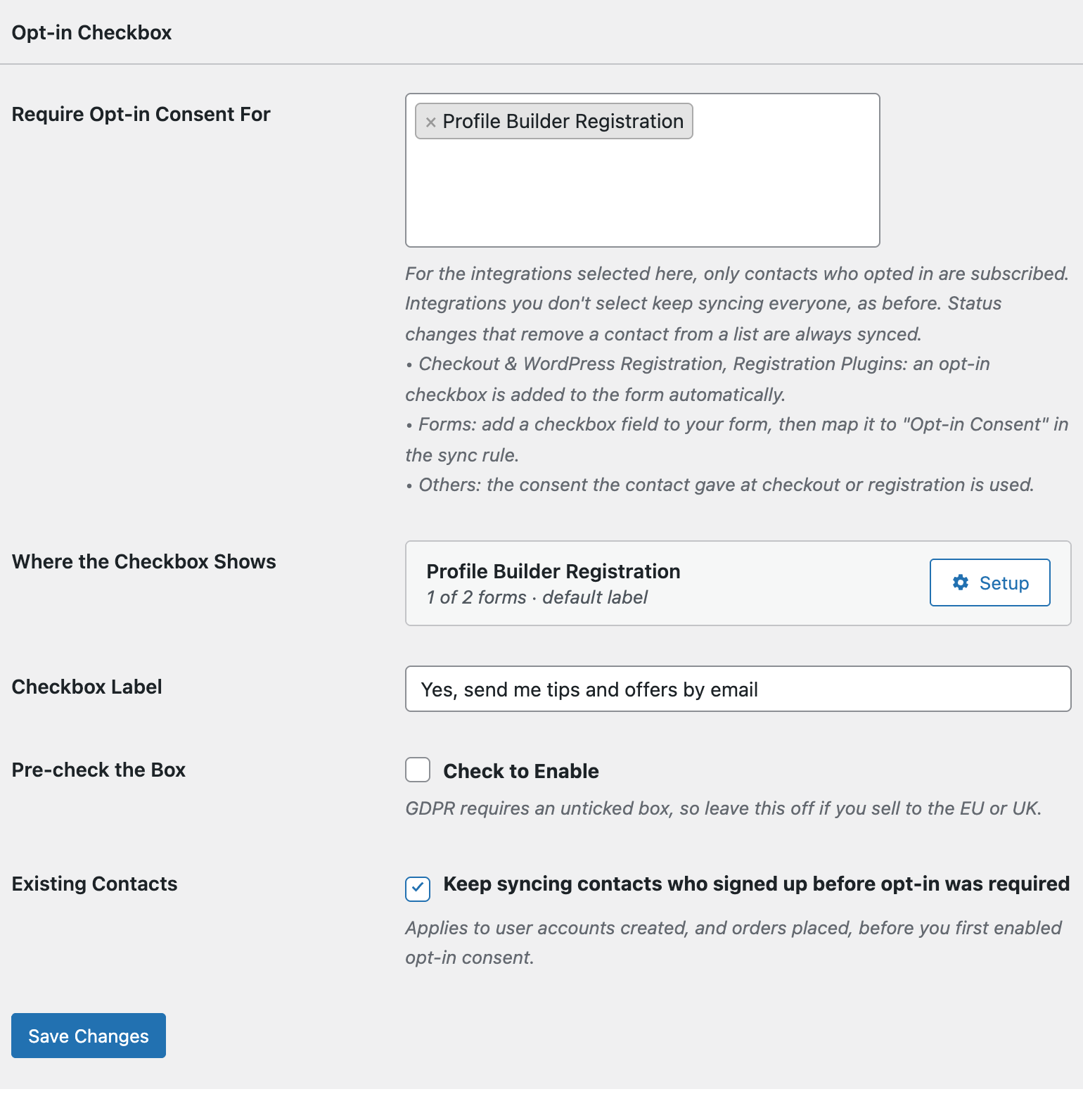
Go to FuseWP >> Settings >> General. In the Opt-in Checkbox section, open Require Opt-in Consent For and pick Profile Builder Registration under Registration Plugins: adds an opt-in checkbox.
Give the checkbox a Checkbox Label, such as “Yes, send me news and updates by email”, and click Save Changes.
One Form or Many
The registration form you place with [wppb-register] is the only one in the free version of Profile Builder. In that case the Setup popup in Where the Checkbox Shows has just a Label field, and the checkbox shows on that form.
Profile Builder Pro lets you create extra registration forms. When you have two or more, the popup also has Show on, where you can keep All registration forms or switch to Only these forms and pick them by name. If you also use a plain [wppb-register] shortcode without a form of its own, it’s listed as Default registration form.
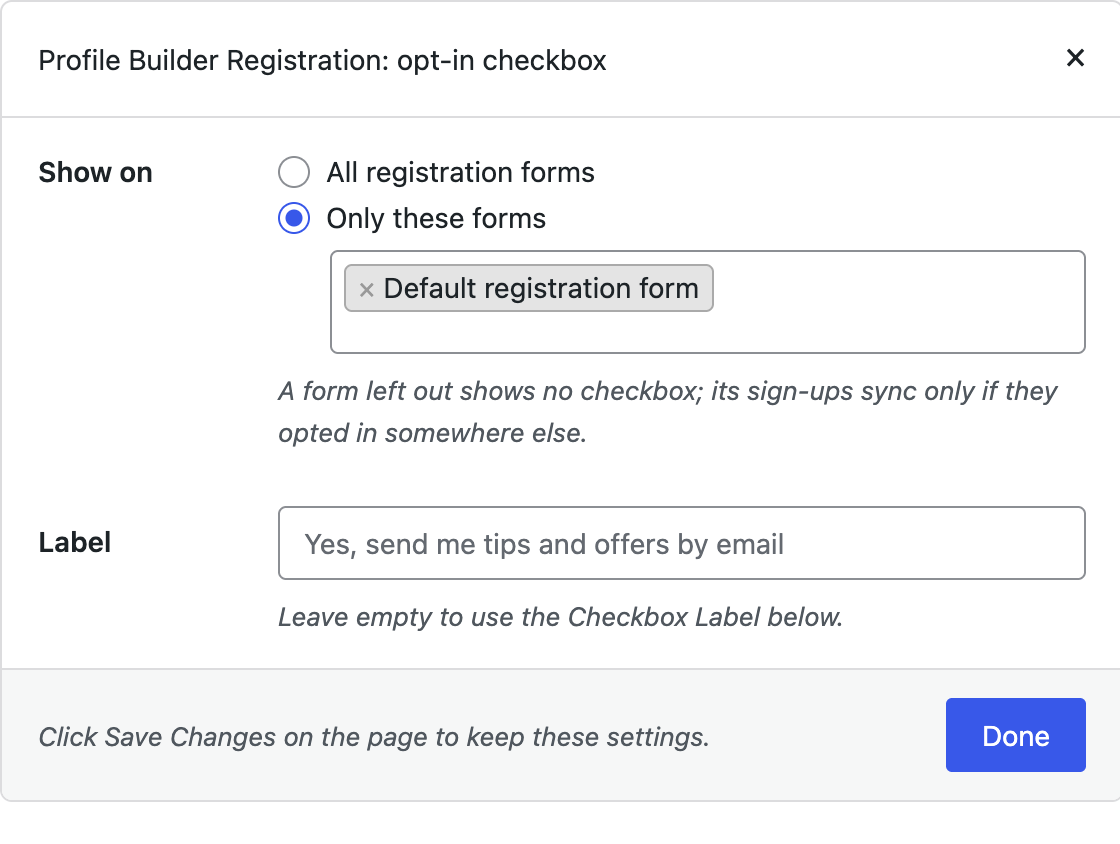
For example, if you have a “Customer” form and a “Supplier” form, you might ask only customers for marketing consent. Pick the Customer form, then click Done and Save Changes. People who register through a form you left out only sync if they opt in elsewhere on your site.
The popup’s Label sets wording for Profile Builder forms only. Leave it empty to use the main Checkbox Label.
On the Registration Form
The checkbox shows just before the form’s submit button, after the fields you set up in Profile Builder.
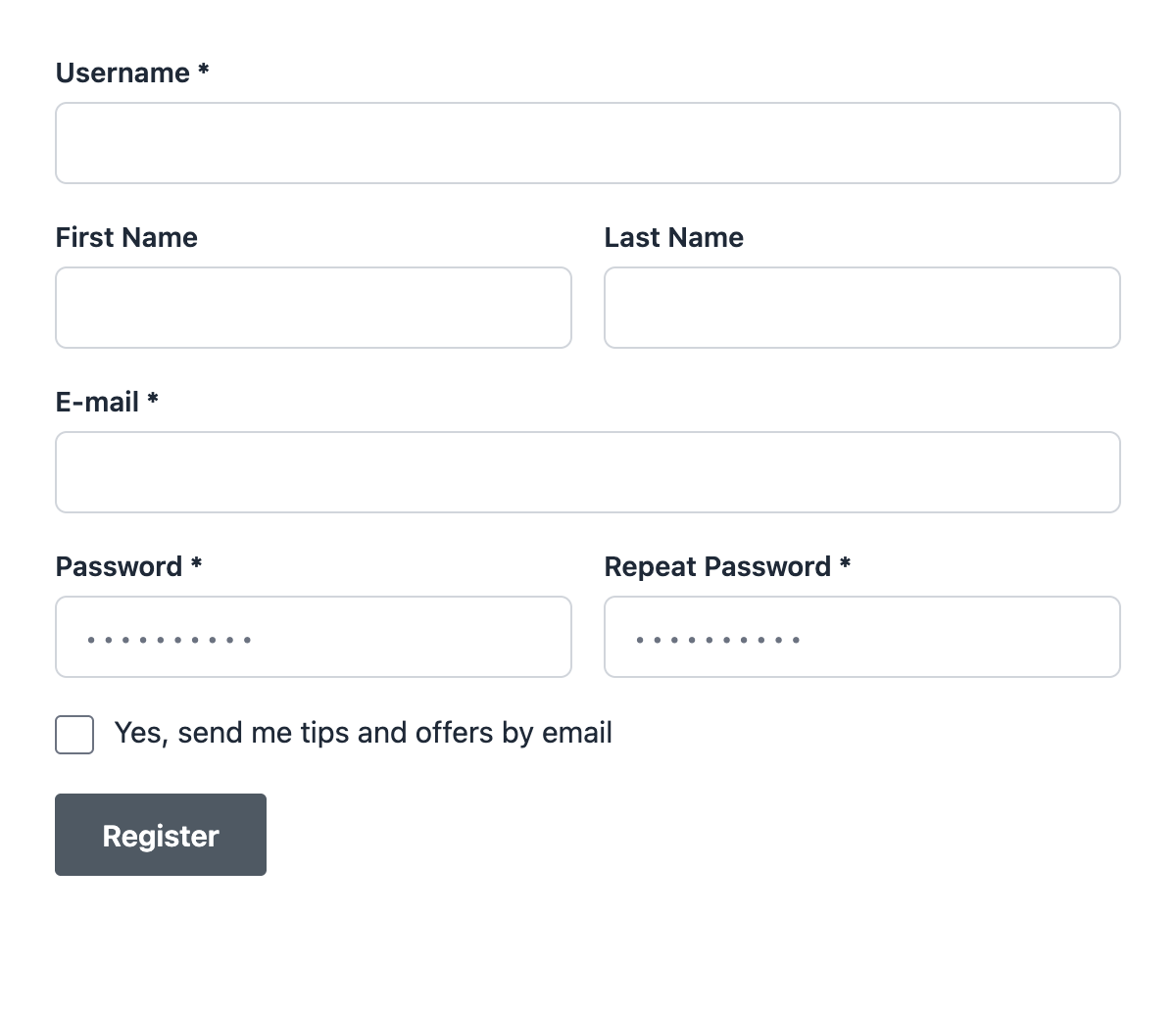
It is hidden from anyone who’s logged in. Logged-in visitors aren’t creating an account, and an admin who registers someone through the form isn’t giving consent for that person.
Syncs That Need Consent
Every Profile Builder registration creates a WordPress user. Selecting Profile Builder Registration makes your User Roles sync rules add only users who ticked the box. For setting up the sync itself, see connecting Profile Builder to your email marketing software.
When You Use Email Confirmation
With Profile Builder’s Email Confirmation turned on, submitting the form doesn’t create an account yet. Profile Builder saves the sign-up and creates the account only when the person clicks the link in the confirmation email.
FuseWP keeps the tick together with that saved sign-up. When the person clicks the link and the account is created, FuseWP records their consent at that moment. This means:
- someone who ticked the box and confirmed their email is synced once their account exists;
- someone who never confirms has no account and isn’t synced;
- someone who didn’t tick the box gets their account after confirming, but isn’t added to your list.
Without Email Confirmation, consent is recorded as soon as Profile Builder creates the account. A sign-up that fails validation records nothing.
Using Paid Member Subscriptions Too
If your site shows a Paid Member Subscriptions plan form after the Profile Builder confirmation, the account already exists by then, so no checkbox shows on that plan form. The Profile Builder form is where people opt in. See the Paid Member Subscriptions opt-in checkbox for that plugin’s own form.
Things to Keep in Mind
- A newsletter checkbox you added yourself in Profile Builder’s form fields isn’t read by FuseWP. Remove it, or visitors see two boxes.
- Templates that rebuild the registration form without Profile Builder’s hooks won’t show the checkbox.
- Users who registered before you turned this on keep syncing while Existing Contacts is on. Read more in Existing Contacts, Privacy & FAQ.
Conclusion
FuseWP’s opt-in checkbox works with free and Pro Profile Builder forms and keeps up with Email Confirmation, so new users are only added to your list after they tick the box and their account is created.