
Do you run a membership site with ProfilePress and want new members to choose for themselves whether they join your email list, both when they register and when they buy a plan?
FuseWP can add an opt-in checkbox to your ProfilePress registration forms, your melange (login and registration) forms, and the ProfilePress checkout. Members who tick it are synced to your email marketing software or CRM. Members who leave it unticked still register, pay and get their membership exactly as before. They just aren’t added to your list.
In this article, you will learn how to turn the checkbox on for ProfilePress, choose which forms show it, and when a ProfilePress member counts as opted in.
The checkbox itself is free in FuseWP. It also holds back your ProfilePress membership plan sync rules, which are part of FuseWP Pro. If you haven’t used the opt-in checkbox before, read Getting Started with the Opt-in Checkbox first.
Turning On the Checkbox for ProfilePress
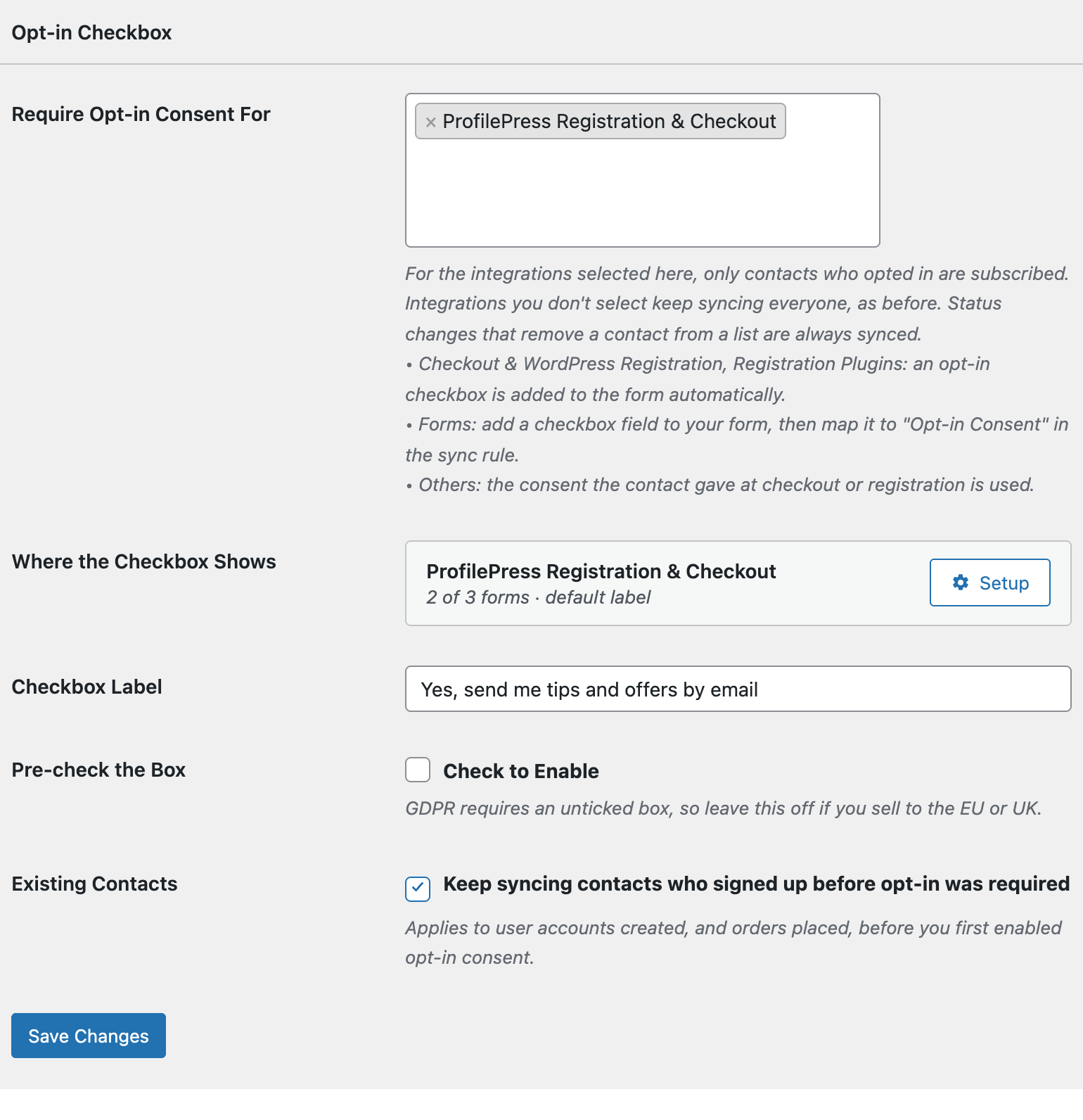
- Go to FuseWP >> Settings >> General and scroll down to the Opt-in Checkbox section.
- Click into Require Opt-in Consent For. Under Registration Plugins: adds an opt-in checkbox, select ProfilePress Registration & Checkout. It is only listed while ProfilePress is active.
- Optionally set the Checkbox Label. If you leave it empty, visitors see “Subscribe to our newsletter”.
- Click Save Changes.
Once saved, a Where the Checkbox Shows row appears with a Setup button next to ProfilePress.
Choosing Registration, Melange and Checkout Forms
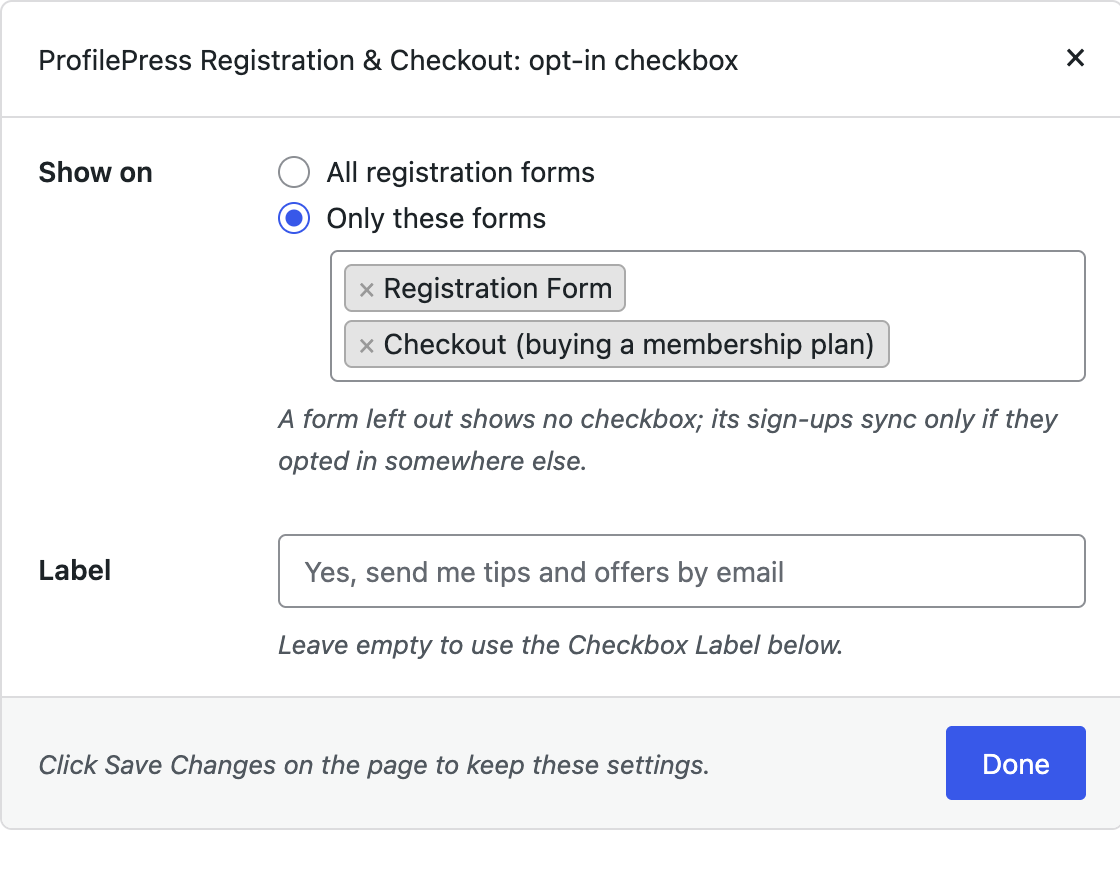
By default, the checkbox shows on every ProfilePress registration form, every melange form and the checkout. Many sites want something narrower, for example a box on the checkout but not on a free “community” sign-up form. Click Setup to decide.
In the popup, Show on offers All registration forms or Only these forms. When you pick the second option, the box lists:
- each ProfilePress registration form by its name;
- each melange form, with “(melange)” after its name;
- Checkout (buying a membership plan).
Type to search if you have many forms. A form you leave out shows no checkbox, and people who sign up through it only sync if they opted in somewhere else on your site.
The Label field lets ProfilePress forms use their own wording, for example “Send me member-only offers and new content”. Leave it empty to use the main Checkbox Label. Click Done, then Save Changes.
What Your Visitors See
On a registration form, the checkbox appears just above the submit button, unticked unless you turned on Pre-check the Box. On a melange form it sits in the registration part. On the checkout it appears above the button that completes the purchase.
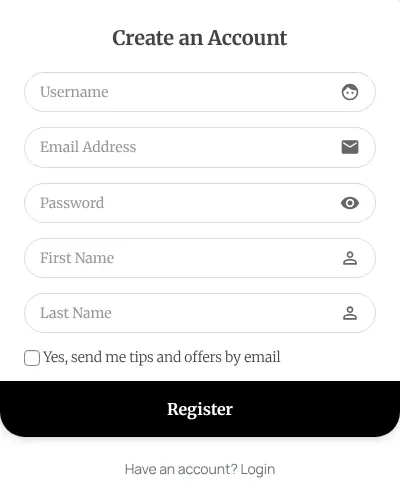
If you preview a ProfilePress form from your dashboard while logged in, the checkbox still shows in the preview, so you can check how it looks. Visitors who are already logged in don’t see it on registration forms, because they aren’t signing up.
Which Sync Rules Need Consent
Selecting ProfilePress Registration & Checkout holds back two kinds of sync rule:
- your User Roles sync rules, since every new ProfilePress account is a WordPress user;
- your ProfilePress membership plan sync rules (FuseWP Pro).
Say you sell a “Premium” plan and have a sync rule that adds Premium members to a “Premium Members” list. A buyer who ticks the box at checkout lands on that list. A buyer who doesn’t still gets the Premium plan, but stays off the list.
When a ProfilePress Member Counts as Opted In
- Registration and melange forms: consent is saved when ProfilePress creates the account. If the sign-up fails, for example because the username is taken, nothing is recorded.
- A visitor buying a plan at checkout: ProfilePress creates their account during checkout, and consent is saved at that moment.
- A logged-in member buying a plan: the checkbox shows on the checkout if they haven’t opted in yet. Consent is saved once ProfilePress has accepted the checkout and created the order, which can be before an off-site payment gateway confirms the payment.
Members who already opted in don’t see the box again at checkout.
Things to Check
- Melange forms need a recent ProfilePress. They require the ProfilePress release after 4.17.7. On older versions, the registration part of a melange form shows no checkbox.
- Don’t add a second newsletter field. If you already added your own newsletter checkbox in the ProfilePress form builder, FuseWP doesn’t read it. Remove it so visitors only see one box.
- Custom templates. The checkbox is added through ProfilePress’s own form hooks. A theme or add-on that replaces the form without them won’t show it.
- Existing members who joined before you turned this on keep syncing while Existing Contacts is on, and removals such as an expired plan always sync. See Existing Contacts, Privacy & FAQ.
Conclusion
With the FuseWP opt-in checkbox on ProfilePress, you choose exactly which registration, melange and checkout forms ask for consent, and only members who said yes are added to your list. If you also use the default WordPress sign-up page, see adding the opt-in checkbox to the WordPress registration form.