
Is your community, directory or member site built on UsersWP, and do you want people who register to decide whether they hear from you by email?
FuseWP adds an opt-in checkbox to UsersWP registration forms. When a new user ticks it, FuseWP syncs them to your email marketing software or CRM. When they don’t, their UsersWP account and profile are created as usual, and they simply aren’t added to your list.
Below, you’ll see how to switch the checkbox on for UsersWP, show it on only some of your registration forms, and how it behaves with email activation and admin approval.
This is a free FuseWP feature. For an overview of how opt-in consent works across your site, see Getting Started with the Opt-in Checkbox.
Step 1: Select UsersWP
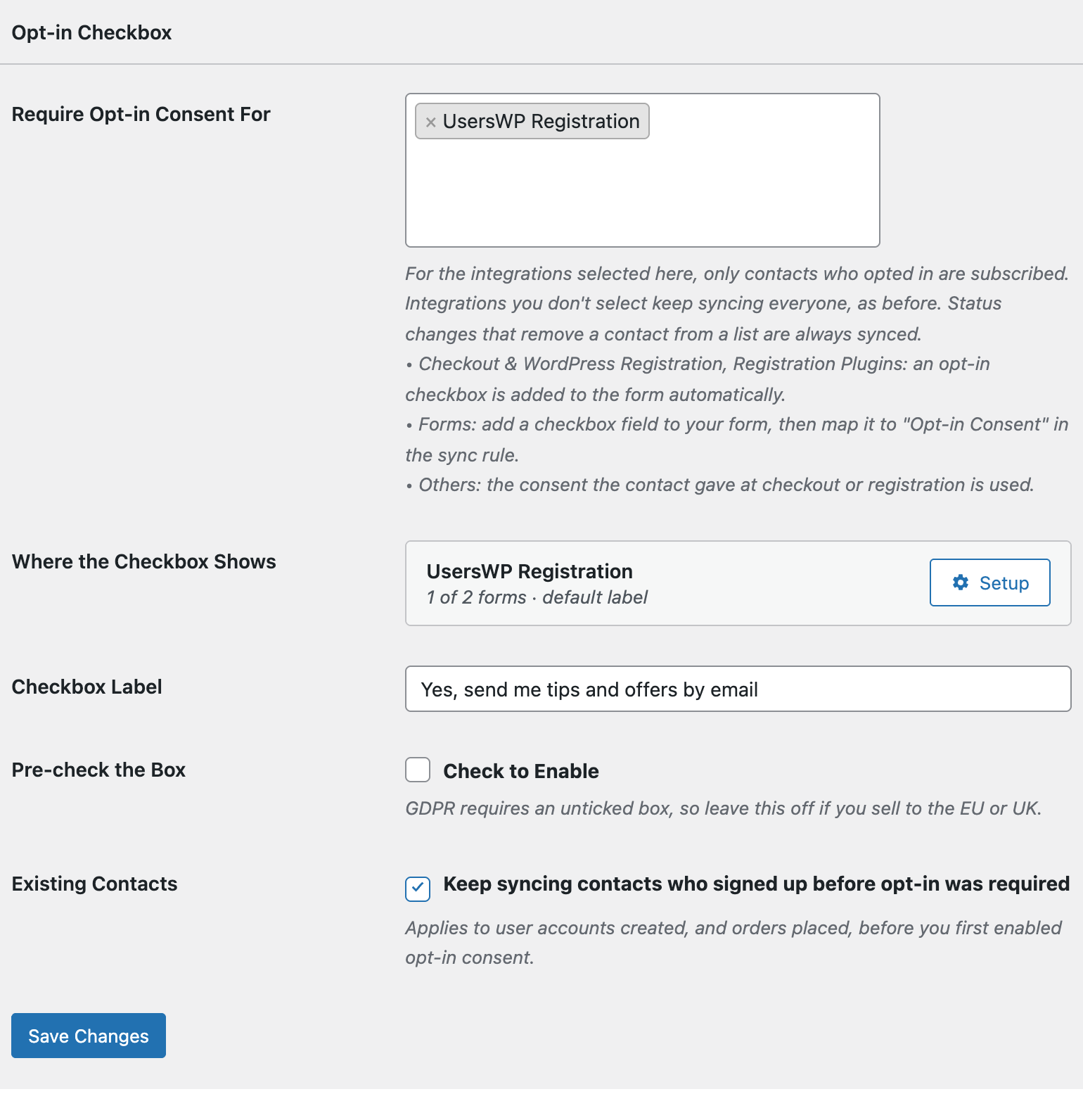
Head to FuseWP >> Settings >> General and scroll to Opt-in Checkbox. In the Require Opt-in Consent For field, choose UsersWP Registration from the Registration Plugins: adds an opt-in checkbox group.
Write the text people will see in Checkbox Label, for example “Email me when new members and listings join”, and click Save Changes.
Step 2: Decide Which Registration Forms Ask
UsersWP lets you create more than one registration form, for example one for regular members and one for business owners. When your site has two or more, the Setup button next to UsersWP in Where the Checkbox Shows lets you choose between them:
- All registration forms shows the checkbox on every UsersWP registration form. This is the default.
- Only these forms shows it just on the forms you pick from the list.
So if only your member form should ask for newsletter consent, pick that form and leave the business form out. People who register through a form you left out only sync if they opt in somewhere else on your site.
The same popup has a Label field for wording used only on UsersWP forms. Leave it empty to use the main Checkbox Label. Click Done, then Save Changes.
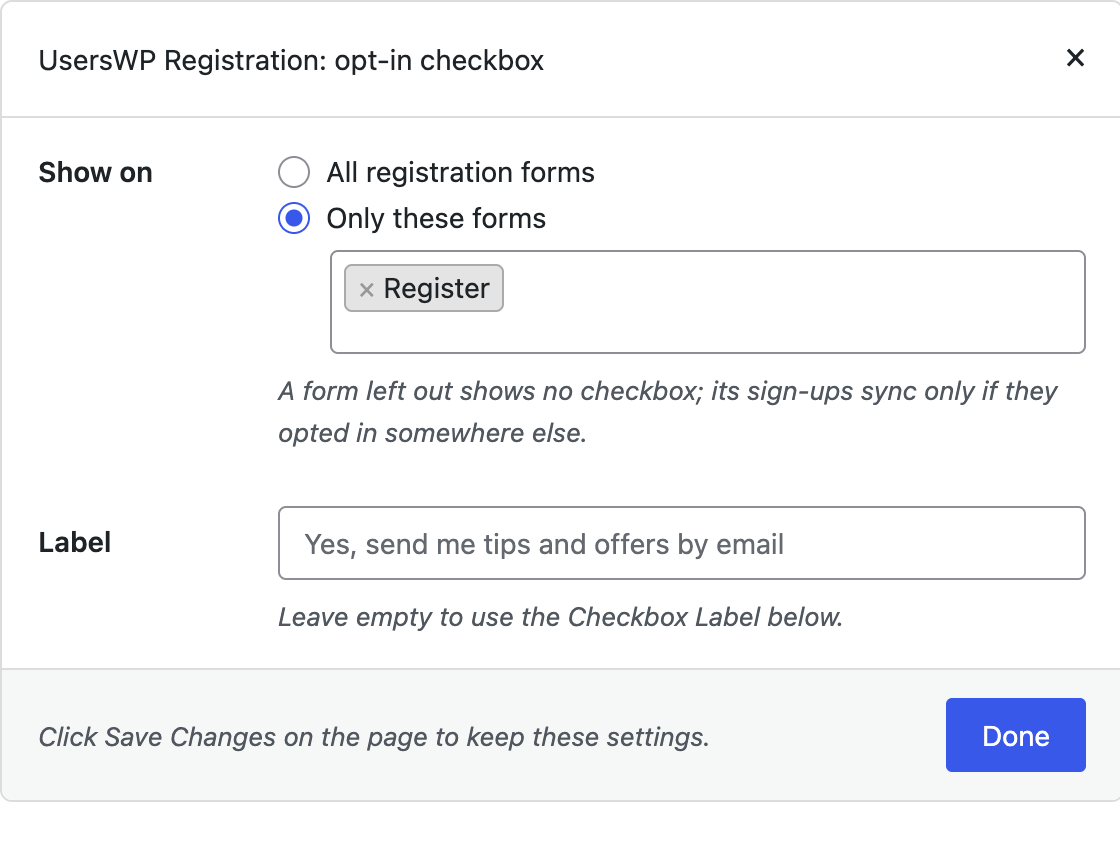
With a single registration form, there’s nothing to choose, so the popup only shows Label. If you later delete forms until only one is left, any earlier choice no longer applies, and the checkbox shows on that remaining form.
What New Users See
The checkbox appears on the UsersWP registration form after the fields, just above the submit button.
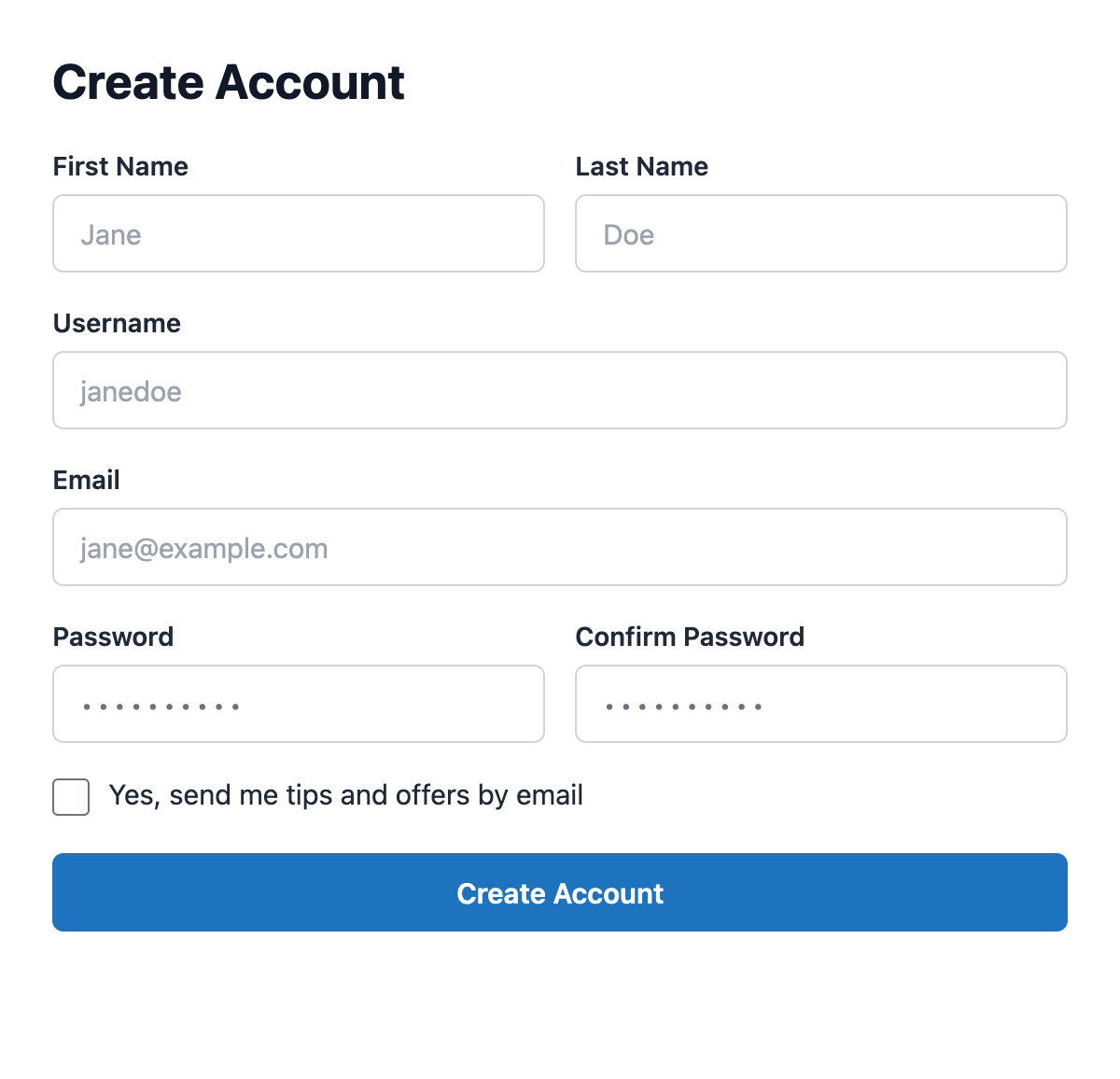
Anyone already logged in doesn’t see the checkbox. That includes you as an admin, so adding a user through a front-end UsersWP form never records consent on their behalf.
Which Syncs Wait for a Tick
UsersWP accounts are WordPress users, so selecting UsersWP Registration requires consent for your User Roles sync rules. If you haven’t connected UsersWP to your email software yet, follow connecting UsersWP to your email marketing software.
Email Activation and Admin Approval
You may have UsersWP set to require email activation, or to hold new accounts until an admin approves them. In both cases UsersWP creates the account straight away and only holds back the login. Because the account exists from the moment the form is sent, FuseWP saves consent at sign-up, not when the person activates or is approved.
If a registration fails, for example because the username is already taken, no account is created and nothing is recorded.
UsersWP and the WordPress Sign-up Page
UsersWP can send visitors from the standard WordPress sign-up page, wp-login.php?action=register, to its own registration form. In that case the checkbox people see is the UsersWP one, and their consent is recorded under UsersWP. So select UsersWP Registration even if you also selected WordPress Registration Form. You can read about the WordPress form in the WordPress registration opt-in checkbox guide.
A Few Reminders
- FuseWP doesn’t read a newsletter field you added to the form yourself. Remove it so people see one checkbox, not two.
- A theme or add-on that replaces the UsersWP registration template without its form hooks won’t show the checkbox.
- Users who registered before you turned this on keep syncing while Existing Contacts is on. Details are in Existing Contacts, Privacy & FAQ.
Conclusion
With FuseWP’s opt-in checkbox on UsersWP, your members choose whether to join your list as they register, you control which registration forms ask, and only people who ticked the box are synced.