
Do you build your sign-up forms with the User Registration plugin by WPEverest, and want each form to ask new users if they’d like to receive your emails?
FuseWP can put an opt-in checkbox on the forms you create with User Registration. New users who tick it are synced to your email marketing software or CRM. Those who don’t still get their account, and FuseWP leaves them off your list.
This article shows you how to turn the checkbox on, pick the User Registration forms that show it, and what to know about the way User Registration sends its forms.
The checkbox is free in FuseWP. For the bigger picture, start with Getting Started with the Opt-in Checkbox.
Enable the Checkbox for User Registration
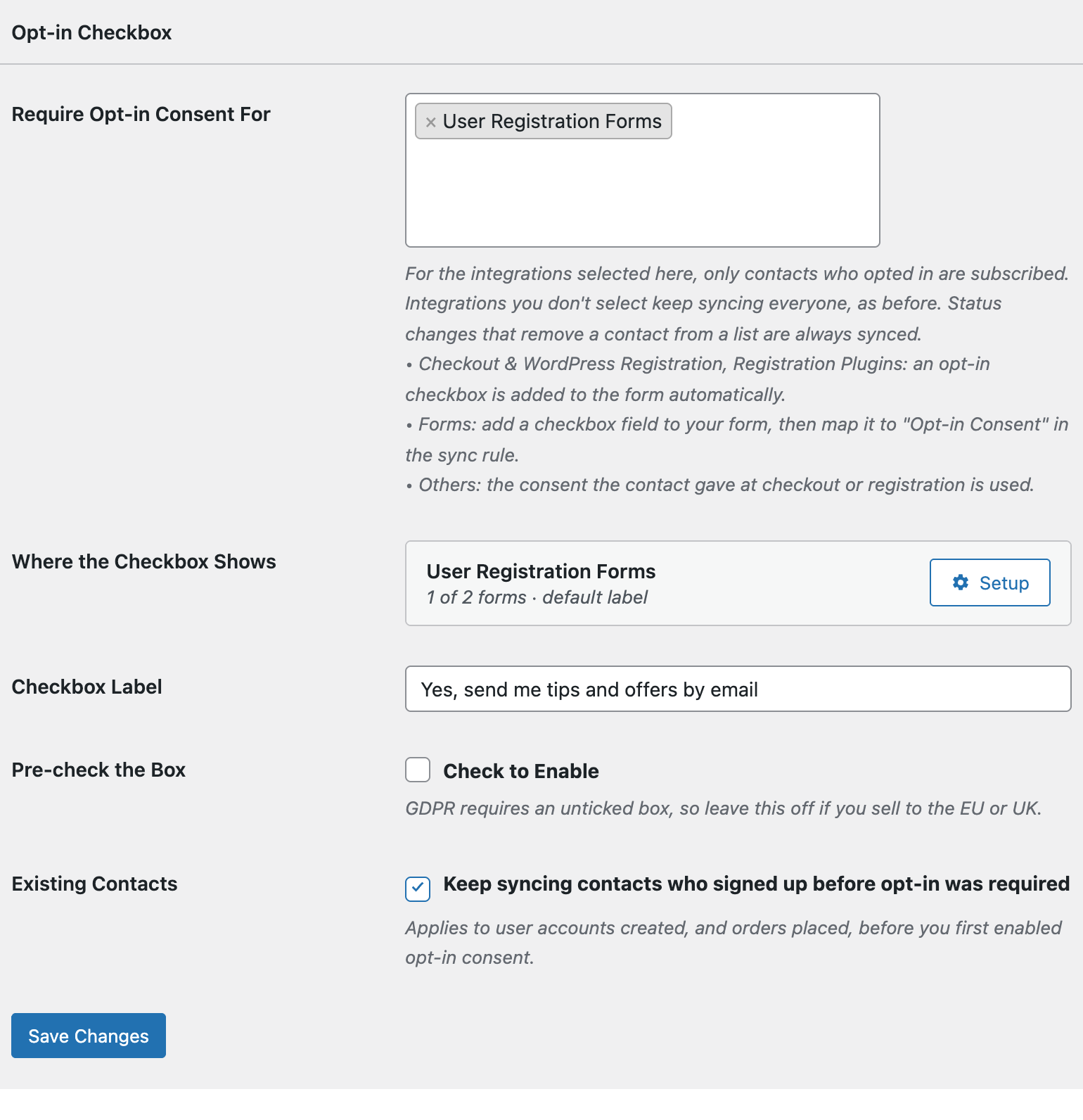
- In your WordPress dashboard, open FuseWP >> Settings >> General.
- In the Opt-in Checkbox section, click Require Opt-in Consent For and select User Registration Forms, listed under Registration Plugins: adds an opt-in checkbox.
- Fill in the Checkbox Label. Without one, the checkbox reads “Subscribe to our newsletter”.
- Click Save Changes.
Pick Your User Registration Forms
User Registration sites often have several forms: a general sign-up form, a form for a specific user role, maybe one for an event or a partner programme. By default the checkbox shows on all of them. To choose, click Setup next to User Registration Forms in the Where the Checkbox Shows list.
Under Show on, select Only these forms and pick the forms from the list. It includes every form you have built with User Registration, so you can type a form’s name to find it quickly.
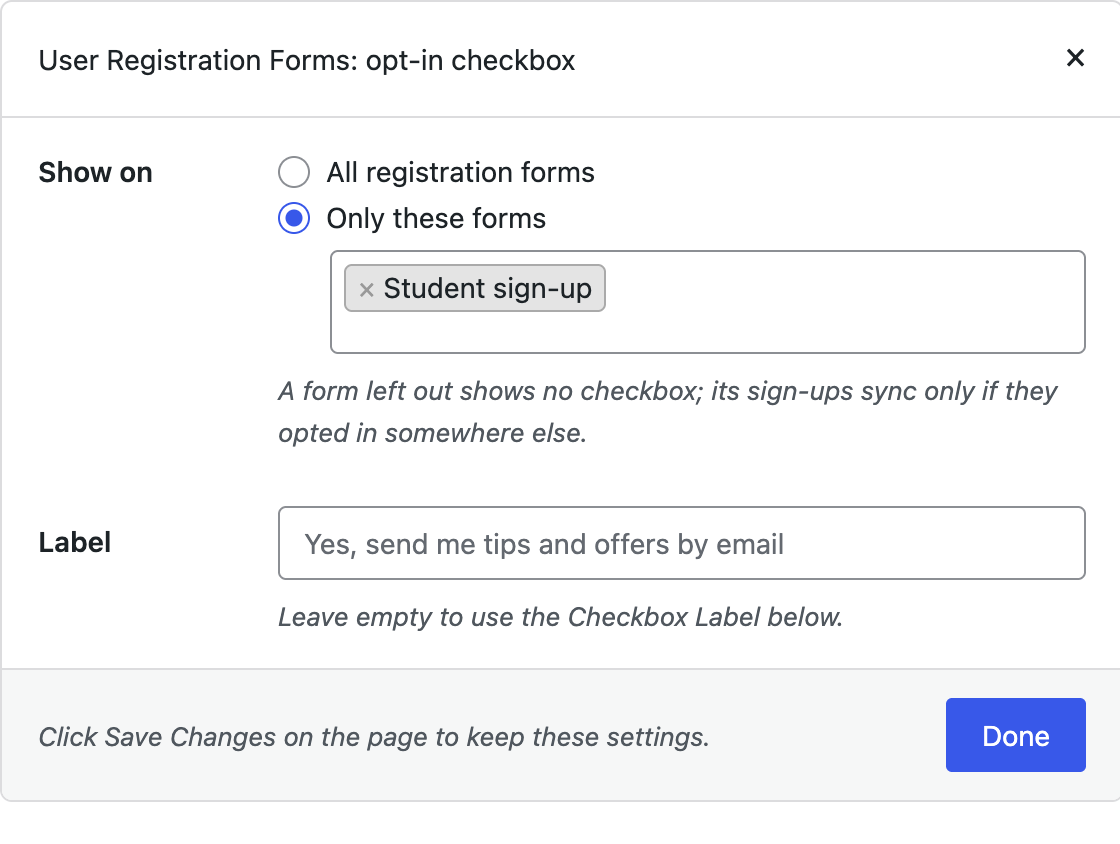
Keep an eye on the summary in the Where the Checkbox Shows row. If you choose Only these forms but don’t pick any, it warns you that no form is picked and the checkbox shows nowhere. And sign-ups from a form you leave out only sync if that person opted in elsewhere on your site.
Use Label to give User Registration forms their own wording, or leave it empty to use the main Checkbox Label. Click Done, then Save Changes.
How It Looks on the Form
The checkbox is placed after your form’s fields, just above the submit button. It uses the same row layout as the rest of the form.
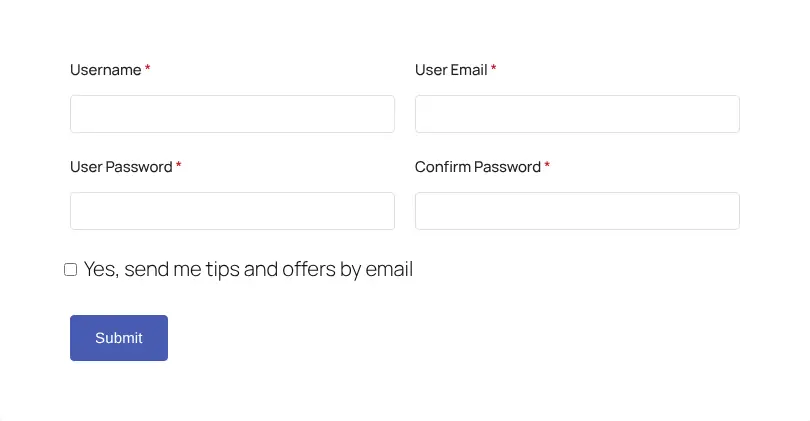
It isn’t shown to logged-in visitors. They aren’t signing up, and if an admin creates an account using a front-end form, that isn’t the new user’s consent.
The Sync Rules It Affects
A User Registration sign-up creates a WordPress user, which your User Roles sync rules pick up. Selecting User Registration Forms makes those rules wait for consent. To set up the sync itself, see connecting User Registration to your email marketing software.
Forms That Submit Without Reloading
User Registration doesn’t send its forms the usual way. When someone clicks the submit button, the plugin’s JavaScript collects its own fields and sends them in the background, without reloading the page. A checkbox from another plugin would normally be left behind.
To handle this, FuseWP adds a small script to pages with a User Registration form. It adds the checkbox’s value to the request User Registration sends. There’s nothing for you to configure, but there is one thing to watch: a caching or optimisation setup that strips scripts from the page can drop the tick. After turning the feature on, register a test account with the box ticked and check that it reaches your list.
Email Confirmation and Admin Approval
User Registration can ask new users to confirm their email address, or wait for an admin to approve them. Either way, it creates the account right away and only holds back the login. So FuseWP saves consent when the form is submitted and the account is created, not later at confirmation or approval.
A registration that fails, such as one with an email address already in use, creates no account and records no consent.
Also Worth Knowing
- If you added your own newsletter checkbox in the User Registration form builder, FuseWP doesn’t read it. Remove it to avoid showing two boxes.
- Users created before you turned this on keep syncing while Existing Contacts is on. See Existing Contacts, Privacy & FAQ.
Conclusion
FuseWP’s opt-in checkbox fits into User Registration’s forms, background submission included, and lets you decide which forms ask. Only new users who tick the box are added to your email list.